(302) 262 8484
How to Fix Your Zoom Camera Not Working Before Your Next Meeting

You log in two minutes early. You click join. But instead of your face popping up on the screen, you are staring at a black box with your name on it. If you need to fix a Zoom camera not working before your boss or client logs on, take a deep breath. We have all been there. Let us get your video back online fast.
Quick Steps to Fix a Zoom Camera Not Working
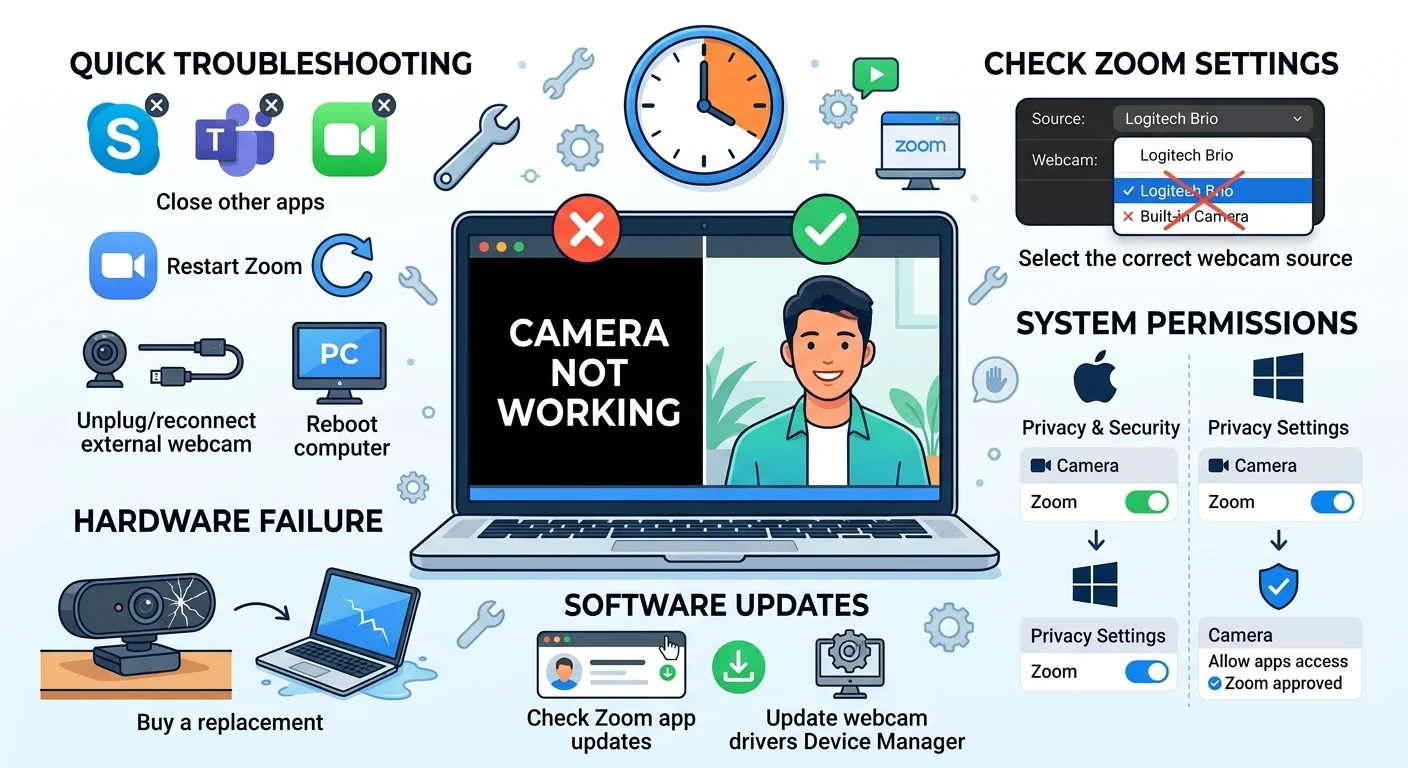
Before diving into the deep end of your system settings, try these rapid fire troubleshooting steps. They solve the problem about 80 percent of the time.
- Check for other apps: Close Skype, Teams, or FaceTime.
- Restart Zoom: Completely quit the application and open it again.
- Check your connection: Unplug and reconnect your external webcam.
- Reboot: Restart your computer if you have a few minutes to spare.
Why Is My Zoom Video Showing a Black Screen?
A black screen usually means Zoom recognizes your camera but cannot pull the video feed. This happens most often when another application is hogging your hardware.
Webcams can only talk to one program at a time. If you left a different video app running in the background, it will refuse to share the camera. Once you force quit those other apps, your Zoom video should instantly snap back to life.
Check Your Zoom Video Settings
Sometimes the fix is embarrassingly simple. Zoom might just be looking at the wrong device.
Click the little arrow next to the Start Video icon at the bottom of your Zoom window. A menu will pop up showing your available cameras. If you have a laptop hooked up to a monitor, Zoom might be trying to use a closed laptop lid camera instead of your fancy external webcam. Just click the correct one from the list.
System Permissions That Block Your Camera
Here is a common scenario. You just updated your operating system and suddenly your video feed is dead. Both Mac and Windows have strict privacy settings that can block apps from accessing your hardware without your explicit permission.
Fixing Camera Privacy on Windows
Hit the Start button and type Privacy settings into the search bar. Look for the Camera section. You need to make sure the toggle for allowing apps to access your camera is turned on.
Scroll down a bit further and verify that desktop apps are also allowed to access your camera. If Zoom is not on that approved list, it cannot see you.
Adjusting Mac Security Settings
Apple is notorious for locking down permissions. Open your System Settings and navigate to Privacy and Security. Click on Camera.
You will see a list of apps that have requested video access. Make sure the toggle next to Zoom is flipped on. If you had to change it just now, you will need to restart Zoom for the fix to take effect.
Still Stuck? Time for Software Updates
Running ancient software is a guaranteed way to run into glitches. If you are still struggling to fix your Zoom camera not working, you might need an update.
First, check Zoom itself. Click your profile picture in the top right corner of the app and select Check for Updates. Installing the latest version often patches annoying bugs instantly.
If that fails, your webcam drivers might be the culprit. This is mostly a Windows issue. Open your Device Manager, find your camera, right click it, and select Update Driver. Sometimes you just need to reinstall the device entirely. If you use specialized gear, you might want to check out our guide on [troubleshooting external webcams] for more advanced tips.
When Hardware Actually Fails
Most camera issues are software related. But hardware does fail eventually.
If you dropped your external webcam recently or spilled coffee near your laptop, the internal wiring might be fried. Try plugging the camera into a completely different computer. If it still refuses to work, it is probably time to buy a replacement.
Do not panic if you have to join your current meeting without video. Just drop a quick note in the chat explaining that you are having hardware issues. People are remarkably understanding about tech failures.