(302) 262 8484
The Hidden Danger in Your PDFs: Why You Must Scrub Your Files Before Sharing

So, you just finished writing up a highly confidential document. You convert it to a PDF, drop a few black boxes over the sensitive details, and hit send. You probably think your data is safe. But you might have just handed over your company’s secrets on a silver platter. The reality? **PDF hidden data** is quietly sitting in almost every file you share. Just waiting for anyone with a little tech know-how to extract it.
What Exactly Is PDF Hidden Data Anyway?
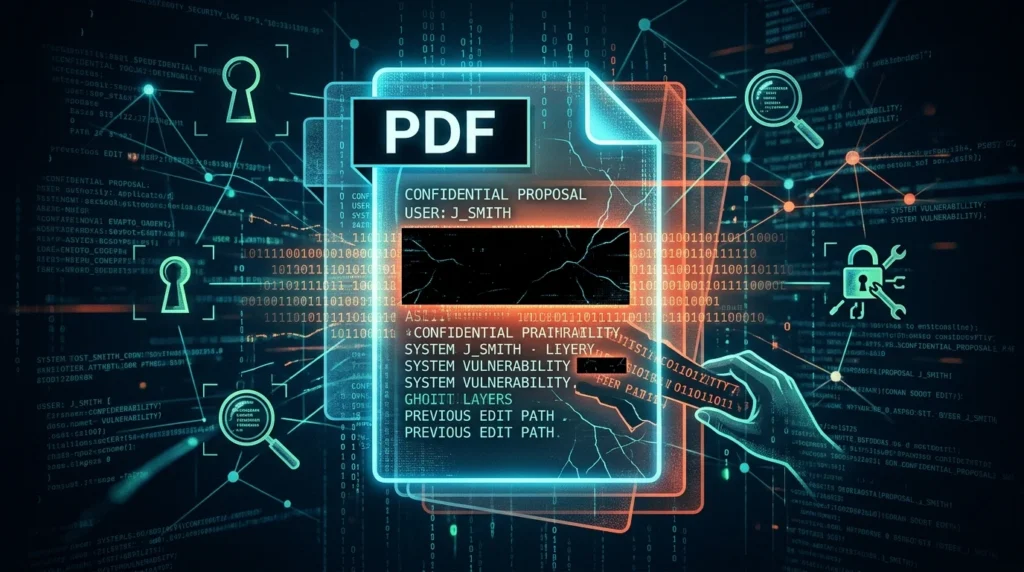
When you save a file as a PDF, it stores way more than just the words and pictures you actually see on the screen. It builds a digital fingerprint of your work. We call this behind-the-scenes information metadata. And it can easily expose details you never meant to share with anyone.
Here’s a quick look at what might be hiding right now inside your files:
- Document Properties: Your name, our company name, your computer’s username, and the exact date and time you created the file.
- Software Details: The specific programs and versions you used to design or edit the document. Hackers love this because it helps them spot software vulnerabilities, which is why robust small business cybersecurity protection is essential for your peace of mind.
- Hidden Text Layers: Ever scan a document and run Optical Character Recognition (OCR)? An invisible layer of text sits right behind the image to make it searchable.
- Deleted Content: Cropped images and deleted pages usually stay embedded in the file structure. Even if you can’t see them on the page anymore, much like the risks associated with the hidden dangers of relying on USB flash drives for office file sharing.
The Black Box Trap: Why Drawing Over Text Doesn’t Work
Here’s the thing. Drawing a black rectangle over sensitive text in a PDF editor does not actually delete the data. It’s one of the most common mistakes people make when handling sensitive files. And it’s incredibly dangerous.
PDFs are built in multiple layers. So, a black box is really just a visual overlay. The underlying text layer stays completely untouched. Literally anyone can open your document, drag their cursor over that black box, copy the text, and paste it into a blank notepad. Just like that, they can read every single word.
This isn’t just a theoretical security flaw. It has caused massive public embarrassments for legal teams, major corporations, and governments all over the world.
Real-World Disasters Caused by Hidden PDF Data
We don’t have to look far to see how badly this can go. Remember that famous case with the high-profile politician? Their lawyers released court filings covered in black redaction bars. Well, journalists quickly realized they could just copy and paste the text right out from under those bars. They exposed highly confidential details in minutes.
Then there was that major slip-up where the European Commission shared a redacted vaccine contract. The main text looked perfectly secure. But they completely forgot to clean up the document’s bookmarks. Readers just clicked on the bookmarks and instantly got access to the exact information the commission tried so hard to hide.
So, what does this mean for you? If you’re sharing legal contracts, financial statements, or personal data, you should consult with experts in IT consulting to ensure your workflows are secure.sonal ID documents, you can’t rely on visual tricks. You have to scrub the file completely.
How to Actually Scrub Your Files and Protect Yourself
This is where it really matters. You need a rock-solid process to strip this information out before your files ever leave your computer. Don’t rely on the built-in Windows “Remove Properties” tool. It doesn’t actually support the PDF format. It will leave your files completely untouched and won’t even warn you about it.
Instead, use these proven methods to clean up your documents.
Method 1: Use the Sanitize Tool in a Pro Editor
Professional PDF editors like Adobe Acrobat and Foxit have built-in tools specifically designed to wipe out hidden information. They scan your file for metadata, hidden layers, overlapping objects, and bookmarks. Then, they delete them permanently.
Method 2: The “Print to PDF” Hack
If you don’t have expensive editing software, this is the easiest workaround. Open your PDF and go straight to the print menu. Select “Save as PDF” or “Microsoft Print to PDF” instead of your actual printer. This process flattens the document, strips away all the metadata, and spits out a clean copy with zero hidden history.
Method 3: Flatten the File Manually
You can also use trusted online tools or desktop apps to flatten your PDF. This merges all those separate layers into one single image layer. Once that happens, it becomes impossible for someone to select or copy text that was previously hiding under your visual redactions.
How to Wipe Hidden Data in Adobe Acrobat
If you’re using Adobe Acrobat, scrubbing your files is incredibly straightforward. Just run through these steps before you send your next email:
- Open your document in Adobe Acrobat.
- Go up to the Tools menu and select Protection.
- Look for the option that says Sanitize Document or Remove Hidden Information.
- Click OK and let the software scan and wipe the hidden layers.
- Save the sanitized file under a new name to make sure the changes are permanent.
Make Scrubbing Your Files a Habit
Protecting your privacy really isn’t difficult. But it does require you to change your habits. A PDF is never just a digital piece of paper. It’s a complex database of your editing history, your identity, and your digital footprint.
Take the extra ten seconds to sanitize your documents before you click send. It’s a simple step. And it can easily save you from a massive professional embarrassment or a devastating data leak.