(302) 262 8484
iPad Frozen? Do This Before You Reset It

Is Your iPad Frozen? What You Need to Know First
It usually happens at an inconvenient time. You might be working on a project, watching a video, or sketching when the screen stops responding. Your first thought might be to look up how to perform a full factory reset. Before you wipe the device and risk losing unsaved documents, photos, and custom settings, try a few less drastic troubleshooting steps.
A frozen iPad rarely means a hardware failure. In most cases, it is a temporary software issue, an overloaded processor, or a single app that stopped working. These steps will help you get the device running again without a destructive factory reset.
Determine if It’s a Rogue App or a System-Wide Freeze
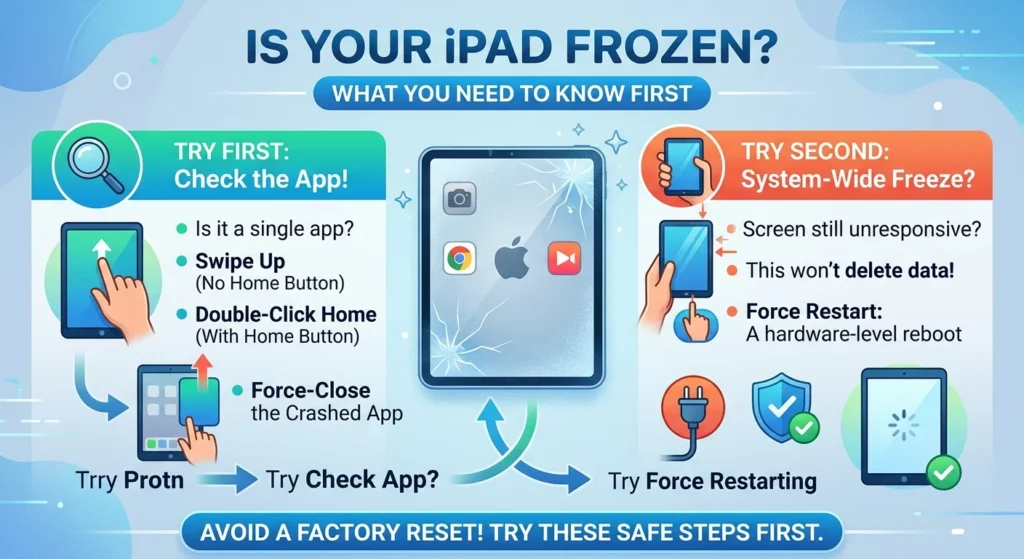
Before using hardware button combinations, check whether the entire iPad is frozen or just the active app. This distinction matters because closing a single crashed app is simple and won't affect the rest of the system.
How to Force-Close a Single Frozen App
If you can still see the home screen or access other parts of the tablet, the problem is likely isolated to one application. Here is how to force-close it:
- For iPads without a Home button: Swipe up from the bottom of the screen and pause in the middle to display the app switcher. Find the app and swipe up on it to close it completely.
- For iPads with a Home button: Double-click the Home button to bring up the app switcher, then swipe up on the frozen app's preview to close it.
Once closed, try reopening the app. If it immediately freezes again, you may need to update it through the App Store or delete and reinstall it. If the tablet ignores all swipes and taps, you have a system-wide lockup.
How to Force Restart Your Frozen iPad
When the touchscreen is entirely unresponsive, the standard shutdown slider will not work. A force restart acts as a hardware-level reboot, momentarily cutting power to clear the system's temporary memory. This process will not delete your personal data or settings.
The exact button combination depends on your iPad model.
For iPads Without a Home Button
If you have an iPad Pro, iPad Air, iPad mini, or base iPad without a physical button on the front, follow this sequence:
It can take 10 to 15 seconds for the logo to appear, so keep holding the top button until you see it.
For iPads With a Home Button
If you are using a model with a physical Home button on the front bezel, the process is slightly different:
What to Do if Your iPad Won’t Turn On After Restarting
An iPad screen will sometimes go completely black and refuse to turn back on. A heavily depleted battery can cause the system to crash before it can even display the low-battery icon.
Plug the iPad into a working wall charger. Use the high-wattage charger that came in the box rather than a low-power computer USB port. Let it charge for at least an hour. The device will often reboot itself once it gathers enough power. If it doesn't, perform the force restart steps again while it remains plugged in.
Using Recovery Mode to Update Your Device
If your iPad is stuck on the Apple logo during boot-up, or if the screen stays unresponsive after multiple force restarts, you can use a computer to reinstall the operating system while keeping your data intact.
> Using Recovery Mode allows you to reinstall iPadOS without wiping your personal files, making it a safe option to try before a full factory reset.
Connect the iPad to a computer using a USB cable. Open Finder on a Mac running macOS Catalina or later, or open iTunes on a Windows PC. With the device connected, perform the force restart steps outlined above, but do not release the buttons at the Apple logo. Keep holding them until the Recovery Mode screen appears, which shows a cable pointing toward a computer.
A prompt will appear on your computer asking if you want to Update or Restore. Click Update. This prompts the computer to download and reinstall the latest version of iPadOS without altering your personal data. Only choose Restore if the update fails and you have no other choice, because a restore will wipe the device clean.
How to Prevent Your iPad From Freezing Again
Once the iPad is running again, you can take a few steps to prevent future lockups. Frequent system freezes often point to software clutter or a lack of system resources.
- Free up storage space: An iPad with less than 10% of its storage capacity remaining will struggle to manage temporary files, which causes freezes. Go to Settings, then General, and select iPad Storage to delete unused apps or large files.
- Keep your software updated: Apple releases iPadOS updates that patch system bugs and improve stability. Check for updates under Settings, then General, and select Software Update.
- Watch out for overheating: iPads will throttle performance or freeze if they get too hot. Avoid using the tablet in direct sunlight or running intensive games while it is charging.
If you have tried these steps and the iPad continues to freeze, it may require professional support. For more details on managing your device's health, read our guide on [how to optimize iPad storage].