(302) 262 8484
iPhone Battery Dying Fast? Check This Screen Immediately

If your iPhone battery is draining so fast that you’re constantly tethered to a charger, you might be considering a repair or a new device. Before you spend any money, there is a built-in diagnostic screen you should check first.
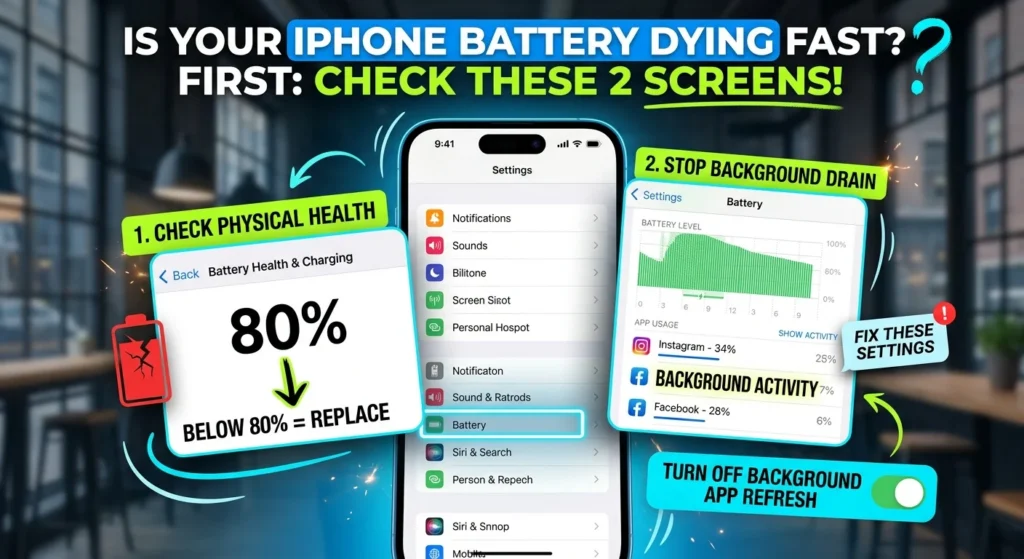
Open the Settings app and tap Battery. This screen will tell you whether the lithium-ion cell is physically worn out or if a specific app is running in the background and draining your charge.
How to Use the iPhone Battery Screen to Stop the Drain
Rather than just checking the current charge percentage at the top, look at two specific metrics to see how your phone is using power.
Check Your Maximum Capacity
First, tap Battery Health & Charging. The Maximum Capacity percentage indicates the physical health of your battery.
Apple designs its batteries to retain up to 80 percent of their original capacity. On older models, this typically happens after about 500 charge cycles, while newer models like the iPhone 15 and 16 can last up to 1,000 cycles. If your maximum capacity has dropped below 80 percent, the battery is degraded. Setting adjustments won’t fix this; you will need a replacement battery.
Spot Apps Responsible for Your iPhone Battery Dying Fast
If your battery capacity is still above 80 percent, go back to the main Battery screen and scroll down to the usage chart, which covers the last 24 hours and the last 10 days.
Below the chart is a list of the apps consuming the most power. Tap any app in the list to switch between its on-screen time and background activity. If an app like Instagram or Facebook has been running for hours in the background despite minimal active use, you need to restrict it or turn off its background permissions.
Simple Settings to Save an iPhone Battery Dying Fast
Once you identify the apps draining your power, you can adjust a few settings to improve battery life without severely limiting how you use your phone.
Turn Off Background App Refresh
If the battery screen shows heavy background activity, navigate to Settings > General > Background App Refresh. You can turn this off entirely or disable it selectively for apps that don’t need to update when you aren’t actively using them. Shopping and news apps, for example, rarely need to run constantly in the background.
Ditch the Lock Screen Widgets
Lock screen widgets provide quick information, but they force their parent apps to run continuously in the background to fetch new data. If your battery is struggling, try removing these widgets.
Enable Auto-Brightness and Dark Mode
Your screen is the single biggest consumer of power, and keeping the brightness at its maximum will drain the battery quickly. Go to Settings > Accessibility > Display & Text Size and make sure Auto-Brightness is enabled. Additionally, if your iPhone has an OLED screen, turning on Dark Mode reduces power consumption because the display doesn’t use energy to render black pixels.
When Is It Time for a Professional Fix?
If you have adjusted your settings and limited background apps, but the phone still dies rapidly, check for a degradation warning. If your maximum capacity is below 80 percent or a message warns you that the battery is significantly degraded, a hardware replacement is your only real option.
For more information on keeping your devices running smoothly, see our guide on [iPhone maintenance tips]. Managing your battery health early on will help ensure your phone lasts for years.