(302) 262 8484
Why is a fake virus alert locking your screen?

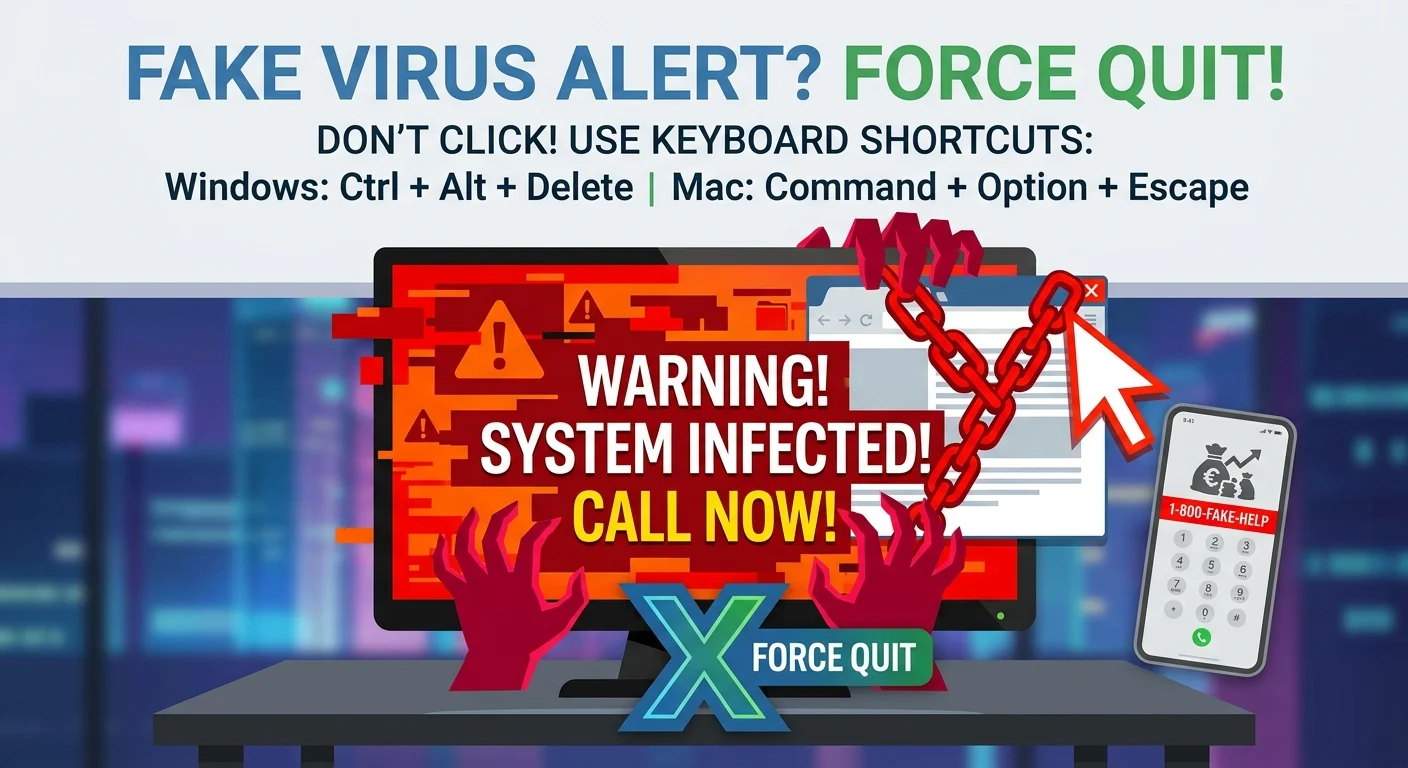
You are browsing the web and suddenly a blaring red screen pops up. A fake virus alert locking your screen is designed to cause absolute panic. A loud robotic voice might even start playing, telling you your computer is infected and you need to call support immediately.
Take a deep breath. Your computer is almost certainly fine.
This is a highly common tech support scam. You have not been hacked and your hard drive is not melting down. You just need to close the frozen window safely without giving the scammers what they want.
Scammers want you to think your entire operating system is compromised. They use official looking logos from companies like Microsoft or Apple and display terrifying error codes. But here is the reality.
They only have control over that single browser tab.
It is not an actual virus. It is just a malicious website using a simple script to force your browser into full-screen mode. The code loops over and over so you cannot click the exit button or use your browser navigation. They are banking on your fear to make you pick up the phone and hand over your credit card details.
How to fix a fake virus alert locking your screen
To fix a fake virus alert locking your screen, you need to force quit your web browser. Do not click anywhere on the fake warning. Instead, use your system keyboard shortcuts to shut down the application entirely.
Step 1: Do not interact with the page
Do not click “Cancel” or “Close” on the popup itself. Those buttons are fake.
Clicking them might trigger a malicious download or open a dozen more spam windows. Just take your hands off the mouse for a second. Never call the toll-free number flashing on the screen. Real tech companies do not operate this way.
Step 2: Force close the browser
This is the actual fix. Since you cannot close the window normally, you have to go over its head and tell your computer to kill the program.
For Windows users
- Press Ctrl + Alt + Delete on your keyboard.
- Select Task Manager from the menu.
- Find your web browser in the list of running apps.
- Click on it and hit the End Task button at the top or bottom of the window.
For Mac users
- Press Command + Option + Escape to bring up the Force Quit menu.
- Select your web browser from the list.
- Click the Force Quit button.
Step 3: Stop the page from reopening
Now, this is where it matters. When you open your browser again, it will likely ask if you want to restore your previous session. Say no.
If you click yes, the scam page will just load right back up and lock you out all over again. Ignore the restore prompt and start with a fresh tab. You can safely clear your browsing history if you want to be extra thorough.
What if you already called the number?
People fall for this scam every single day. The alerts are designed to look incredibly convincing. If you called the number and let the scammers remotely access your computer, you need to act fast.
Disconnect your computer from the internet immediately. Call your bank or credit card company to dispute any charges if you paid for fake support services.
Once you are offline, run a full system scan using legitimate antivirus software like Windows Defender or Malwarebytes. You might want to read our guide on [how to remove remote access trojans] to make sure your system is completely clean.
Keeping fake virus popups away for good
Nobody wants to deal with a frozen browser twice. These popups usually hide on shady download sites, illegal streaming platforms, or sketchy torrent directories. Sometimes they even sneak into legitimate sites through compromised ad networks.
Here are a few easy ways to protect yourself moving forward:
- Install a reputable ad blocker like uBlock Origin to stop malicious scripts from loading.
- Keep your web browser and operating system updated to patch security holes.
- Avoid clicking on suspicious links in emails or text messages from unknown senders.
- Turn on your browser settings to block popups and redirects.
You do not need to be a cybersecurity expert to stay safe online. Just remember that Microsoft, Apple, and Google will never lock your screen and demand you call a random phone number. If a website tries to tell you otherwise, force quit the browser and move on with your day.