(302) 262 8484
How to Fix a Corrupted USB Drive Without Losing Your Data

You plug your flash drive into your computer, expecting to open your documents. Instead, a terrifying pop-up appears on your screen telling you the drive is unreadable. Your stomach drops. If you need to fix a corrupted USB drive without losing your data, you are in the right place.
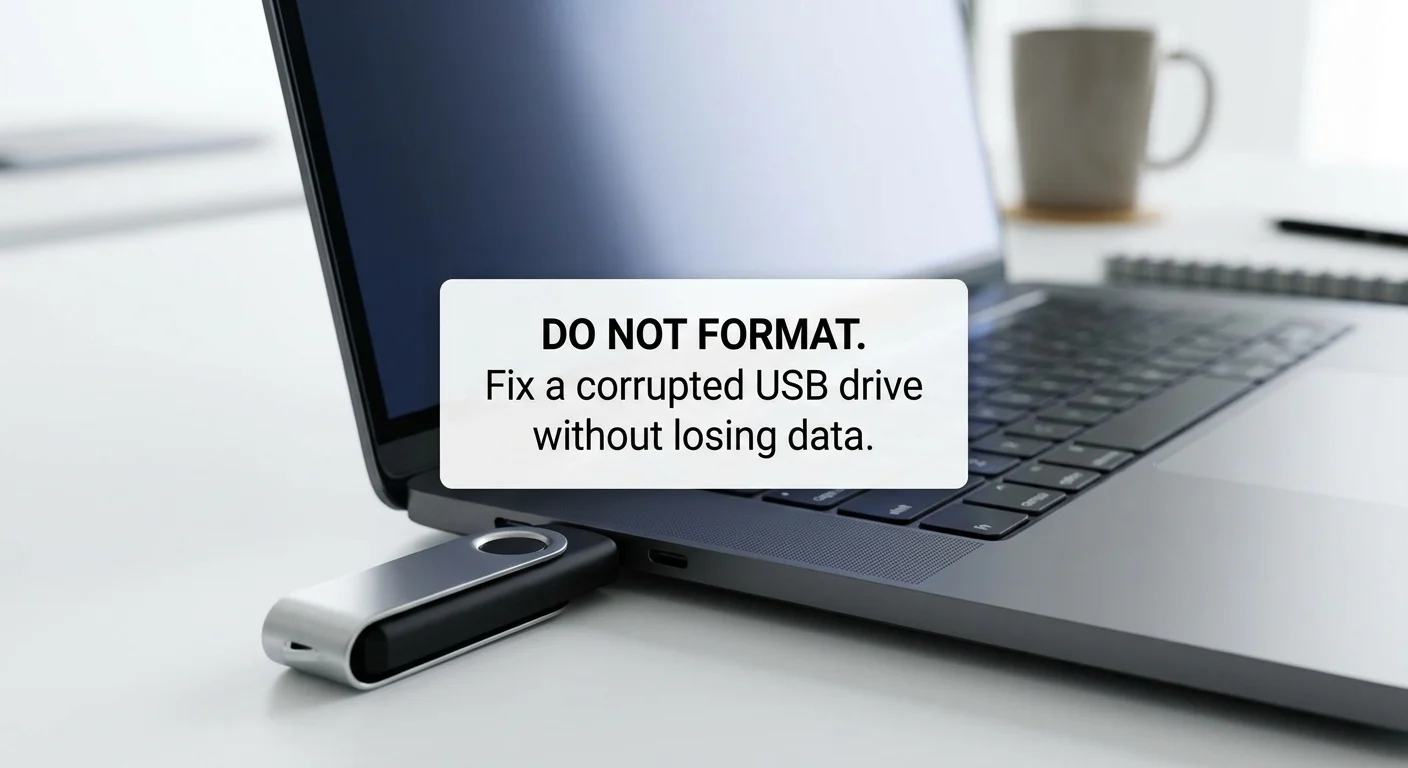
The worst thing you can do right now is panic and click the wrong button. Windows is famously quick to suggest formatting a drive the second it encounters an error. Do not do it.
Formatting will wipe the file system clean and make getting your files back significantly harder. The good news is that most logical corruption can be reversed, and if you need professional help, we offer expert PC repair in Delaware to get your system back on track. You usually just need to repair the file system or extract the files using the right tools.
Rule Number One: Ignore the Format Prompt
When a USB drive gets corrupted, the computer loses the ability to read its file directory. The data is almost certainly still sitting on the memory chips. The computer just forgot how to find it.
Windows sees a blank map and assumes the drive needs to be set up from scratch. That is why it asks you to format the disk.
Always click cancel. Formatting is a destructive process. While data recovery software can sometimes pull files from a freshly formatted drive, you are taking a massive and unnecessary risk.
Try These Quick Fixes First
Before we get into command prompts and recovery software, let us rule out the simple stuff. Sometimes a drive is not actually corrupted at all.
Check the physical connection
USB ports get dirty. They fill up with dust and lint over time. Try plugging the drive into a different port on your computer. If you are using a desktop, use the ports on the back of the motherboard instead of the front panel. The rear ports connect directly to the system and provide more stable power.
Try a different machine
Take the USB stick to another computer. If it works perfectly on your laptop but fails on your desktop, the problem is your computer’s USB drivers. You can usually fix this by updating your motherboard drivers, reinstalling the USB controllers in Device Manager, or reaching out for personalized IT solutions for small businesses if the issue persists.
Assign a new drive letter
Sometimes Windows gets confused and fails to assign a proper drive letter to your USB stick. This makes the drive look dead or unreadable.
You can force Windows to recognize it by giving it a new letter.
- Right-click the Start button and open Disk Management.
- Look for your USB drive in the list of disks.
- Right-click it and select Change Drive Letter and Paths.
- Click Add or Change, pick a new letter from the dropdown, and hit OK.
Repair the Corrupted USB Drive Using Windows Tools
If the quick fixes did not work, you likely have actual file system corruption. This usually happens if you pull the drive out while it is still writing data. Fortunately, Windows has built-in tools designed specifically to fix this.
The Windows Error Checking Tool
This is the easiest method and requires no technical knowledge. It scans the drive for file system errors and attempts to repair them automatically.
Open File Explorer and right-click your corrupted USB drive. Select Properties and navigate to the Tools tab. Under the Error checking section, click Check. Let Windows scan the drive. If it finds errors, it will prompt you to repair them.
Run CHKDSK via Command Prompt
If the visual tool fails, it is time to use CHKDSK. This is a powerful command-line utility that digs deep into the file structure to fix a corrupted USB drive without losing your data. It forces Windows to evaluate every sector of the drive.
Here is exactly how to run it safely:
- Type cmd in your Windows search bar.
- Right-click Command Prompt and select Run as administrator.
- Take note of the drive letter assigned to your USB stick in File Explorer.
- Type chkdsk X: /f /x /r into the black window. Replace the letter X with your actual USB drive letter.
- Press Enter and let the process run.
The process might take a few minutes or a few hours depending on the size of the drive. The /f command fixes errors, /x forces the drive to dismount before scanning, and /r locates bad sectors and recovers readable information.
What to Do If the Drive is RAW
Sometimes CHKDSK will reject your command and give you a message saying the file system is RAW. This means the corruption is too severe for Windows to fix natively.
Now is the time to use data recovery software. Programs like Disk Drill, Recuva, or EaseUS Data Recovery Wizard are built to bypass the broken file system and read the raw data directly off the memory chips.
Download a reputable recovery program and run a deep scan on the RAW drive. Most of these tools will let you preview the found files for free. Once you verify your photos and documents are there, you can recover them and save them to your main hard drive.
For a deeper dive into choosing the right software, check out our guide on [best data recovery tools].
When to Give Up on the Hardware
Flash drives are cheap. Your data is not.
Once you successfully pull your files off a corrupted drive, throw that drive in the trash. Do not trust it again. Logical corruption can sometimes be a symptom of failing flash memory cells.
If your computer does not react at all when you plug the drive in, or if you see physical damage like a bent connector, software cannot help you. Physical damage requires a professional data recovery service. They will literally solder the memory chips onto a donor board to extract your files. It is expensive, but it might be your only option for irreplaceable data.
Always keep backups in multiple locations. Relying on a single ten-dollar piece of plastic to hold your most important files is a disaster waiting to happen.