(302) 262 8484
Software vs Hardware Problems: How to Tell What is Actually Killing Your PC

The Classic Dilemma: Software vs. Hardware Problems
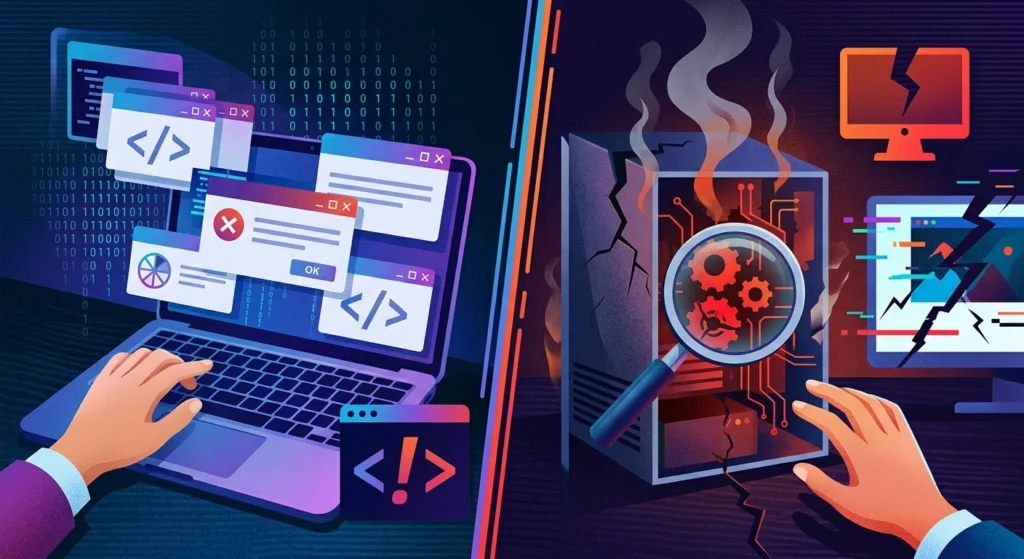
We’ve all been there. You’re right in the middle of typing an email or playing a game. Suddenly, your screen freezes. Or worse, it plunges into the dreaded Blue Screen of Death. Instantly, you’re faced with a frustrating mystery. Are you dealing with a software bug or a failing piece of hardware?
Figuring out the root cause is a big deal. It’s the difference between a free, five-minute fix and a very expensive trip to the repair shop. When your machine acts up, it’s easy to assume the worst. But before you pull out your wallet to buy a brand-new graphics card, you should consult a professional for PC repair in Delaware to know exactly what you’re fighting.
At its core, a hardware issue means the physical parts of your machine are wearing out or failing. Think about your RAM, your hard drive, or your power supply. Software issues, on the other hand, live entirely in the code, often requiring specialized virus and spyware removal to resolve. We’re talking about bugs, corrupted files, or outdated drivers that end up confusing your operating system.
The Dead Giveaways of Physical Hardware Failure
Some symptoms leave almost no room for debate. If your computer is making actual, physical noises, you can safely skip all the software troubleshooting and consider professional PC upgrades in Delaware to replace failing components.
1. Physical Sounds and Smells
Hear a weird clicking sound coming from your tower? Your traditional hard drive is probably on its deathbed. Screaming fans usually point right to an overheating CPU. And if you catch a faint smell of burnt plastic, a component is physically frying. These are clear, undeniable warnings. No software update in the world will fix them.
2. Random and Inconsistent Crashes
Here’s a great rule of thumb. If your system crashes with a blue screen, pay close attention to the error codes. Do the crash logs show a totally different error code and a different memory location every single time? If so, you’re likely dealing with faulty RAM or a failing processor. Hardware instability is just inherently chaotic. It’s random.
3. Screen Artifacts and Visual Glitches
Are weird blocks of color dancing across your monitor? Or random, jagged lines? If these visual glitches pop up randomly all over your entire screen, your graphics card is probably overheating or failing outright. But there’s a catch. If the glitch is perfectly contained inside just one single application window, it’s almost certainly a software issue.
How to Tell the Difference
Now, this is where it gets tricky. A lot of symptoms overlap, which makes telling them apart a real headache. A slow computer or a sudden freeze could be caused by either side of the coin, which is why proactive IT monitoring for small business is so valuable for catching these issues early. So how do you actually draw the line?
Spotting Software vs. Hardware Problems in Daily Use
This is the absolute fastest way to narrow down the culprit. Just ask yourself a simple question. Does this problem happen only when you open one specific program, or does it happen no matter what you’re doing?
Let’s say your computer only freezes when you launch a specific video editing tool. In that case, you’re looking at a software conflict or a corrupted installation. But if your computer freezes randomly while you’re just sitting there staring at the desktop? You’re likely looking at a hardware bottleneck. Something like a failing solid-state drive.
Does a Restart Temporarily Fix It?
We all joke about the classic IT advice to just turn it off and on again. But it works for a reason. Restarting clears out your system memory. It resets all those temporary processes. If a quick reboot makes the problem vanish for a few hours, a rogue background process or a memory leak in your software is the likely suspect.
Proven Diagnostic Tactics
So what does all this mean for you? Instead of just guessing, you can use a systematic approach to find the truth. And don’t worry. You don’t need to be an IT genius to run these tests.
Isolating Software vs. Hardware Problems with Safe Mode
Safe Mode launches your computer with only the absolute, bare-essential drivers and files. If your system runs perfectly in Safe Mode, your hardware is fine. It means some third-party software or driver is causing all the chaos. But if the crashes keep happening even in this stripped-down environment, your hardware is highly suspect.
Running Basic Diagnostics
- Check the Device Manager: Look for little yellow warning triangles right next to your components. Outdated or corrupted drivers can easily mimic a total hardware failure. Just check out our guide on [how to update drivers] to get these issues resolved quickly.
- Run a Memory Test: Windows actually has a built-in Memory Diagnostic tool. Running this quick test will tell you exactly if your physical RAM sticks are failing, or if they maybe just need to be reseated on the motherboard.
- Check Drive Health: Grab a utility tool to read the smart data on your hard drive or SSD. Seeing a high number of reallocated sectors? That means your drive is physically wearing out.
The Ultimate Truth Test: The Clean Reinstall
Here’s the thing. If you’re still tearing your hair out trying to diagnose the issue, there’s one final test that never lies. You can just perform a clean install of your operating system on a spare drive.
A fresh installation of Windows or Linux completely wipes away any potential software bugs. It kills corrupted registries and driver conflicts. If you boot into a brand-new operating system and the crashes or freezes are still happening, you finally have your answer. It’s definitely a hardware problem. And it’s time to start swapping out components or head to a professional repair shop.