(302) 262 8484
How to fix a wireless printer that keeps going offline

There is nothing quite as frustrating as needing to print an urgent document and seeing a grayed-out icon on your screen. If you need to fix a wireless printer that keeps going offline, you are definitely not alone. It happens to almost everyone. Let us get it sorted out right now.
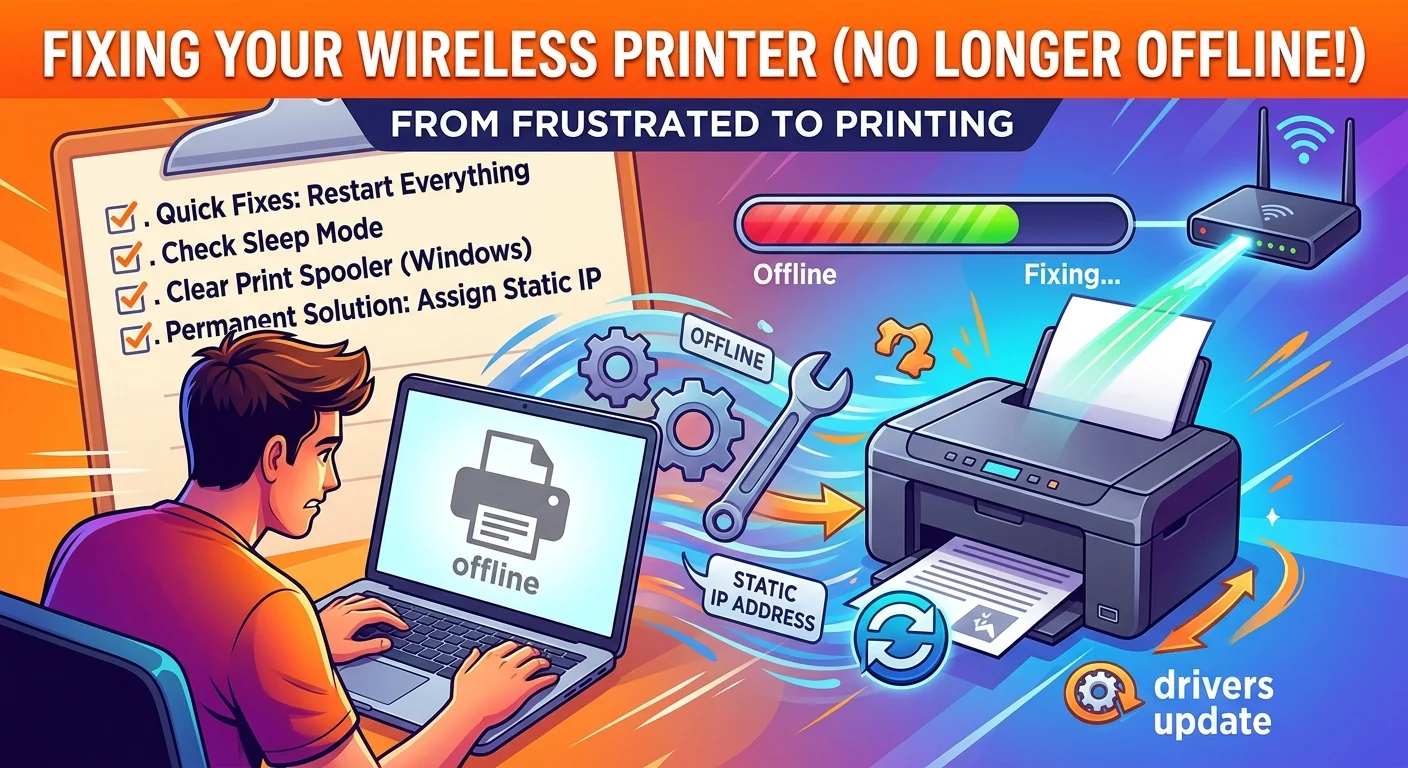
We need to tackle this annoying problem in two phases. First, we will get the printer working immediately so you can print your current document. Then we will set up a permanent solution so this stops happening every time you try to print.
Why your wireless printer keeps going offline
Printers are notoriously picky devices. Your computer thinks the printer is unavailable even if it is powered on and sitting right next to you.
This usually happens because the IP address assigned by your router changed behind the scenes. When the IP address changes, your computer is still looking for the printer at the old digital address. It is exactly like trying to mail a letter to someone who moved without leaving a forwarding address.
Quick fixes to get your printer back online fast
Need to print something right this second? Try these immediate steps before you dive into the deeper network settings.
- Restart everything. Turn off your printer, your computer, and your wireless router. Wait a full minute and turn them all back on.
- Check for sleep mode. Press a physical button on the printer to wake it up. Many energy-saving printers drop their Wi-Fi connection when they go to sleep.
- Run the built-in troubleshooter. Both Windows and Mac have native diagnostic tools that can sometimes force a quick reconnection.
Restart the print spooler service
If you are using a Windows PC, this is the magic trick that works almost every time. The print spooler is the background software that manages your print jobs. Sometimes it simply gets stuck and causes the printer to show as offline.
- Press the Windows key and type Services into the search bar.
- Open the Services app and scroll down until you find Print Spooler.
- Right-click it and select Restart.
Permanent ways to fix a wireless printer that keeps going offline
Restarting your devices gets old very fast. If you want a long-term fix, you have to change how your router talks to your printer on the network, or consider professional IT consulting to optimize your home office setup.
Assign a static IP address
This is the absolute best way to fix a wireless printer that keeps going offline. By default, your router hands out dynamic IP addresses that change over time. Giving your printer a static IP means it stays in the exact same location on your network forever.
You will need to print a network configuration page from your printer menu to find its current IP address. Type that number into your web browser to access the printer settings panel.
Look for the network or IPv4 settings. Change the IP assignment from automatic to manual. Type in an IP address that falls outside your router normal DHCP range so another device does not try to steal it later.
Update the manufacturer drivers
Outdated software causes massive communication issues between your computer and your printer. Head over to the official manufacturer website and download the newest driver package for your specific model.
Do not rely on the generic drivers that Windows or macOS install automatically. They are usually stripped-down versions that lack the proper network management tools needed to keep a stable connection.
Dealing with a Mac printer offline issue
Apple devices handle network printers a bit differently. If your Mac refuses to see the printer, the quickest fix is to reset the entire printing system.
Be careful with this step. It will completely delete all printers and scanners from your Mac. You will have to add them back afterward.
Go to System Settings and click Printers and Scanners. Right-click anywhere in the blank space and select Reset printing system. After it finishes, just click the plus button to add your wireless printer again.
Stop fighting your network
Networked printers are amazing when they work. They are a total nightmare when they drop off the map. Taking ten minutes to set up a static IP address is usually all it takes to banish that offline status for good.
If you are still struggling to keep your devices connected, check out our guide on [troubleshooting home Wi-Fi dead zones] to make sure your printer is actually getting a strong signal from the router. A weak signal will cause the connection to drop constantly no matter what settings you change.