(302) 262 8484
Why You Need to Clear Your Browser Cache

Have you ever tried to load a website only to see a jumbled mess of text and broken images? The quickest fix is usually to clear browser cache. Browsers are essentially digital hoarders. They save little pieces of every website you visit so things load faster the next time around. But eventually all those saved files cause more problems than they solve.
When you visit a page, your browser downloads images, HTML, and scripts to store locally. If that website updates its design later, your browser might stubbornly try to load the old saved version. That clash is exactly what causes weird formatting errors and login loops.
Think of your browser cache like a messy desk. A few sticky notes are helpful, but a mountain of old paperwork just makes it impossible to find what you actually need.
Before we look at the exact steps for your specific browser, let us break down exactly what happens when you hit that delete button.
Fix Website Glitches and Loading Errors
This is the biggest reason IT support always asks if you cleared your cache first. Old data gets tangled up with new website code all the time. Deleting your temporary internet files forces the browser to fetch a brand new copy of the page straight from the server.
Protect Your Personal Privacy
Cached files can sometimes store sensitive information. If you use a shared computer at work or a public network, leaving a trail of your browsing history and saved forms is a bad idea. Wiping the slate clean keeps your personal data out of the wrong hands.
Free Up Hard Drive Space
You might be surprised by how much storage space your browser eats up in the background. Months of saved images, scripts, and videos from random sites can easily take up gigabytes of room. A quick purge gives your computer or phone some much needed breathing room.
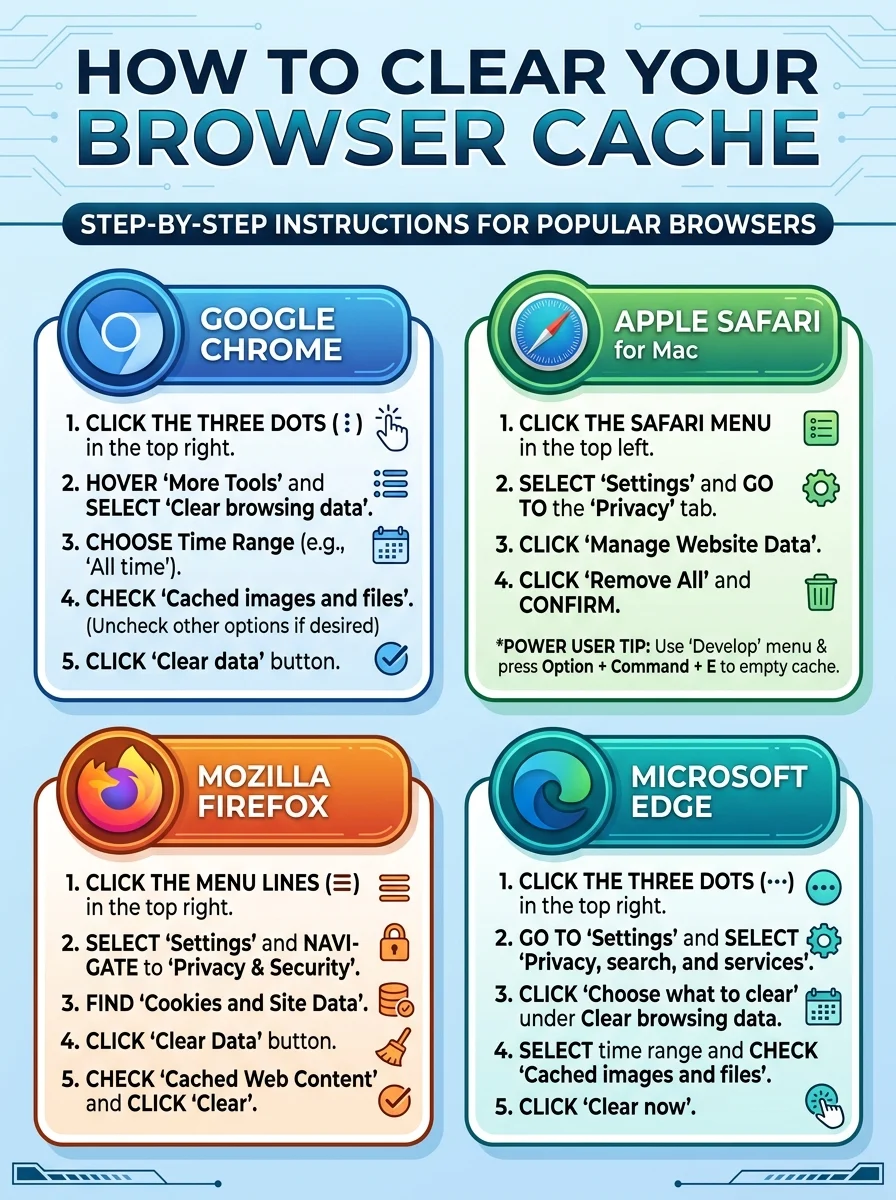
How to Clear Browser Cache in Google Chrome
Chrome makes it incredibly simple to delete your browsing data. You can wipe your temporary files in just a few clicks.
- Click the three vertical dots in the top right corner of the browser window.
- Hover over More Tools and then click Clear browsing data.
- A new window will pop up. Choose a time range at the top. Select All time to wipe everything completely.
- Check the box next to Cached images and files. You can uncheck cookies and history if you want to keep those.
- Click the blue Clear data button.
If you are still experiencing slow load times after trying this, check out our related guide on [how to troubleshoot slow internet speeds].
How to Clear Browser Cache in Safari for Mac
Apple keeps things pretty streamlined. You can dump your temporary files easily using the standard Safari settings.
- Open Safari and click the Safari menu in the top left corner of your screen.
- Select Settings and go to the Privacy tab.
- Click on the button that says Manage Website Data.
- Click Remove All and confirm your choice when the warning box appears.
If you consider yourself a power user, you can also enable the Develop menu in Safari settings. Once that is turned on, you can just press Option + Command + E to instantly empty the cache.
How to Clear Browser Cache in Mozilla Firefox
Firefox is built entirely around user privacy. Naturally, getting rid of your saved website data is a very straightforward process.
- Click the three horizontal lines in the upper right corner to open the application menu.
- Select Settings and navigate to Privacy & Security on the left sidebar.
- Scroll down until you find the Cookies and Site Data section.
- Click the Clear Data button.
- Make sure Cached Web Content is checked and click Clear.
How to Clear Browser Cache in Microsoft Edge
Since Edge runs on the same underlying technology as Chrome, the steps to clear your cache will look pretty familiar to former Google users.
- Click the three horizontal dots in the top right corner.
- Go to Settings and select Privacy, search, and services from the left menu.
- Find the Clear browsing data section and click the Choose what to clear button.
- Select your preferred time range and check the box for Cached images and files.
- Click Clear now to finish the job.
Key Takeaways: Making Cache Clearing a Habit
You do not need to delete your temporary files every single day. Doing so would actually slow down your daily web browsing since your computer would have to download every image from scratch. But making it a regular habit keeps things running smoothly.
- Do it for troubleshooting: Clear your cache immediately when a website looks broken, buttons will not click, or you cannot log into an account.
- Do it for security: Always wipe your browsing data after using a public or shared device.
- Do it for maintenance: Make it a monthly task to free up storage space and keep your browser snappy.
Taking a few seconds to clear browser cache is the easiest troubleshooting trick in the book. It solves a massive percentage of everyday internet headaches without requiring any technical skills at all.