(302) 262 8484
Your Emails Could Be Revealing Where You Are: Here’s How to Stop It

Have you ever opened an email, decided to ignore it, and then received a follow-up message just minutes later? It feels creepy, but it’s not magic. There’s a high chance that your inbox is being monitored by invisible email tracking pixels that tell senders exactly when, where, and how you interact with their messages.
Studies estimate that over half of all marketing emails contain these hidden trackers. While they might seem harmless, they leak your personal data without your consent, which is a growing concern given the reality of modern data privacy. Let’s look at how they work and how you can reclaim your digital privacy.
The Sneaky Science of Email Tracking Pixels
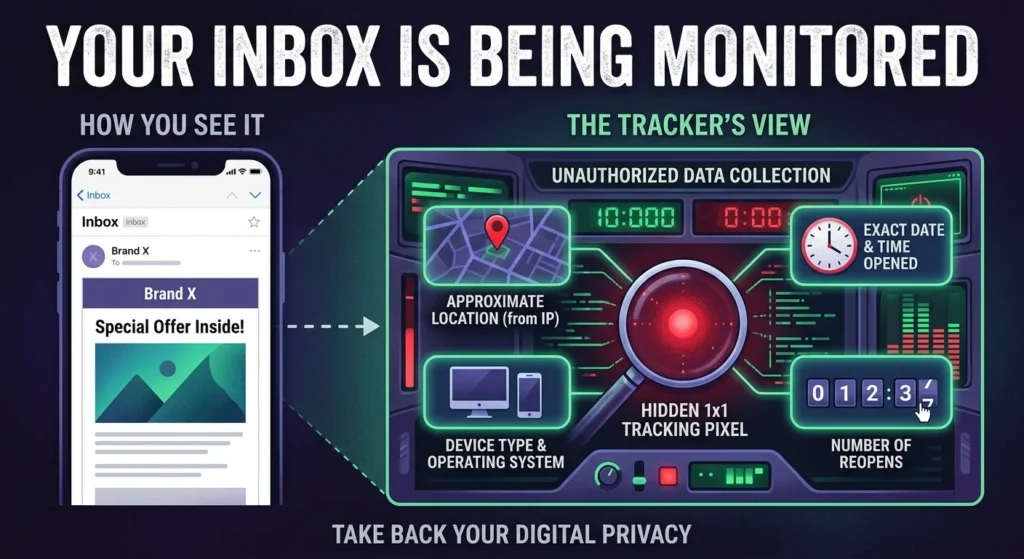
An email tracking pixel is a tiny, transparent image, usually just one pixel by one pixel in size. Because it’s completely see-through and microscopic, you’ll never notice it with the naked eye. It’s quietly embedded in the HTML code of the email, waiting for you to open the message.
Here’s the thing. When you open the email, your mail application automatically contacts the sender’s server to download that tiny image. The moment your app requests the image, the server logs the request. This simple action hands over a treasure trove of information about you.
So what does that mean for you? By simply opening an email, you are sharing:
- The exact date and time you opened the message.
- Your approximate location, which is calculated using your IP address.
- The type of device and operating system you are using.
- How many times you’ve reopened the email.
Who Uses Email Tracking Pixels?
Almost every major brand, newsletter publisher, and digital marketer uses them to measure campaign success. They want to know their open rates to see if their subject lines are working. It helps them optimize their sales funnels and decide when to send follow-up messages.
But it’s not just big corporations. Today, anyone can install a free browser extension and start tracking their personal emails. A job recruiter might track if you read their offer, or a landlord might track if you opened a notice. Even worse, spammers use them to verify that your email address is active and ready for more spam, often as a precursor to more dangerous phishing attempts that require you to know how to spot an email scam before it is too late.
Common Misconceptions About Email Tracking Pixels
Many people believe they are safe as long as they don’t click any links inside an email. This is a major misconception. The tracking happens the millisecond the email is opened and the images load. No clicking is required.
Another common myth is that your email provider automatically blocks these trackers. While some providers have introduced security measures, they often prioritize convenience over absolute privacy. For example, some services load images through their own servers, which hides your IP address but still tells the sender that you opened the email.
How to Stop Email Tracking in Your Favorite Apps
The good news is that you don’t need a computer science degree to fight back. You can shut down most of this tracking by changing a few settings in your preferred mail application. Here’s how to do it across the most popular platforms.
Gmail
By default, Gmail tries to protect you by routing images through Google’s proxy servers. This successfully hides your IP address and location, but it still registers as an ‘open’ event for the sender. To completely block the tracker, you need to stop images from loading automatically.
On your desktop browser, click the gear icon and select ‘See all settings’. Under the ‘General’ tab, scroll down to the ‘Images’ section. Select ‘Ask before displaying external images’ and save your changes. If you use the Gmail app on your phone, open the settings menu, select your account, tap ‘Images’, and choose the same option.
Apple Mail
Apple handles this quite well with a feature called Mail Privacy Protection. When you turn this on, Apple preloads all email images in the background using proxy servers. This scrambles the data, hiding your real IP address and randomizing the open time. It makes the sender think everyone opened the email, rendering their tracking data useless.
To turn this on your iPhone or iPad, go to Settings, tap ‘Mail’, select ‘Privacy Protection’, and toggle on ‘Protect Mail Activity’. If you’re on a Mac, open the Mail app, click ‘Settings’ in the menu bar, go to the ‘Privacy’ tab, and check the box for ‘Protect Mail Activity’.
Outlook
Outlook is actually set to block automatic image downloads by default in many of its desktop versions. However, it’s always smart to double-check your settings to ensure you are protected.
If you’re using Outlook for Windows, go to ‘File’, select ‘Options’, and click ‘Trust Center’. From there, open ‘Trust Center Settings’ and click on ‘Automatic Download’. Make sure the box to block automatic downloads of pictures is checked. For Outlook on the web, go to your settings, select ‘General’, then ‘Privacy and data’, and choose the option to always use the Outlook service to load images, or block them entirely.
Mozilla Thunderbird
Thunderbird is highly praised by privacy enthusiasts because it blocks remote content by default. When you open an email with images, Thunderbird will display a notification bar letting you know it blocked remote content.
If you want to verify this setting, go to the menu, select ‘Settings’, and click on ‘Privacy and Security’. Scroll down to the Mail Content section and ensure that the box for ‘Allow remote content in messages’ is unchecked. This simple default setting keeps your reading habits completely private.
Actionable Privacy Tips to Lock Down Your Inbox
Now, this is where it matters. Changing your email settings is a massive step forward, but you can go even further to secure your inbox. Here are a few practical tips to keep in mind:
- Use a dedicated tracking blocker: Extensions like PixelBlock or Ugly Email can scan your inbox and show you exactly which emails contain trackers.
- Consider privacy-focused email: Services like Proton Mail block spy pixels automatically and clean tracking parameters from links before you even see them.
- Be careful with mobile apps: Many of us configure our desktop email carefully but forget to update the settings on our phones and tablets (see our guide on [mobile privacy settings] for more tips).
- Read in plain text: If you want absolute security, configure your email client to display messages in plain text, which completely strips out HTML and tracking pixels.
Taking back control of your inbox doesn’t mean you have to stop using email. It just means you’re choosing when and where to share your personal data.
By taking a few minutes to tweak your settings today, you can stop leaking your location and open habits to marketers and strangers. It’s a simple, effective win for your digital privacy.