(302) 262 8484
How to Tell If Your Network Isn’t Secure

It happens all the time. You log on to do some work, stream a show, or check your bank balance, and something just feels off. Most people assume a cyber attack comes with flashing red screens and dramatic warnings. The reality is much quieter.
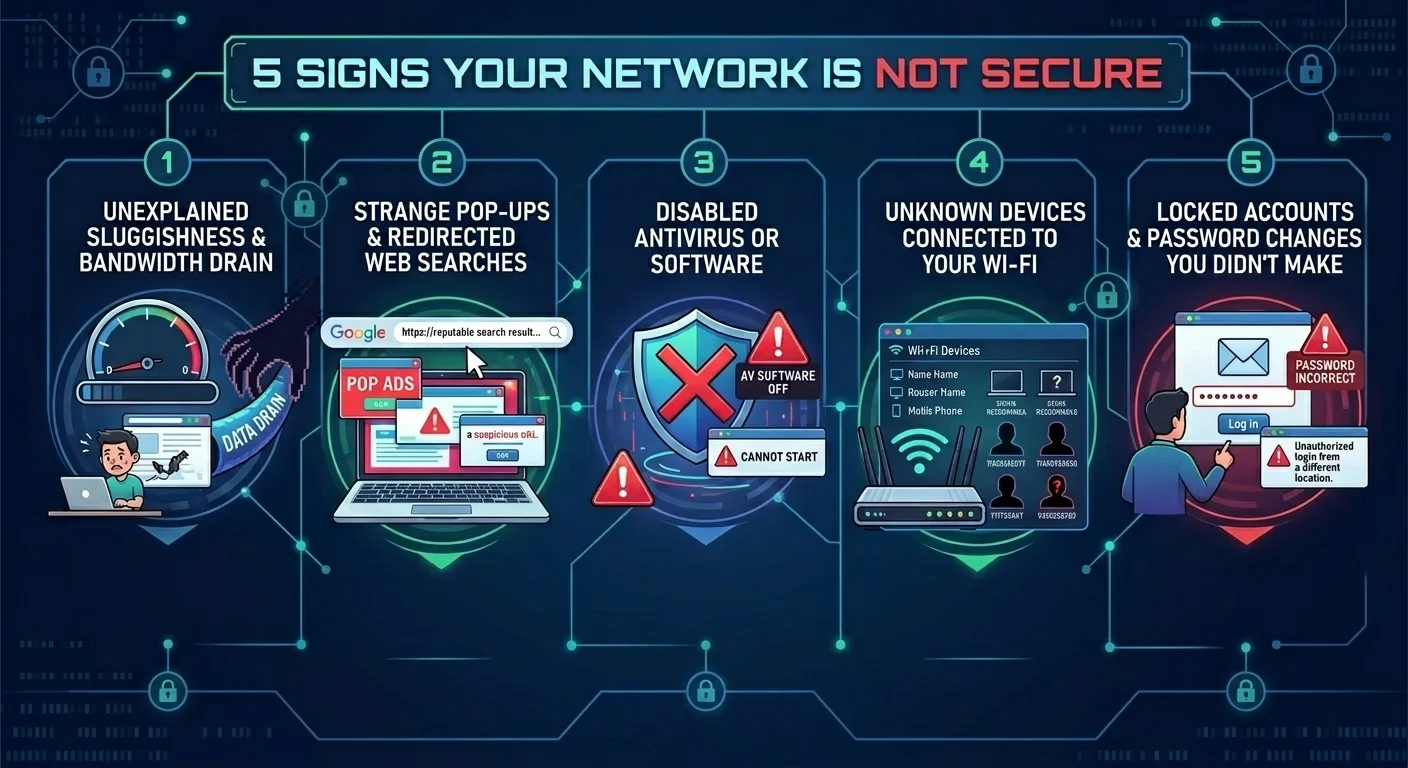
Hackers prefer to stay hidden while they siphon your data or use your bandwidth. If you are wondering whether your setup is safe, our team provides professional small business cybersecurity protection to help you identify and mitigate specific signs of a breach. Spotting these early can save you from a massive headache later. Here are five glaring red flags your network isn’t secure.
1. Unexplained Sluggishness and Bandwidth Drain
We all deal with slow internet from time to time. A sudden drop in speed usually just means your service provider is having a bad day, though you can learn more about the main culprits behind what is actually making your WiFi feel slow if the issue persists. But if your connection grinds to a halt consistently and without a clear reason, you might have a problem.
Malware and unauthorized users consume a lot of bandwidth. If someone is using your network to mine cryptocurrency, send spam emails, or download massive files, your daily web browsing will suffer. Pay attention to your router lights. If they are blinking furiously when no one in the house is using the internet, that is a major warning sign.
2. Strange Pop-ups and Redirected Web Searches
Ad blockers are great, but they can’t stop everything if your network level security is compromised. When your network isn’t secure, attackers can easily intercept your web traffic.
This often looks like weird pop-up ads appearing on sites that never used to have them. You might also notice your search engine results redirecting to sketchy websites. This happens because hackers manipulate your DNS settings to push you toward malicious pages. If your browser suddenly acts like it has a mind of its own, take it seriously.
3. Disabled Antivirus or Security Software
One of the first things a smart piece of malware does is turn off your alarms. If you open your computer settings and realize your antivirus or firewall is disabled, don’t ignore it.
Software rarely turns itself off by accident. Hackers disable these protections so they can move freely through your system without triggering alerts. If you try to turn your security software back on and it refuses to start, you are almost certainly dealing with an active threat. Check out our related guide on [how to remove stubborn malware] for next steps.
4. Unknown Devices Connected to Your Wi-Fi
Your Wi-Fi network should be a private club. If you log into your router’s admin panel, you should recognize every phone, laptop, and smart TV on the list.
Finding a strange device connected to your network is a massive red flag. It means someone has bypassed your password and now has a direct line to your other connected devices. Make it a habit to check your router’s client list once a month, or consider proactive IT monitoring for small business to ensure unauthorized devices are flagged automatically. If you see a device name you don’t recognize, boot it off and change your Wi-Fi password immediately.
5. Locked Accounts and Password Changes You Didn’t Make
This is the nightmare scenario. You try to log into your email or bank account, but your password no longer works. Then you check your backup email and see a notification that your login details were recently changed.
When a compromised network allows hackers to intercept your data, they grab your credentials. They will quickly lock you out of your own accounts to steal funds or launch phishing attacks against your contacts. If you ever get an unexpected password reset email, treat it as an emergency.
What to Do When You Spot Network Security Red Flags
Panic is not a strategy. If you notice any of these signs, you need to act quickly to lock down your digital life. The goal is to cut off access before more damage is done.
Immediate Steps to Secure Your Network
Take these actions right away if you suspect a breach:
- Disconnect your router from the internet to stop the bleeding.
- Reboot your computer in safe mode and run a full antivirus scan.
- Log into your router admin panel and update both the Wi-Fi password and the admin password.
- Update your router firmware to patch any known security holes.
- Enable two-factor authentication on all your important web accounts.
Key Takeaways for Network Safety
Keeping your digital home safe requires a little bit of ongoing attention. You don’t need to be an IT expert to stay secure. You just need to keep your eyes open.
Remember that a slow connection, weird browser behavior, disabled security tools, mystery devices, and locked accounts are clear indicators of trouble. If you see these signs, act fast. Update your passwords, check your router settings, and run a virus scan. Staying proactive is the absolute best way to keep hackers out of your business.