(302) 262 8484
How to Find Your Startup Apps

Waiting for your computer to boot up can feel like a lifetime. If your PC takes forever to get to a usable desktop, you are probably dealing with too many background applications fighting for attention. Figuring out the best startup programs to disable is the easiest way to speed up Windows boot times and reclaim system resources. You don’t need a computer science degree to fix this, but if you continue to experience performance issues, our professional PC repair in Delaware can help. Let’s look at exactly what you can safely turn off right now.
Every time you install new software, it usually wants to run the second you turn on your machine. Developers naturally think their app is the most important thing on your computer. When ten different programs try to launch at once, your processor and RAM get completely bogged down.
This creates a massive traffic jam. Your operating system is trying to load essential files while Spotify, Skype, and three different game launchers are demanding immediate access to your hard drive. Clearing out this traffic jam makes your computer feel brand new again, though sometimes hardware limitations mean you might eventually need professional PC upgrades in Delaware to keep up with modern software.
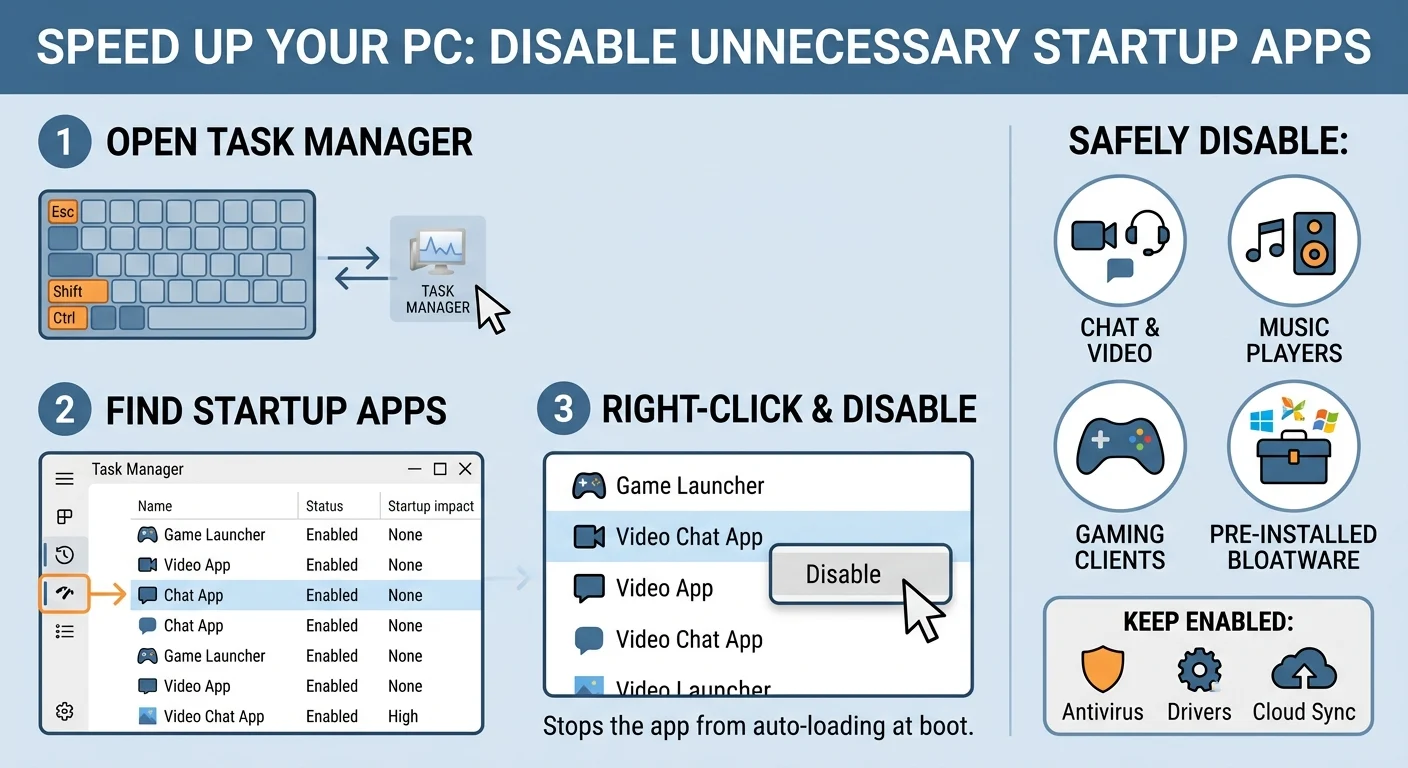
Before we start turning things off, you need to know where to look. Windows makes managing these settings incredibly simple through the Task Manager.
- Press Ctrl + Shift + Esc to open the Task Manager directly.
- Click on the Startup tab on the left side menu.
- Look at the Status column to see what is currently enabled.
- Check the Startup impact column to see which apps are slowing you down the most.
To stop an app from running at boot, simply right-click its name and select Disable. It really is that easy.
The Best Startup Programs to Disable Right Now
Here is the main event. These are the most common resource hogs you can safely stop from launching automatically to improve your PC performance.
Chat and Video Applications
Unless you use your computer strictly for a remote job, you probably don’t need Microsoft Teams, Zoom, or Skype opening immediately. These communication apps consume a surprising amount of memory just sitting idle in the background. You can always open them manually when you actually need to hop on a call.
Music Players like Spotify and iTunes
Spotify is notorious for setting itself to launch on startup. iTunes Helper is another common offender if you use Apple devices. Neither of these needs to run constantly. Disabling them will not stop you from listening to music later. It just prevents them from slowing down your initial boot sequence.
Gaming Client Bootstrappers
Steam, Epic Games, and the EA app love to launch right away to check for updates. If you are sitting down to write an email or do some work, you don’t need your massive game library syncing in the background, which is just one of many ways to optimize your system before seeking further IT consulting for your business. Turn these off. Your games will still update perfectly fine when you open the launcher on your own time. See our related guide on [optimizing Windows for gaming] for more performance tips.
Adobe Reader and Update Services
Adobe products are notoriously heavy. Adobe Reader and various update services frequently run at startup to check for new software versions. Disabling these is a great start, but if your system remains sluggish, you may want to explore our comprehensive PC & Mobile Services to ensure your hardware is running at peak efficiency. completely safe. The software will simply check for updates the next time you actually open a PDF document.
Pre-installed Manufacturer Bloatware
If you bought a pre-built PC or laptop from brands like Dell, HP, or Lenovo, it probably came loaded with helper applications. Things like HP Support Assistant or Lenovo Vantage often run at startup. Most of these provide very little daily value. You can safely disable them to free up valuable memory.
What Happens When You Disable a Startup App?
A common fear is that turning off a startup program will break the software or delete it from the computer. That is completely false. Disabling an app just stops it from preemptively loading into your system memory. The program will still work exactly as intended the moment you click its desktop icon.
Programs You Should Leave Alone
While you want to clean house, a few critical things need to stay active to keep your computer running smoothly and securely.
- Antivirus software: Programs like Windows Defender or third-party security tools need to run from the moment your PC turns on. They protect you from threats that try to sneak in during the boot process.
- Hardware drivers: Audio managers, graphics card control panels, and mouse or keyboard software should stay enabled. Turning these off might stop your custom hotkeys or sound settings from working properly.
- Cloud storage sync: If you rely on OneDrive, Google Drive, or Dropbox to back up your files, keep them running. You want your documents backing up continuously without having to remember to launch the app.
Key Takeaways for a Faster PC
Taking five minutes to audit your task manager can drastically change how your computer feels. Focus on disabling the heavy, non-essential apps that just sit in your system tray doing nothing.
Keep your security tools and hardware drivers active. Everything else is usually fair game. By cutting down on the digital clutter, your operating system will load faster and feel much more responsive right out of the gate.