(302) 262 8484
Why You Need to Know About the Setting That Could Save Your Computer

We have all been there. You click a routine update, download a seemingly normal file, or simply turn on your machine, and everything goes wrong. The screen freezes. The dreaded blue screen appears. Your files are suddenly inaccessible.
This is exactly why you need to know about the setting that could save your computer. It takes less than two minutes to check, but it can save you days of absolute misery and the need for professional PC repair in Delaware.
We are talking about automated system recovery. It goes by different names depending on your device, but the core concept is the same. It takes a snapshot of your digital life so you can rewind time when disaster strikes.
The Hidden Windows Feature: System Protection
If you use a Windows PC, your digital time machine is called System Restore. It takes a quiet snapshot of your system files, registry data, and critical settings at specific intervals.
If a bad graphics driver ruins your display or a rogue software update bricks your machine, you just roll back the clock to a time when everything worked. It is brilliant.
Here is the frustrating part. Microsoft often leaves this feature turned off by default on new computer installations. They do this to save a tiny bit of hard drive space.
That is a terrible trade-off. Saving a few gigabytes is not worth losing your entire operating system.
How to Turn On System Restore in Windows
You want to fix this right now. Do not put it off until tomorrow. Here is how to enable System Protection on Windows:
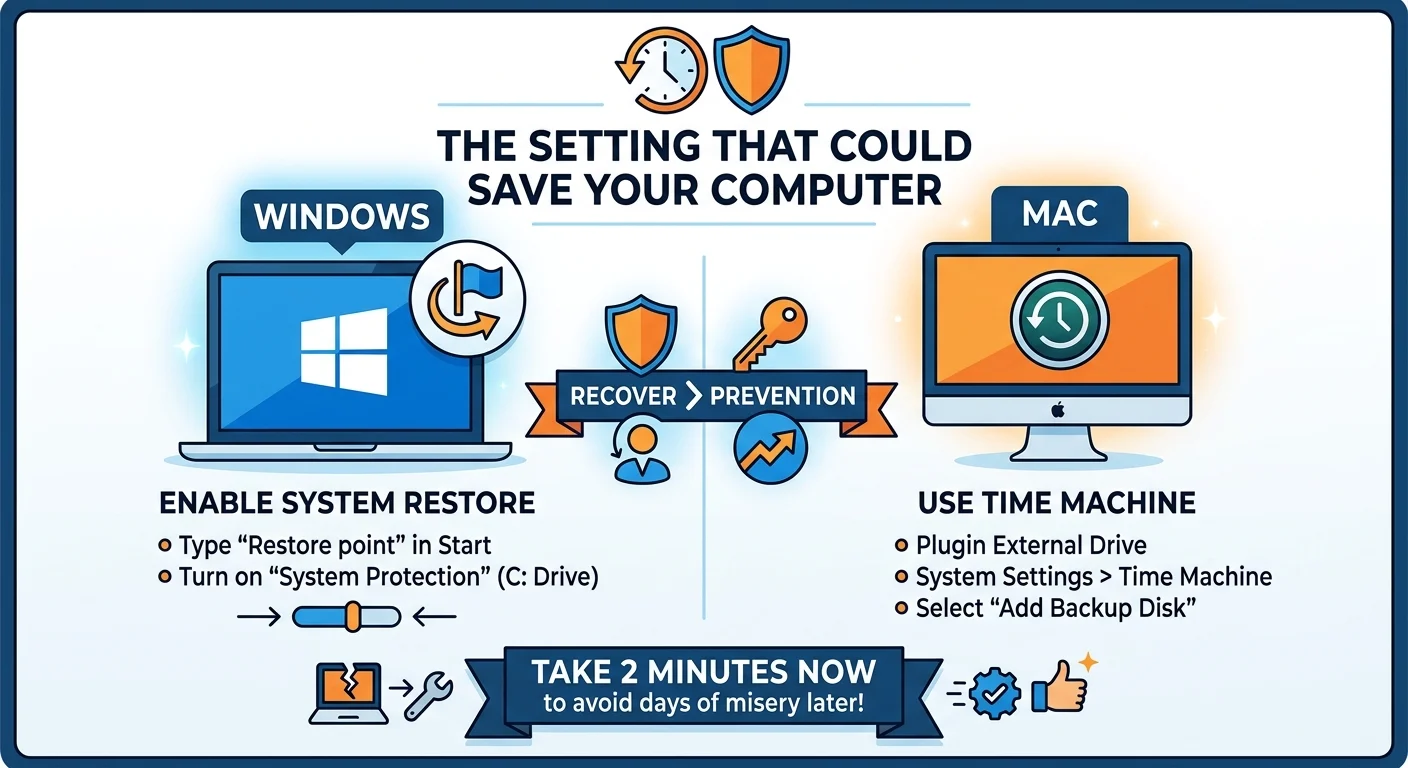
- Click your Start menu and type Create a restore point in the search bar.
- Hit Enter to open the System Properties window.
- Look under the Protection Settings box and find your main drive. This is usually labeled as the C: drive.
- If the protection status says “Off” next to it, click the Configure button.
- Select Turn on system protection and use the slider to allocate about 5 to 10 percent of your disk space.
- Click Apply and then click OK.
That is it. You just bought yourself a massive insurance policy for free.
The Mac Equivalent: Enabling Time Machine
Apple handles things a bit differently. Mac computers do not have a direct clone of the Windows System Restore feature. Instead, they rely on a powerful tool called Time Machine.
Time Machine is arguably better because it backs up your personal files alongside your system data. But just like the Windows setting, it does absolutely nothing if you never turn it on.
There are two types of computer users: those who have lost data, and those who are about to.
Do not wait to become the first type of user.
Setting Up Your Mac for Easy Recovery
You will need an external hard drive for this to work properly. Once you plug a drive in, the setup process is incredibly simple.
- Click the Apple menu in the top corner and open System Settings.
- Navigate to General and click on Time Machine.
- Click the Add Backup Disk option and select your plugged-in external drive.
- Follow the on-screen prompts to erase the drive and start your very first backup.
Once this is running, your Mac will automatically save hourly backups. If an update completely wrecks your macOS installation, you can restore the whole computer straight from Recovery Mode.
Why Recovery Beats Prevention Every Time
People spend a lot of money on antivirus software. They buy heavy security suites hoping to block every possible threat before it reaches their hard drive.
Prevention is great. But prevention eventually fails.
Zero-day exploits happen. Bad operating system updates are notoriously common. Hardware glitches corrupt files without any warning at all. When the worst happens, an antivirus program cannot un-break your operating system. A solid restore point can.
Think of it like wearing a seatbelt. You still try to avoid crashing, but you definitely want the seatbelt there when someone else runs a red light.
Don’t Wait Until It Is Too Late
Do not close this tab and forget about it. Checking the setting that could save your computer takes almost no time at all, and it is the single most important thing you can do for your digital security today.
If you are unsure about your current backup strategy, take a look at our guide on [how to back up your personal files securely]. It covers cloud storage options that pair perfectly with these built-in system recovery tools.
Go check your settings right now. Your future self will thank you.