(302) 262 8484
How to fix a frozen Mac without losing your unsaved work

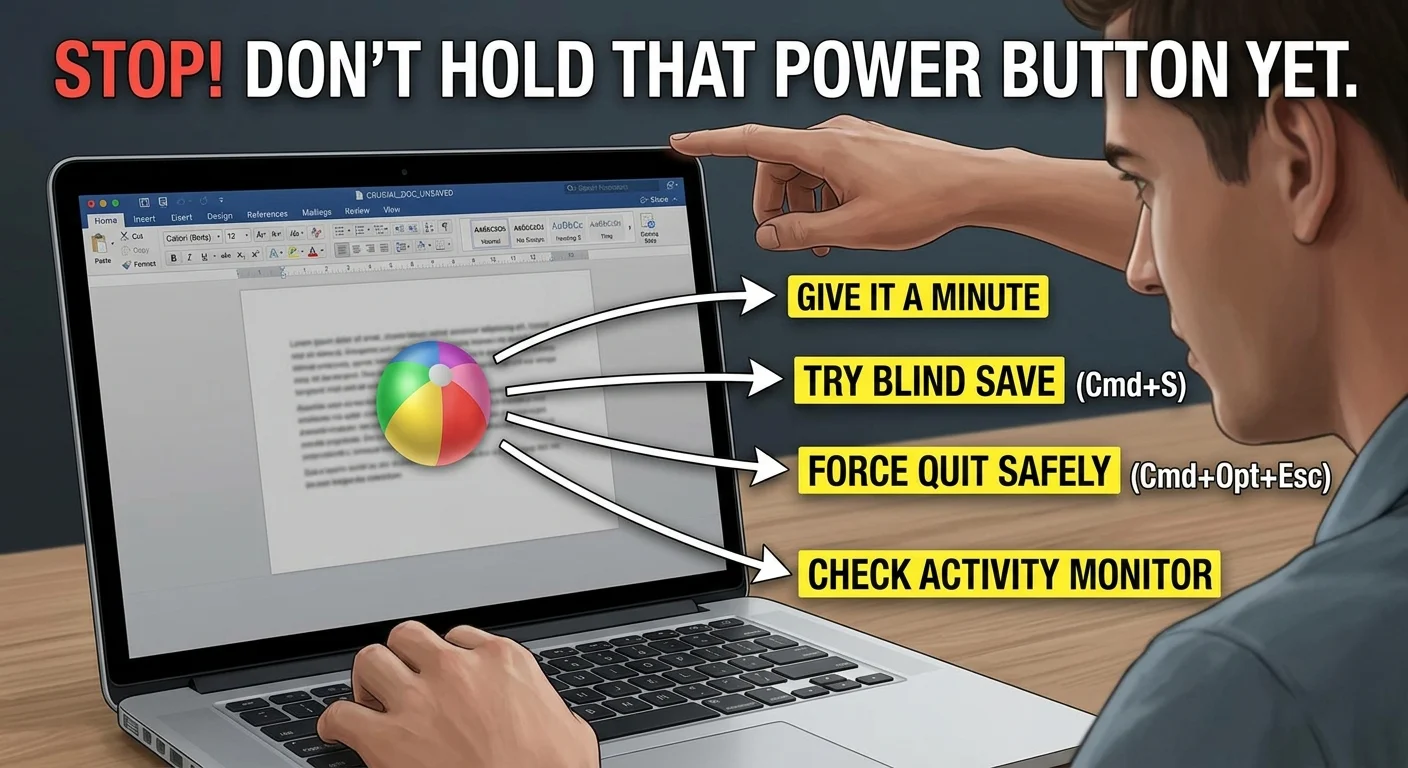
You are staring at the spinning beach ball of death. Panic sets in. You have a crucial document open and you have not hit save in over an hour. If you are scrambling to figure out how to fix a frozen Mac without losing your unsaved work, take a deep breath. Do not hold down the power button just yet.
A hard reboot should always be your absolute last resort. Forcing your computer to shut down will almost certainly wipe out whatever you were just working on. Let’s walk through a few safer, smarter options to get your system running again so you can save your progress.
Give it a minute (seriously)
It sounds way too simple. But often, a Mac is not truly frozen. It is just temporarily overwhelmed.
If you are dealing with a massive video file, running a heavy application, or opening a folder with thousands of images, the processor might just need a moment to catch up. Step away from the keyboard for five minutes. Go grab a coffee or stretch your legs. You would be surprised how often the system sorts itself out while you are gone.
Try the blind save
Sometimes the screen is stuck but the application is actually still registering your keyboard inputs in the background. You can try to force a save even if you cannot see the menu.
Hit Command + S on your keyboard. Press it a couple of times just to be sure. Even if the screen does not change, the command might push through. If you are using a cloud-based app or a modern version of Microsoft Office, your work might already be protected via autosave. You can read more about that in our guide on [how to recover lost Word documents on Mac].
Force quit the troublemaker
Usually, your entire Mac is not frozen. It is just one poorly optimized app ruining the party for everything else. If you can isolate and close that specific app, your Mac will snap back to life.
How to use the Force Quit menu safely
Press Command + Option + Escape. This shortcut brings up the Force Quit window. Look for the application that has the words “Not Responding” next to it. Select that app and click the Force Quit button.
Here is the catch. If the frozen app is the exact one holding your unsaved work, force quitting it will likely lose your recent progress. But if Safari is the app that froze and your unsaved work is sitting safely in Pages, force quitting Safari will unfreeze your Mac so you can finally save your document.
Clear out background processes
Sometimes a hidden background task is eating up all your memory. If your mouse is still moving, you can use Activity Monitor to kill the resource hog.
Press Command + Space to open Spotlight Search. Type in Activity Monitor and hit Return. Once it opens, look at the CPU or Memory tabs. Find anything taking up an absurd amount of resources. Click the X button at the top to force that specific process to stop.
This trick often frees up just enough memory for your frozen app to start responding again.
Put your Mac to sleep
Here is a weird trick that actually works more often than you might think. Try putting your computer to sleep.
Just close the lid of your MacBook. If you are on an iMac or Mac Studio, press the power button once quickly. Wait about thirty seconds and then wake the computer back up. This action forces the operating system to suspend and resume its current processes. Sometimes that is exactly the jolt it needs to clear a temporary software freeze.
What if your Mac is completely unresponsive?
If your mouse will not move and the keyboard is completely dead, your options shrink dramatically. You are dealing with a hard system freeze.
At this point, you have to do a hard reset. Hold down the power button for about ten seconds until the screen goes completely black. Wait a few seconds, then press the power button again to turn it back on.
Yes, you might lose the exact paragraph you were working on. But modern macOS is pretty smart. Many default Apple apps use a feature called Auto Save that creates hidden recovery files. When you reboot and open the app again, there is a very good chance it will automatically load your last session.
Stop the spinning beach ball for good
You do not want to be in this stressful situation again. A Mac that freezes regularly is trying to tell you that something is fundamentally wrong with the system.
Here are a few quick ways to keep your Mac running smoothly:
- Keep your software updated. Buggy older versions of apps are notorious for causing system freezes.
- Check your hard drive space. Your Mac needs at least 15 to 20 percent of its drive totally empty to function properly. If your drive is full, your Mac will freeze.
- Clear out your startup items. Too many applications trying to launch the second you turn on your computer will choke your memory.
- Monitor your browser tabs. Having fifty tabs open in Google Chrome is a guaranteed way to slow down your machine.
Next time you see that spinning beach ball, do not panic. Try these steps first. You might just save yourself hours of lost work.