(302) 262 8484
How to Fix a Laptop Screen That Keeps Randomly Flickering

Nothing kills your productivity faster than a display that looks like a strobe light. If you are trying to fix a laptop screen that keeps randomly flickering, you are definitely not alone. It is one of the most common tech headaches out there.
Fortunately, you rarely need to buy a brand new computer to solve it.
Let’s figure out what is causing that annoying glitch and get your screen back to normal.
The two main culprits behind a flickering screen
Before you start taking things apart, you need to know what you are dealing with. Screen flickering usually comes down to one of two things. It is either a software issue or a hardware problem.
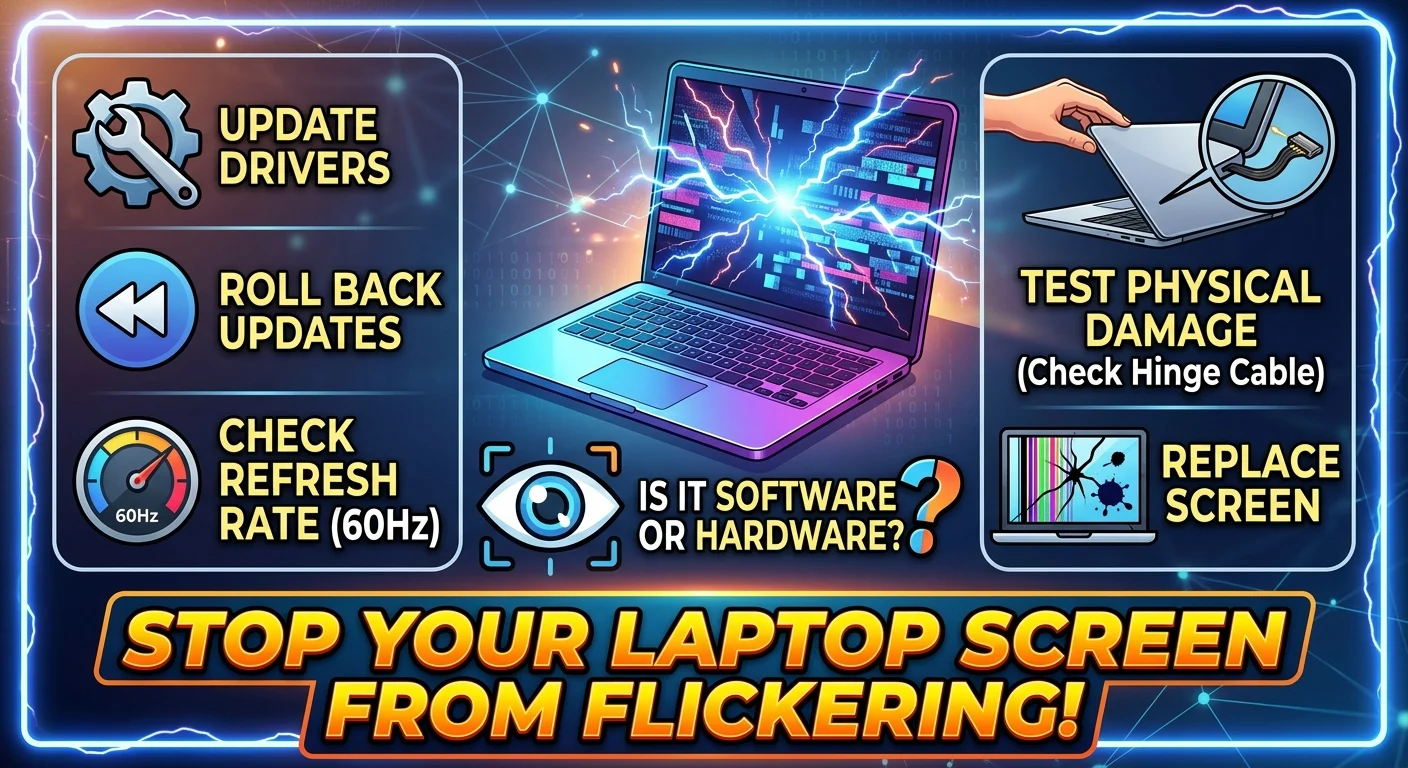
Software issues are usually caused by outdated display drivers or incompatible apps. Hardware problems usually point to a loose cable inside the hinge or a failing LCD panel.
Here is a quick trick to tell the difference.
Open your Task Manager. On Windows, you can do this by pressing Ctrl + Shift + Esc. Watch the Task Manager window closely while the screen acts up.
- If the screen flickers but Task Manager stays solid: You likely have an incompatible app running in the background.
- If Task Manager flickers along with everything else: You are probably looking at a display driver issue or a physical hardware defect.
How to fix a laptop screen that keeps randomly flickering
Once you know if you are fighting a software or hardware battle, you can start troubleshooting. Work your way through these practical steps.
Update your display drivers
This is the absolute most common fix. Display drivers tell your operating system how to talk to your screen. When they get corrupted or outdated, things get messy fast.
Open your Device Manager and find the Display Adapters section. Right-click your graphics card and select Update driver. Choose the option to search automatically.
If Windows says you already have the best driver, don’t trust it completely. Go directly to the website of your laptop manufacturer. Download the latest graphics driver for your specific laptop model and install it manually.
Roll back a recent update
Did your screen start acting up right after a Windows update? Sometimes new updates break things that were working perfectly fine.
Go back into your Device Manager. Right-click your display adapter and hit Properties. Under the Driver tab, look for a button that says Roll Back Driver.
If it is clickable, click it. This will revert your system to the previous version that actually worked.
Check your screen refresh rate
Your refresh rate dictates how many times per second your screen draws a new image. If it is set to a number your monitor can’t handle, you will get a nasty flicker.
Right-click on your desktop and open Display settings. Scroll down to Advanced display settings. Look at the refresh rate drop-down menu.
Try changing it to 60Hz. That is the standard sweet spot for most laptop displays.
Test for physical hardware damage
If the software fixes didn’t work, it’s time to look at the physical machine. Gently open and close your laptop lid a few times.
Does the flickering get worse at certain angles?
If so, you almost certainly have a loose or damaged display cable. The cable that connects your motherboard to your screen runs right through the hinge of your laptop. Over time, opening and closing the lid can pinch or wear out that wire.
If you are comfortable opening your laptop, you can check our guide on [laptop hardware repair] to see how to reseat the display cable. Otherwise, this is a good time to visit a local repair shop.
Stop incompatible apps from running
Sometimes a specific program is fighting with your system resources. Antivirus software and heavy video editing tools are notorious for this.
Think about what you installed right before the flickering started. Try uninstalling that specific program to see if the issue goes away. You can always reinstall a cleaner version later.
When is it time to replace the screen?
We all want a quick free fix. But sometimes a screen is just dead.
If your laptop took a hard fall recently, the LCD panel itself might be cracked internally. You might see weird colored lines or black ink spots spreading across the display. Software will not fix that.
You will need to replace the panel entirely.
Replacing a screen sounds scary but it’s actually pretty straightforward on most standard laptops. You can usually find a replacement panel online for under a hundred bucks. Just make sure you match the part number exactly before you order.