(302) 262 8484
Is Google Chrome Using All Your Memory?

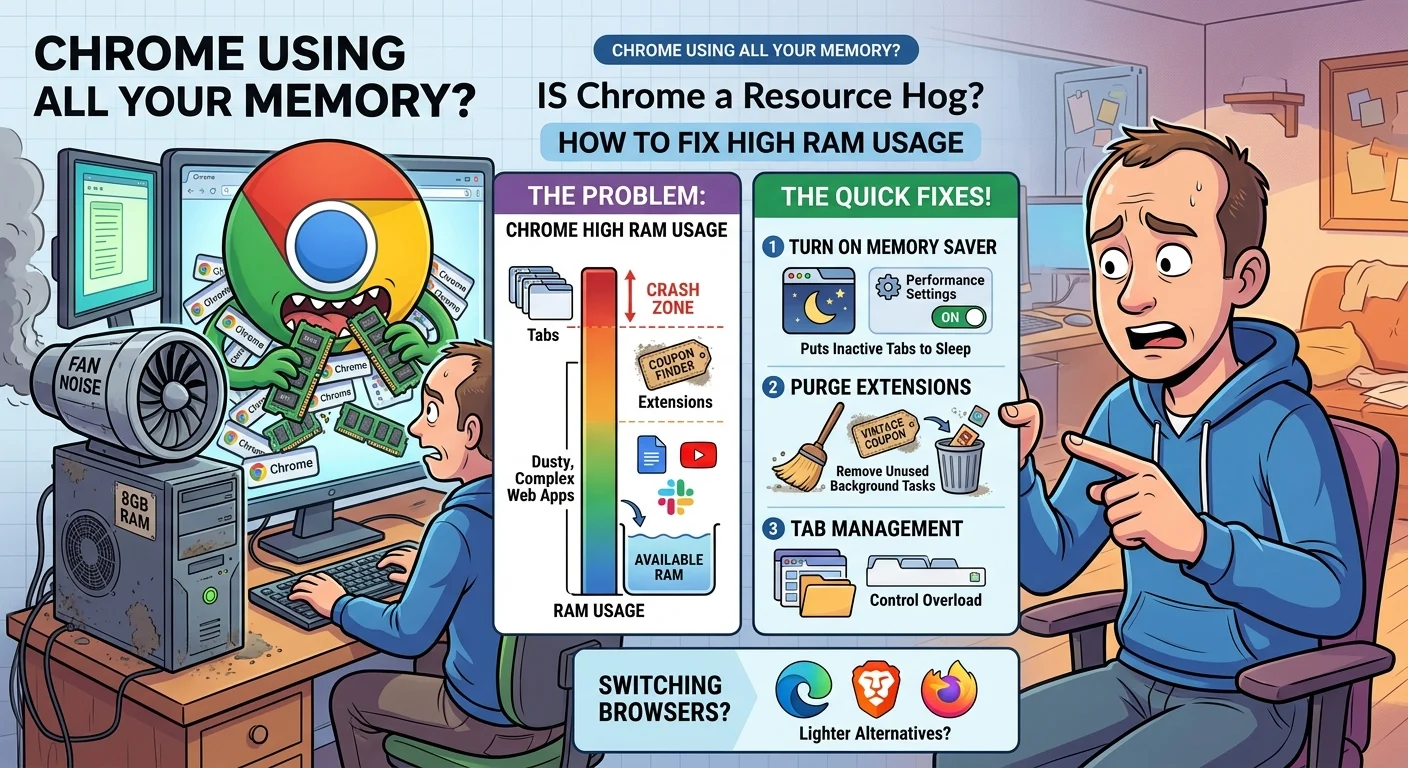
You boot up your computer, open a few tabs, and suddenly your cooling fans sound like a jet engine taking off. Everything slows to a crawl. If you check your system resources, the culprit is almost always the same. Is Google Chrome using all your memory? You are definitely not alone.
Chrome is notorious for being a massive resource hog. It is incredibly fast and reliable, but that performance comes at a steep price for your system RAM.
Here is the thing about how Chrome works. It isolates every single tab, plugin, and extension into its own separate process. This architecture is actually brilliant for stability. If a heavy web app crashes in one tab, it does not take down your entire browser.
But the trade-off is huge memory consumption. Every open tab is essentially running its own mini-browser in the background. Add a few complex sites like Google Docs, Slack, or YouTube, and your available RAM disappears fast.
Finding the worst offenders
Before you start changing settings blindly, you need to know what is actually draining your resources.
Do not just rely on your computer’s built-in task manager. Chrome has a highly detailed one built right in. Just hit Shift + Esc while Chrome is open on your desktop. This brings up the Chrome Task Manager.
You will see a live view of exactly which tabs and extensions are eating up your RAM. Click the “Memory footprint” column to sort the list and find the biggest drains. You might be surprised by what you find.
How to Fix Chrome High RAM Usage
You do not have to live with a sluggish computer or buy more RAM just to browse the internet. A few quick tweaks can force Chrome to play nice with your system.
Turn on Memory Saver
This is the absolute easiest fix available. Google finally realized they had a memory problem and added a native feature to handle it. Memory Saver basically puts inactive tabs to sleep.
The tabs stay visible in your top bar, but they stop using active resources until you click on them again.
Here is how to enable it right now:
- Click the three vertical dots in the top right corner of Chrome.
- Select Settings from the drop-down menu.
- Click on Performance in the left-hand sidebar.
- Toggle Memory Saver to the on position.
You can even add specific websites to an exception list if you need them to stay active in the background, like a webmail client or a music player.
Purge your extensions
We all install extensions and completely forget about them. But every active extension runs continuously in the background.
That coupon finder you installed three years ago? It is still chewing through your memory today. Go to your extensions page and be ruthless. If you do not use an extension every single week, turn it off or remove it completely. You can always reinstall it later if you really miss it.
Get your tabs under control
If you keep forty tabs open at all times, you might need a digital intervention. Or at least a good tab management tool.
There are several great extensions designed specifically to suspend tabs and free up gigabytes of RAM in seconds. They bundle up your clutter into a simple list. See our guide on [best Chrome extensions for productivity] for our top recommendations on managing tab overload.
Should You Just Switch Browsers?
Sometimes tweaking settings is not enough. If you are working on an older laptop with 8GB of RAM or less, Chrome might simply be too heavy for your machine.
It is perfectly okay to walk away.
Browsers like Microsoft Edge and Brave are actually built on the exact same underlying engine as Chrome. They support all the same extensions you already use. But they generally manage memory much better out of the box and block a lot of resource-heavy trackers automatically.
Firefox is another fantastic alternative if you want to leave the Google ecosystem entirely. It is lightweight, respects your privacy, and handles dozens of tabs without breaking a sweat.
You rely on your browser for almost everything you do online. It should not be the reason your computer grinds to a halt. Take five minutes today to clean up your extensions and toggle on Memory Saver. Your computer will thank you.