(302) 262 8484
How to Fix iPhone Storage Full Error Without Deleting Photos

We’ve all been there. You’re about to capture a perfect moment and your screen hits you with that dreaded “Storage Almost Full” popup. Panic sets in. You immediately think you have to sacrifice your camera roll. But you really don’t have to.
If you want to fix iPhone storage full error without deleting photos, you’re in the right place. Let’s look at exactly how to reclaim your space right now.
How to fix iPhone storage full error without deleting photos
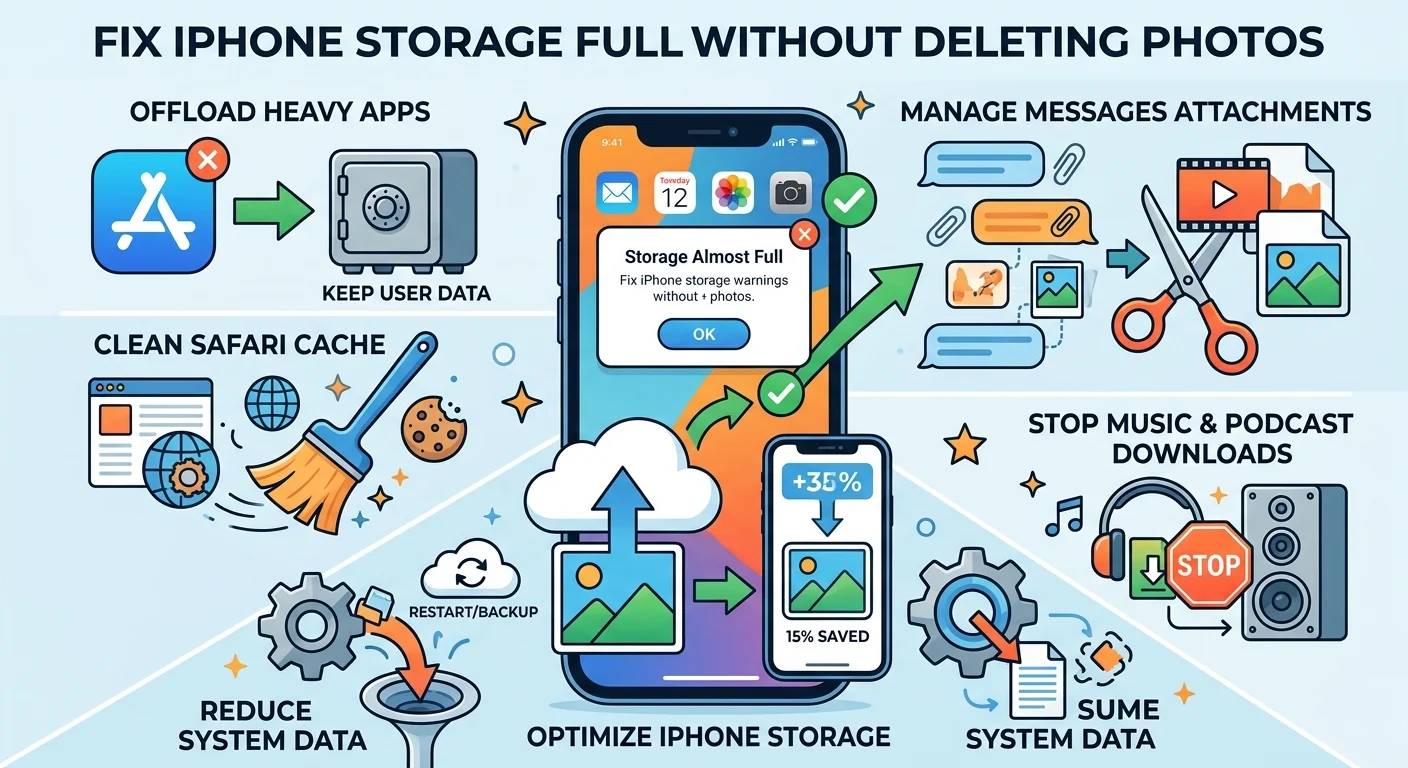
Offload those heavy apps you never use
You probably have dozens of apps sitting around doing nothing. Games you played once. Travel apps from a trip three years ago. Instead of deleting them and losing your data, Apple gives you a brilliant alternative.
You can offload them.
Offloading removes the app itself but keeps your documents and data intact. When you reinstall it later, everything is exactly how you left it. Go to Settings, tap General, and hit iPhone Storage. Scroll through your heaviest apps and tap “Offload App” on the ones gathering digital dust.
Dump your Safari cache and offline data
Web browsers are notorious digital hoarders. Every time you load a page, Safari saves tiny bits of data. Over months or years, this cache swells into gigabytes of wasted space.
Clearing it takes ten seconds. Head to Settings, scroll down to Safari, and tap “Clear History and Website Data”. Just keep in mind this will log you out of websites, so have your passwords ready.
Find and destroy hidden system hogs
Sometimes the biggest space invaders are hiding in plain sight. Text messages are a huge offender.
Clean up your bloated iMessage threads
Think about how many videos, GIFs, and high-res photos you send and receive every single week. Your iPhone saves every single one of them by default. This is usually why people get a storage full warning when they feel like they hardly have anything on their phone.
You don’t need to delete the conversations. Just target the heavy attachments.
Here is how to do it fast:
- Open Settings and go to General.
- Tap iPhone Storage and select Messages.
- Tap Review Large Attachments.
- Swipe left to delete the massive videos and files you no longer need.
You can also set your phone to automatically delete messages after 30 days or a year instead of keeping them forever. See our guide on iOS messaging settings for more tips on that.
Stop hoarding podcasts and music
Streaming services love to secretly download stuff in the background. If you use Apple Podcasts or Spotify, check your download settings. You might have dozens of hours of audio saved locally that you’ve already listened to.
Go into your podcast app settings and toggle on the option to automatically remove played episodes. It’s a simple tweak that saves massive amounts of room.
What to do about that annoying System Data category
If you look at your storage bar graph, you might see a massive grey chunk labeled System Data. This used to be called “Other” storage. It’s mostly caches, logs, and temporary files that iOS is supposed to manage on its own.
When iOS fails to clean this up, it gets out of hand quickly.
The easiest way to force your phone to dump this junk is a simple restart. Turn your phone completely off, wait a minute, and turn it back on. If that doesn’t work, backing up your phone to a computer and restoring it is the ultimate reset for bloated system data.
The ultimate trick for your camera roll
Okay, I promised we wouldn’t delete any photos. And we won’t. But we can make them take up significantly less room.
Turn on Optimize iPhone Storage
If you use iCloud Photos, this is a total game changer. This setting keeps your full-resolution photos safely backed up in iCloud while leaving smaller, device-sized versions on your phone.
When you tap a photo to look at it, your phone instantly downloads the high-res version. You barely even notice it happening.
To turn this on, go to Settings, tap your name at the top, hit iCloud, and select Photos. Check the box for “Optimize iPhone Storage”. Depending on the size of your library, this single toggle can free up 10 to 50 gigabytes of space.
Reclaiming your storage doesn’t have to mean losing your favorite memories. By targeting caches, messages, and app data, you can get your phone running smoothly again. Take five minutes to run through these steps today. Your future self will thank you the next time you need to record a video in a hurry.