(302) 262 8484
This Hidden Roku Secret Menu Instantly Fixes Buffering

Few things are more frustrating than settling in for a movie night only to be greeted by a spinning circle on your TV screen. If you’re dealing with constant pauses and pixelated video, you don’t have to accept it as a fact of life. There is a hidden Roku secret menu that can instantly fix your buffering issues by changing how your device handles streaming speeds. You don’t need to download any sketchy apps or invest in expensive new hardware like a PC upgrade in Delaware. All it takes is a specific sequence of button presses on your standard Roku remote.
Why Your Roku Keeps Buffering (Even With Fast Internet)
You might have blazing-fast internet on your phone or laptop, but your streaming device can still struggle. Often, the issue isn’t your actual internet speed, but how your streaming device manages its connection. Roku devices are designed to automatically pull the highest quality video feed possible. When your Wi-Fi signal fluctuates, even for a split second, the stream collapses because the device is trying to load a massive 4K file on a temporary dip in bandwidth.
Here’s the thing. Instead of letting your device guess what speed it should use, you can take manual control. By accessing a hidden menu, you can set a speed limit that keeps your stream completely stable, eliminating the constant ups and downs that trigger buffering.
Unlocking the Roku Secret Menu for Bit Rate Override
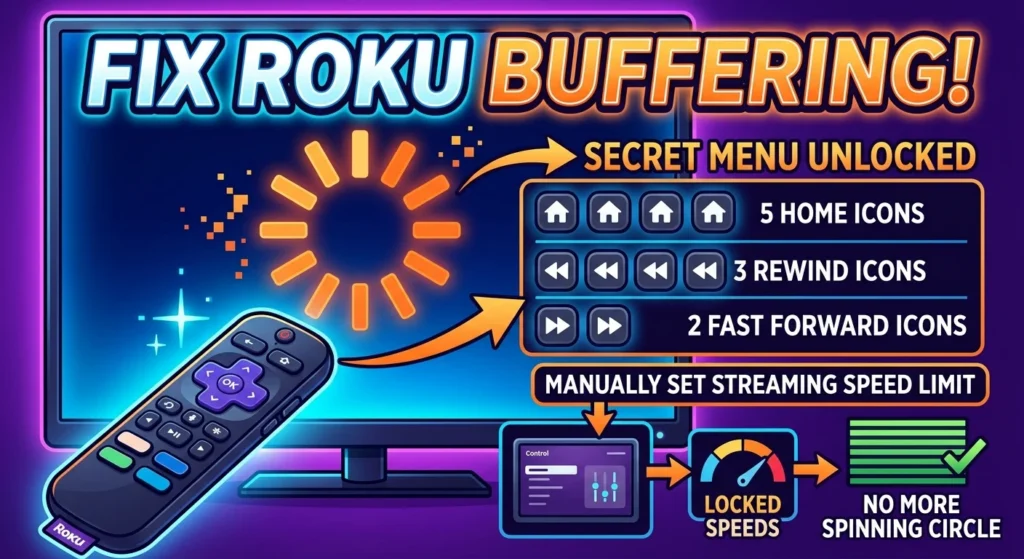
The most effective tool for stopping the spinning circle is the Bit Rate Override screen. This hidden panel allows you to manually lock in a specific streaming speed. By capping the speed, you prevent your Roku from constantly trying to reach for a higher resolution than your Wi-Fi can reliably handle at that exact moment.
Now, this is where it matters. To access this menu, grab your physical remote and make sure you’re on the Roku Home screen. Press the following buttons in a steady, deliberate rhythm:
- Press the Home button 5 times
- Press the Rewind button 3 times
- Press the Fast Forward button 2 times
Once you enter this code, a screen will pop up showing your current bit rate settings. By default, it’s set to automatic. To stop buffering, you can select a lower, more stable speed from the list. For example, setting it to a consistent 3.5 Mbps or 4.0 Mbps will keep your stream running smoothly in high definition without forcing the device to constantly buffer larger files.
The Roku Secret Menu Code for Wireless Diagnostics
If you want to know exactly why your connection is struggling, you can pull up a highly detailed diagnostic screen. This hidden tool shows your real-time signal strength, wireless interference levels, and packet loss statistics. It’s incredibly useful for finding out if your TV is simply too far from your router, or if you need help with what to do if your internet stops working right now.
To open this diagnostic panel, go to your Home screen and enter this sequence:
- Press the Home button 5 times
- Press Up once
- Press Down once
- Press Up once
- Press Down once
- Press Up once
This screen gives you a clear picture of your network health. If you see high packet loss, it might be time to consult with experts regarding professional PC repair in Delaware to ensure your home network hardware is functioning correctly.s or a weak signal, you know the issue is physical interference. In this case, you might need to move your router closer, clear away obstructions, or switch your router to a less congested Wi-Fi channel. (For more details on network setup, see our guide on [how to optimize home Wi-Fi for streaming]).
Clear Your Cache Instantly with a Soft Reset
Sometimes, buffering isn’t a network problem at all. Just like a computer or a smartphone, your streaming stick accumulates temporary files and cache data over time. When this system memory gets cluttered, the entire interface slows down, and apps start to lag and buffer.
Instead of digging through settings or unplugging the power cord, you can force a clean system reboot using another remote shortcut. This acts as a quick memory flush to make your device feel brand new.
How to Trigger the Roku Secret Menu Reboot
From the Home screen, press this specific combination:
- Press the Home button 5 times
- Press the Up arrow once
- Press the Rewind button 2 times
- Press the Fast Forward button 2 times
After you press the final button, your screen will freeze for a few seconds. Don’t panic. The device is clearing its cache in the background. After a brief pause, the screen will go black, and your Roku will perform a clean restart. When it boots back up, you should notice a snappier interface and much smoother video playback.
Simple Ways to Keep Your Streams Smooth
While these secret codes are powerful, keeping your device running well requires a little bit of maintenance. If you want to prevent buffering from coming back, here are a few best practices to follow:
- Uninstall unused channels: Having too many apps installed fills up your limited storage space and slows down background processes. Keep your library lean.
- Use a wall outlet: Powering your streaming stick through your TV’s USB port can sometimes cause power fluctuations. Plugging it directly into a wall outlet ensures it gets steady power for optimal performance.
- Check for updates: Outdated firmware can cause compatibility issues with streaming apps. Make sure your system is up to date.
So what does that mean for you? The next time your favorite show starts to freeze, skip the frustration of rebooting your router. Grab your remote, dial in the secret codes, and take control of your streaming experience.