(302) 262 8484
Why Your PC Fans Suddenly Get Extremely Loud (And How to Fix It)

If you’re sitting at your desk and your computer suddenly starts sounding like a jet engine, you’re not alone. It’s a jarring experience that can make you feel like your expensive rig is about to melt into a puddle of plastic.
Loud fans are usually just doing their job. They spin faster to keep your components from overheating when workloads spike. But when they ramp up out of nowhere while your computer is practically idling, that’s a sign of an underlying issue that needs your attention.
The Culprits Behind Sudden Fan Noise
To fix the noise, we first have to figure out what’s triggering the sudden speed boost. It usually comes down to a battle between hardware heat and software demands.
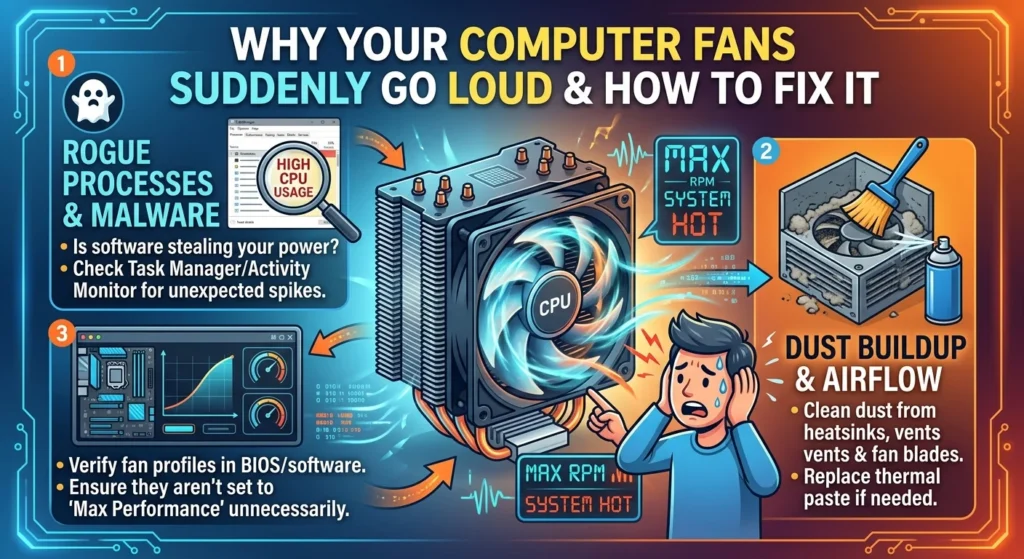
1. Rogue Background Software and Malware
Your fans spin faster because your CPU or GPU is getting hot. If it’s heating up when you’re only staring at your desktop, a rogue background process is likely eating up your processor power without your permission.
Cryptomining malware, bloated background updates, or buggy peripheral software like Razer Synapse or Gigabyte Control Center can trigger these sudden spikes. You can quickly diagnose this by opening Task Manager in Windows or Activity Monitor on macOS, or you can reach out for personalized IT solutions for small businesses if you need help managing your hardware performance. If your CPU usage is sitting above 20% while idle, you’ve found your culprit.
2. Dust Buildup and Poor Airflow
Dust is the enemy of silent computing. Over time, a thick blanket of dust settles on your heatsinks, vents, and fan blades, acting as an insulator that traps heat inside your components.
When that heat cannot escape, your system has to run the fans at maximum speed just to keep temperatures in a safe zone. If you haven’t cleaned your computer case in the last six months, a quick blast of compressed air might be all you need to restore peace and quiet, though you can also contact us for expert PC repair in Delaware if the issue persists. If you’re not sure how to do this safely, see our guide on [how to clean your PC safely].
3. Aggressive Fan Settings
Sometimes your hardware is perfectly cool, but your fan settings are too aggressive. Your motherboard uses a “fan curve” to decide how fast to spin the fans at different temperatures.
A recent software update or a BIOS reset can easily mess up these curves. Some third-party RGB software packages are also known to override system settings and force fans into a loud boost mode upon startup. If your fans are constantly hunting for speed, ramping up and down every few seconds, your fan curve is likely the issue.
4. Misconfigured Power Plans and CPU Boosting
This is a particularly common issue for AMD Ryzen users. By default, certain Windows power plans allow the CPU to boost aggressively even during minor tasks like opening a browser tab. This sudden burst of energy causes a quick temperature spike, forcing the CPU fan to spin up loudly for a few seconds before settling down.
5. Failing Fan Bearings
If the noise is more of a rattling, grinding, or clicking sound rather than a clean rush of wind, you’re likely dealing with hardware failure. Fan bearings wear out over time, causing the blades to wobble and vibrate against the frame. In this case, no amount of software tweaking will help, and you’ll need to replace the fan entirely.
How to Silence Your PC Fans
You can usually get your system back to normal with a few targeted troubleshooting steps:
- Check your Task Manager: Press Ctrl + Shift + Esc and look for any programs consuming high CPU resources. End those tasks or uninstall the offending software.
- Clean your PC: Shut down your computer, unplug it, and use compressed air to blow dust out of the fans, filters, and heatsinks. Make sure to hold the fan blades still while spraying to prevent damage.
- Adjust your fan curves in BIOS: Restart your PC, tap the Del or F2 key to enter the BIOS, and look for the hardware monitor section. Set your fans to a “Silent” or “Standard” profile, or manually smooth out the curve so they don’t react too aggressively to minor temperature spikes.
- Fix your Windows power settings: If your CPU fan is constantly revving, go to your Windows Power Options. Modify your active plan, navigate to Processor Power Management, and try reducing the maximum processor state slightly to prevent aggressive boosting.
- Check your fan headers: Ensure your case fans are plugged into the correct motherboard headers. Plugging a standard case fan into a dedicated AIO_PUMP or CPU_OPT header can sometimes force it to run at 100% speed constantly.
What This Means for Your System
A loud PC fan is your computer’s way of signaling a problem. While it’s usually a simple fix like clearing out dust or closing a heavy background program, ignoring it can lead to thermal throttling or hardware damage down the road.
Take ten minutes to clean your system and check your settings. Your ears, and your hardware, will thank you.