(302) 262 8484
The Mouse Trick Almost Nobody Knows But Uses Every Day Once They Learn It

Most of us spend hours every day clicking, scrolling, and dragging our way across the web, yet we completely ignore one of the most powerful tools sitting right under our index finger. If you are still right-clicking to open links in new tabs or carefully aiming for that tiny “x” to close them, you are losing valuable time. The secret lies in a series of middle mouse button shortcuts that, once learned, will completely change how you interact with your computer. Let’s dive into how this simple, underutilized button can supercharge your daily productivity, much like our personalized IT solutions for small businesses help streamline your entire office workflow.
Unlocking the Power of Middle Mouse Button Shortcuts
For most people, the scroll wheel is just for moving up and down on a page. But that wheel is actually a fully clickable button. Pressing straight down on it triggers a “middle click,” which unlocks a treasure trove of hidden actions in Windows and your favorite web browsers.
1. Opening Links in a New Background Tab
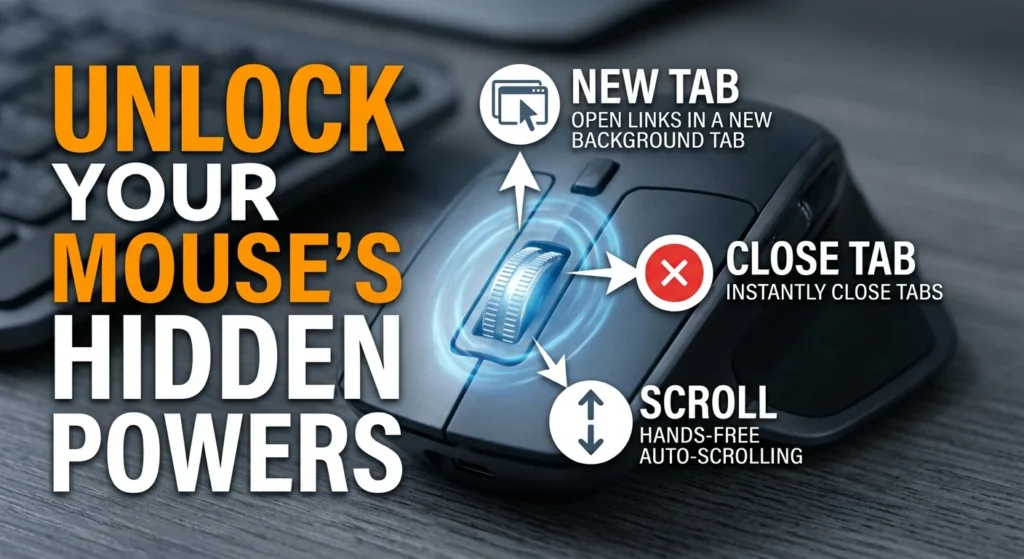
We have all been there: you are reading an article and see a link you want to check out, but you do not want to lose your place. Instead of right-clicking and selecting “Open link in new tab,” simply hover over the link and click your scroll wheel. The link will instantly open in a new background tab, allowing you to keep reading without interruption. If you want to open it and immediately switch to that tab, just hold the Shift key while middle-clicking.
2. Closing Tabs Instantly (Without Aiming for the “X”)
When you have dozens of tabs open, trying to hit that microscopic “x” on each tab is an exercise in frustration. Here is the ultimate shortcut: hover your cursor anywhere on the tab itself and click the middle mouse button. Boom, the tab is gone. It is faster, requires zero precision, and makes cleaning up your browser window incredibly satisfying.
3. Hands-Free Auto-Scrolling with Middle Mouse Button Shortcuts
If you are reading a long document or a massive spreadsheet, constantly flicking the scroll wheel can get tiring. Instead, middle-click once on any empty space on a web page or document. A small multi-directional arrow icon will appear. Now, simply move your mouse slightly up or down, and the page will scroll smoothly on its own. The further you move your cursor from the original click point, the faster it scrolls. This is also a lifesaver for horizontal scrolling in Microsoft Excel, where a standard scroll wheel usually cannot help you.
4. Opening Folders in New Tabs or Windows
These middle mouse button shortcuts are not just for web browsers; they work in Windows File Explorer too. In modern versions of Windows, middle-clicking a folder inside File Explorer will immediately open that folder in a new tab. If you are on an older version of Windows, holding Ctrl and left-clicking will open it in a new window, but the scroll wheel trick is the fastest way to navigate deep folder structures without losing your current view.
5. Launching an Entire Folder of Bookmarks
If you have a set of websites you open every single morning for work, this trick is going to save you tons of clicks. Organize those sites into a single folder on your browser’s bookmarks bar. Instead of opening them one by one, simply middle-click the bookmark folder itself. Your browser will instantly launch every single link inside that folder in its own individual tab.
6. Middle-Clicking Browser Navigation Buttons
This is one of those incredibly clever middle mouse button shortcuts that almost nobody knows about. You can middle-click the Back, Forward, Refresh, or Home buttons in your browser’s navigation bar. Doing so will perform that action in a brand-new tab. For example, middle-clicking the Back button opens the previous page in a new tab, keeping your current page open right where it is.
What if You Are on a Laptop?
If you do not use a physical mouse, you do not have to miss out on these productivity hacks. Most modern laptops allow you to emulate a middle click using your touchpad. On Windows, you can go to your Touchpad Settings and configure a three-finger tap to act as a middle click. If you are on macOS, holding the Command key while clicking your trackpad achieves the exact same results.
Why These Shortcuts Quickly Become Second Nature
At first, remembering to click your scroll wheel might feel a bit awkward. But here’s the thing: once you force yourself to use it for a single afternoon, your muscle memory takes over. It reduces the physical distance your mouse has to travel and eliminates the need for high-precision clicking. Before you know it, you will be navigating your PC with a level of speed and fluidity you didn’t know was possible.