(302) 262 8484
You’re Probably Not Getting the RAM Speed You Paid For

The Silent Performance Bottleneck in Your PC
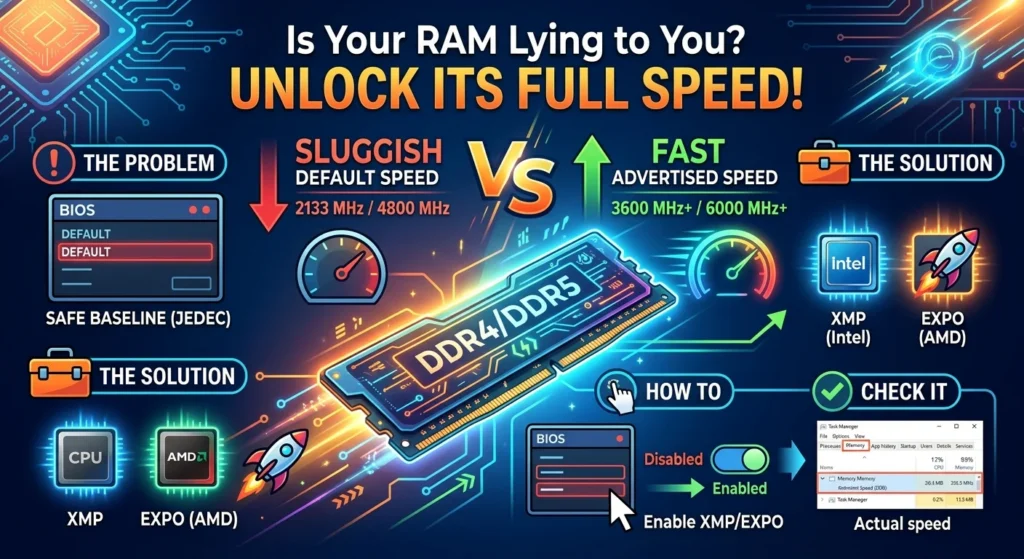
You spent hours researching hardware, clicked buy on a high-speed memory kit, and put together your dream PC, but if you need help with your next build, we offer custom PC sales in Delaware. But here is the thing: you are probably not getting the RAM speed you paid for. Out of the box, your fancy new memory is almost certainly running at a sluggish default speed, leaving free performance on the table.
Why does this happen? When you install new RAM, your motherboard defaults to a safe, baseline standard set by an organization called JEDEC. So what does that mean for you? For DDR4, this baseline is often just 2133 MHz, while DDR5 usually defaults to 4800 MHz. To actually unlock the fast speed advertised on the box, you must manually enable XMP or EXPO profiles inside your system BIOS.
What are XMP and EXPO Profiles?
RAM manufacturers do not just guess what speeds their memory sticks can handle. They test them in the factory and save those optimal speed, voltage, and timing settings directly onto a tiny chip on the RAM stick itself. Now, this is where it matters: these pre-configured, factory-tested settings are called profiles.
XMP vs. EXPO: Unlocking RAM Speed
Depending on whether your system runs on Intel or AMD, you will see different names for these profiles in your settings:
- XMP (Extreme Memory Profile): This is Intel’s proprietary technology. If you are running an Intel processor, this is the setting you will look for.
- EXPO (Extended Profiles for Overclocking): This is AMD’s equivalent profile system, introduced for newer AM5 and DDR5 platforms.
On some motherboards, especially older AMD systems, you might also see this setting called DOCP or EOCP. Regardless of the name, these profiles allow your motherboard to safely read the manufacturer’s tested settings and instantly boost your RAM speed without requiring you to manually adjust complex voltages and timings.
How to Check Your Current RAM Speed in Windows
Before you go changing any settings, you should verify what speed your memory is currently running. Fortunately, you do not need any third-party software to do this. Windows has a built-in tool that shows you this information in seconds.
- Press Ctrl + Shift + Esc on your keyboard to open the Task Manager.
- If you are on Windows 10, you might need to click More details at the bottom of the window.
- Click on the Performance tab on the left side, then select Memory.
- Look at the bottom right area of the window to find the number next to Speed.
If you bought a DDR5 kit rated for 6000 MHz but Task Manager shows 4800 MHz, you are leaving performance on the table. If you want to optimize other areas of your system, consider professional PC upgrades in Delaware to ensure your hardware is performing at its peak.
How to Enable XMP or EXPO Safely
Unlocking your full RAM speed only takes about thirty seconds, but you do have to enter your computer’s BIOS to do it. Do not worry, as this is a very standard procedure and completely safe when done correctly, but if you ever encounter issues, our team provides expert PC repair in Delaware to get you back up and running.
First, restart your computer. As soon as the screen goes black and starts to turn back on, repeatedly tap the Delete key or the F2 key on your keyboard. This will stop Windows from loading and open your motherboard’s BIOS screen instead.
Navigating Your Motherboard BIOS
Once you are in the BIOS, follow these simple steps:
- If your BIOS has an “EZ Mode” and an “Advanced Mode,” stay in EZ Mode or look for a simple toggle.
- Look for a setting labeled XMP, EXPO, or DOCP. This is often prominent on the main dashboard.
- Change the setting from Disabled to Profile 1.
- Press the F10 key on your keyboard to save your changes and exit.
When your PC restarts, it might turn on and off once or twice before booting into Windows. This is called memory training, and it is completely normal. The motherboard is simply testing the new settings to ensure everything is stable.
When You Should Avoid Changing BIOS Settings
While enabling these memory profiles is highly recommended for custom gaming PCs, there are times when you should leave your BIOS settings alone. Here is when you might want to hold off.
If you are using a pre-built office computer from brands like Dell, HP, or Lenovo, their motherboards often do not support XMP or EXPO. Trying to force these settings on proprietary hardware can lead to boot failures.
You should also avoid enabling these profiles if you have mixed and matched different RAM kits. Even if the sticks look identical, minor differences in the internal chips can cause severe system instability when pushed to higher speeds. Finally, if your PC is already experiencing crashes or blue screens, solve those issues first before attempting to increase your RAM speed.