(302) 262 8484
Deleted A Crucial Office File By Mistake? Press This Instantly

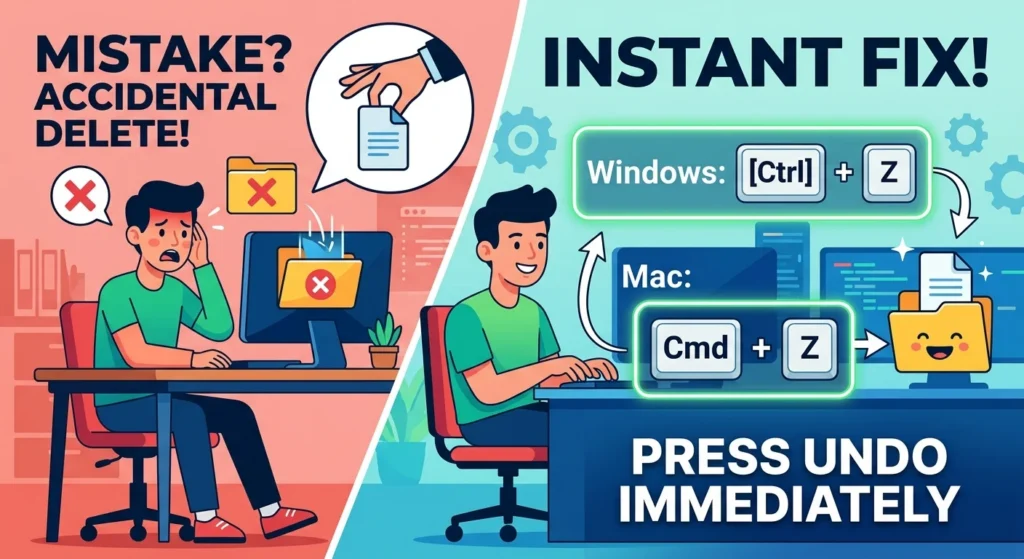
We’ve all been there. You’re rushing to finish a report, cleaning up your desktop, and suddenly you realize you just deleted a work file by mistake. Your stomach drops. Your heart races. You just sit there staring at the screen in total panic. But before you do anything else, stop moving your mouse. Just press Ctrl + Z on Windows, or Cmd + Z on a Mac.
The Instant Fix for a Mistakenly Deleted File
Here’s the thing. Your computer is actually a lot smarter than you might think. It keeps a running, temporary log of your very last actions, though you should always have robust small business cybersecurity protection in place to guard against more serious threats. So if you hit that simple keyboard combo right after you delete a file, the operating system instantly reverses what you just did. Your missing document will pop right back into its original folder. Like nothing even happened.
How the Undo Shortcut Actually Works
When you delete a file in File Explorer or Finder, it doesn’t just vanish from your hard drive right away. Instead, the system moves it into a temporary holding area. Or it just marks the space as available. Hitting the undo shortcut simply tells your computer to cancel that exact command. Honestly, it’s the fastest and easiest way to save your workday from a total disaster.
The Danger of Waiting Too Long
Now, here’s where you have to pay attention. That undo shortcut is incredibly fragile. If you delete a file and then go copy another document, rename a folder, or open a new app, you’re going to overwrite your computer’s short-term memory. Once you do something else, hitting undo will just reverse that new action instead of bringing your file back. And if that happens? You’ll need to look at a few other recovery methods, or perhaps consult with a professional for PC repair in Delaware if the hardware itself is acting up.
What to Do When the Undo Shortcut Fails
So what does this mean if you missed your window to use the shortcut? Don’t give up just yet, as our team provides expert small business IT consultation to help you secure your data and prevent future losses. You still have a few highly effective ways to get your data back. Long before you have to resort to paying for expensive recovery software.
Check the Recycle Bin or Trash
I know this sounds incredibly obvious. But people almost always forget to check the easiest places when they’re in a blind panic. Just double-click the Recycle Bin on your desktop, or the Trash icon on your Mac. If you see your document sitting in there, right-click it and hit Restore. It’ll instantly fly right back to its original home folder.
Use Microsoft Office AutoRecover
What if you were working inside Word or Excel and accidentally closed the program without saving? Microsoft actually has a built-in safety net for this. Open the app back up, click on File, select Info, and then hit Manage Document. From there, you can browse through your unsaved files and restore your work. If you want a deeper dive on managing your workspace, you can check out our guide on [recovering unsaved Word documents].
Dig Through Your Temporary Folder
Your computer is constantly writing background data to keep everything running smoothly, which is why proactive IT monitoring for small business is so essential for maintaining system health. Because of this, you can often find auto-saved fragments of your work just hiding out in your temporary files. On Windows, hit the Windows Key + R, type %temp% into the run box, and hit Enter. Then just search that folder for recent files with a .tmp extension, or look for anything with your document’s name.
Smart Habits to Protect Your Work
Relying on quick keyboard shortcuts is great for emergencies. But building a solid backup strategy is really the only way to guarantee you never lose your important data again.
- Enable AutoSave: If you’re on Microsoft 365, just keep that AutoSave toggle turned on in the top-left corner of your screen. It constantly syncs your progress right to OneDrive.
- Avoid Shift + Delete: Pressing Shift and Delete at the same time bypasses the Recycle Bin entirely. And that makes instant recovery a whole lot harder.
- Set Up File History: Turn on File History in Windows, or Time Machine on your Mac. They automatically save hourly snapshots of your files so you don’t have to think about it.
Accidents happen to everyone. But they don’t have to completely ruin your week. Just keep your cool, hit that magic undo shortcut immediately when things go wrong, and keep your backup systems running so you’re always protected.