(302) 262 8484
The Secret Shortcut That Saves Your Unsaved Word Documents

We have all experienced that sudden, icy wave of panic. You are typing a massive report, your computer freezes, and you realize you have been working on unsaved Word documents for hours. It is a nightmare scenario, but before you throw your computer out the window, there is a secret shortcut that can bring your lost text back from the dead.
Here is the thing: Microsoft Word actually has a built-in safety net that silently backs up your work in the background. If you know the right keyboard combinations, you can retrieve your unsaved Word documents in seconds, even after a sudden crash or a careless click of the Don’t Save button.
The Ultimate Ctrl + O Shortcut for Unsaved Word Documents
When you accidentally close a file without saving, your first instinct might be to start over from scratch. Do not do that. It is a terrible waste of time when a simple keyboard sequence can bypass the manual hunting through menus and take you straight to your rescue zone.
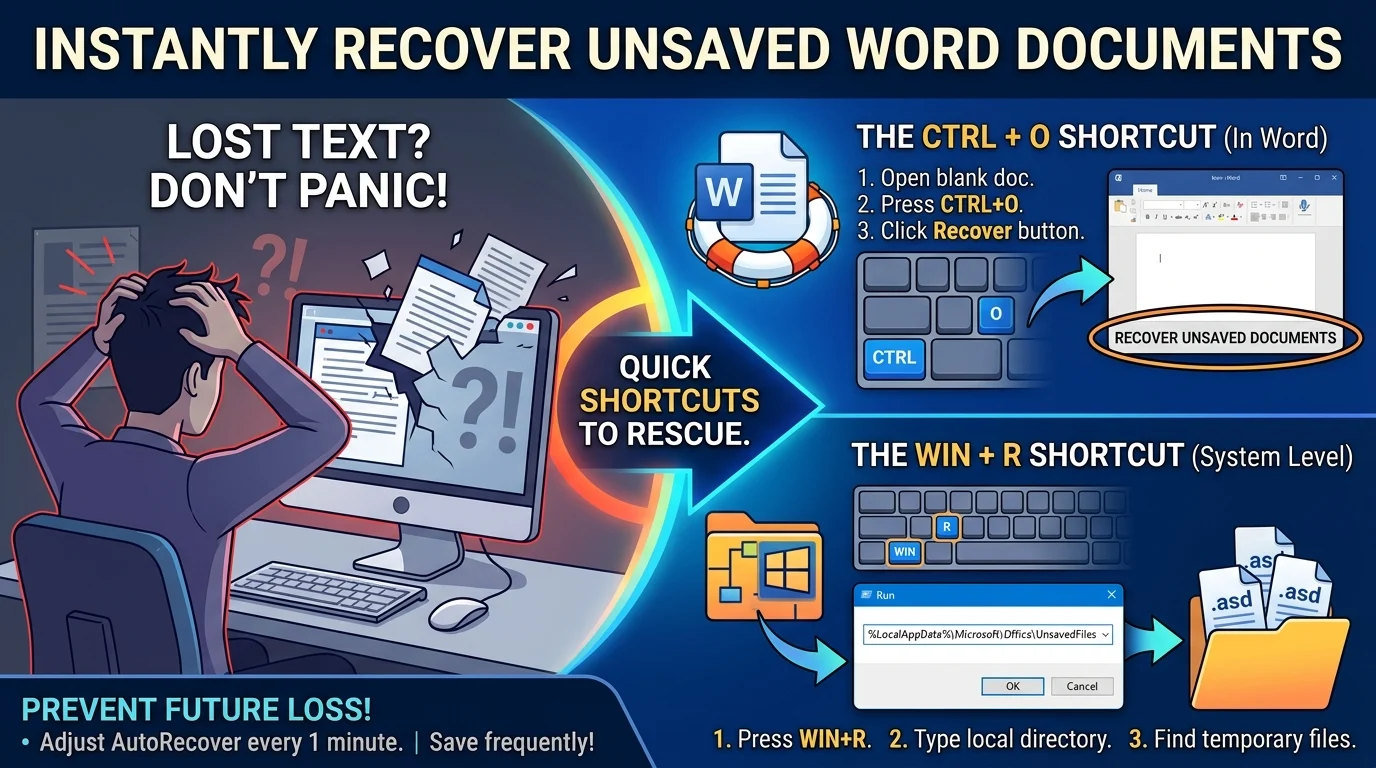
To recover unsaved Word documents directly inside the application, follow this simple sequence:
- Launch a blank document in Microsoft Word.
- Press Ctrl + O on your keyboard to instantly open the Open menu.
- Look at the very bottom of your Recent Documents list and click the Recover Unsaved Documents button.
This simple trick triggers Word to open its secret vault of AutoRecover files. A file explorer window will pop up showing any temporary drafts that Word saved before the application closed. Simply double-click your file, save it immediately, and you are back to where you left off.
“I was working on a fifteen-page report for my biggest client when Word crashed. This simple Ctrl + O shortcut literally saved my career.”
The System-Level Win + R Shortcut
What if Word did not just close, but your entire computer crashed? Sometimes, the in-app recovery button might not show your file. That is where a system-level shortcut comes in handy. By using the Windows Run dialog, you can force your computer to open the exact hidden folders where temporary files and AutoRecover drafts are stored.
Finding Unsaved Word Documents via AutoRecover
To find your unsaved Word documents through your system’s hidden directories, use this quick shortcut:
- Press Win + R on your keyboard to open the Run dialog box.
- Type
%LocalAppData%MicrosoftOfficeUnsavedFilesand press Enter. - Alternatively, type
%appdata%MicrosoftWordand press Enter.
This instantly opens the folder where Microsoft Word stores AutoRecover files with the .asd extension. If you see a file with a strange name but a timestamp that matches your lost work, do not ignore it. Right-click the file, select Open With, and choose Microsoft Word to recover your text.
Digging Through Your Temp Folder
If the AutoRecover folder is empty, your work might still exist as a temporary file. You can use the same Win + R shortcut, type %temp%, and press Enter. Sort the folder by “Date Modified” and look for files starting with a tilde or ending in .tmp. These temporary files often hold the exact text you thought you lost.
Preventing Future Disasters
While these shortcuts are absolute lifesavers, you do not want to rely on them forever. The best approach is to make sure Microsoft Word is actively protecting you before a crash happens. If you are tired of near-heart-attack moments, you should adjust your AutoRecover settings to be more aggressive.
So what does that mean for you? Go to File > Options > Save. Ensure that the box next to “Save AutoRecover information every X minutes” is checked, and lower the interval from the default 10 minutes down to 1 or 2 minutes. This ensures that even if your computer suffers a sudden blackout, you will only ever lose a minute or two of progress. For more tips on keeping your workflow smooth, see our guide on [document management].