(302) 262 8484
Your Printer Is Offline Again? Use This 10-Second Fix

Few things trigger immediate office rage quite like trying to print an urgent document, only to find that your printer is offline. You look over at the machine, and the green light is shining, the Wi-Fi icon is solid, and there are absolutely no error messages on the screen. Yet, your computer insists that the printer has vanished into thin air. If you are tired of staring at a useless print queue, there is a simple workaround that can get you up and running again in seconds.
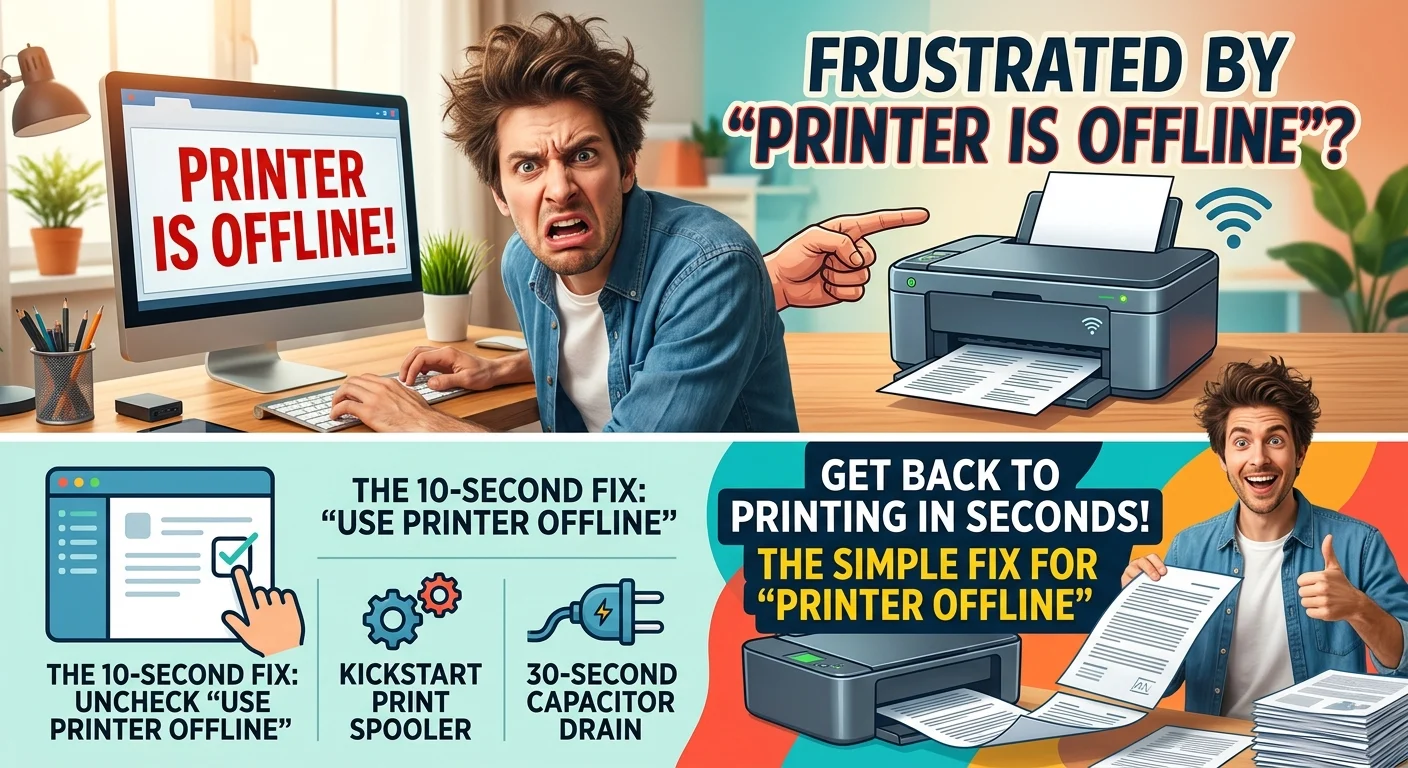
The 10-Second Fix: Disable “Use Printer Offline” Mode
Here is the thing, Windows has a sneaky habit of flipping a virtual switch without your permission. This happens most often right after a major system update, which can sometimes lead to issues like a Windows update stuck at 100 percent for hours. Your computer decides to place the hardware in a suspended state, leaving you with a stubborn printer offline status even though everything is plugged in and powered on.
How to Uncheck the Offline Setting
You can easily reverse this hidden setting by following these quick steps:
- Open your Windows Settings menu and navigate to Bluetooth & devices, then click on Printers & scanners.
- Locate your active printer from the list and click on it, then select Open queue.
- In the print queue window, click on the Printer tab in the top-left menu bar.
- Look down the list for Use Printer Offline. If there is a checkmark next to it, click it to uncheck it.
Once you clear that single checkmark, your pending documents should immediately start spitting out of the tray. It is that simple.
Still Stuck? Try These Fast Backup Solutions
So what does that mean for you if the checkmark was already cleared, but you are still seeing the printer offline error? Do not panic. There are two other quick ways to force your operating system and your hardware to play nice again.
Kickstart the Windows Print Spooler Service
Think of the Print Spooler as the digital traffic cop for all your print jobs. If this service freezes or gets hung up on a corrupted file, the entire communication line breaks down, and Windows assumes the printer is gone, often requiring professional remote IT support for small businesses to resolve. Restarting it takes less than fifteen seconds.
Press the Windows Key + R on your keyboard to open the Run dialog box. Type services.msc and hit Enter. Scroll down the alphabetical list until you find Print Spooler. Right-click on it, select Restart, and close the window. This clears out the digital cobwebs and re-establishes a fresh connection.
Perform a 30-Second Capacitor Drain
If the software looks perfect but the physical connection is still failing, a standard power cycle is your next best bet. However, simply pressing the power button usually is not enough because modern printers hold onto residual electricity in their capacitors.
To do a true hard reset, turn off the printer and pull the power cord directly out of the wall. Count to thirty. This allows all the internal electrical components to fully discharge. Plug the cord back in, power it up, and let the firmware reload from scratch. This simple trick often resolves deep-seated connection glitches, but if you continue to experience hardware issues, you may need reliable PC repair in Delaware.
The Permanent Cure for Chronic Printer Offline Issues
Now, this is where it matters. If you find yourself performing these troubleshooting steps every single week, you are dealing with a design flaw rather than a temporary glitch. The root cause is almost always how your computer finds the printer on your local network.
Ditch WSD and Switch to a TCP/IP Port
By default, Windows uses a protocol called Web Services for Devices, or WSD, to automatically detect wireless printers. While WSD is convenient during initial setup, it is notoriously unstable and frequently loses track of IP addresses when your router reassigns them.
WSD is the bane of modern office productivity. If your printer keeps going offline, stop letting Windows guess where it is. Give it a static IP address, set up a TCP/IP port, and save yourself a lifetime of headaches.
The permanent solution is to assign your printer a static IP address through your router, or by typing the printer’s current IP address into a web browser to access its internal settings. Once you have a static IP, go to your printer’s properties on your PC, head to the Ports tab, and add a standard TCP/IP Port using that specific address. This creates a direct, unshakeable link that prevents Windows from ever losing touch with your hardware again.