(302) 262 8484
Why Your PC Takes Forever to Shut Down (And How to Fix It)

You click the power icon, select “Shut down,” and wait. It is frustrating when you are ready to pack up your laptop or go to bed, but your screen hangs indefinitely. If you have been wondering why your PC takes forever to shut down, you are not alone. This is a common issue for Windows users, and the cause is usually straightforward once you know where to look.
A graceful shutdown involves a sequence of events where Windows tells running apps to save data, stops background services, updates system files, and safely parks your hardware. When one of these steps gets stuck, the entire process halts. Fortunately, you can fix a sluggish exit.
The Real Reasons Why Your PC Takes Forever to Shut Down
Before you resort to holding down the physical power button—which can corrupt your files and should be avoided—look at what is happening behind the scenes. A slow shutdown typically comes down to a few specific software bottlenecks, though sometimes you need to determine if it is a software vs hardware problem killing your PC.
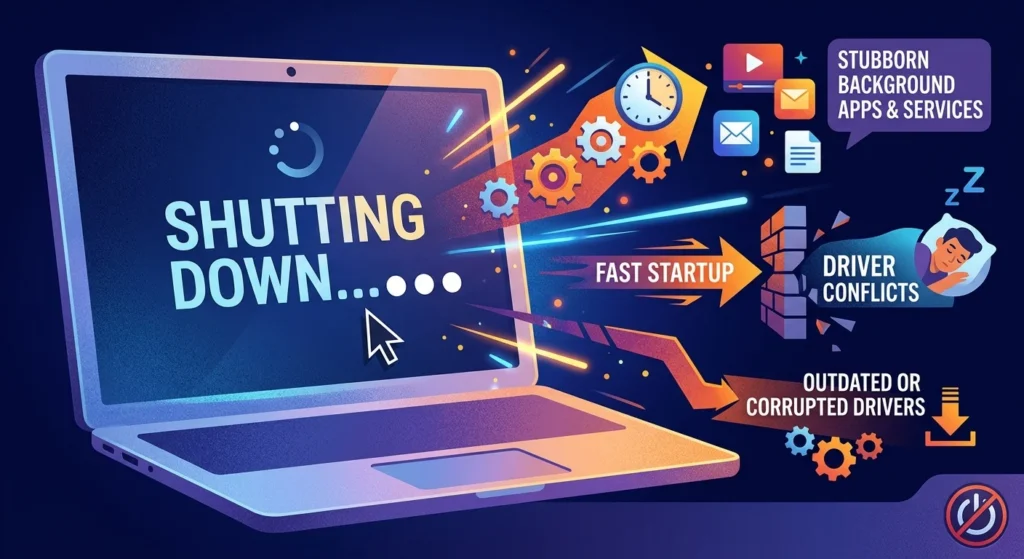
1. Stubborn Background Apps and Services
When you tell your computer to turn off, Windows sends a request to every open application to close. Most apps comply immediately, but some programs fail to respond.
If an app is unresponsive or a background service is busy writing data to your drive, Windows waits. By default, the operating system gives these programs a generous amount of time to finish before forcing them to close. If you have heavy software running in the background, this wait time can delay the shutdown significantly.
2. The Fast Startup Paradox
A feature designed to make your PC boot faster can actually make it shut down slower. When enabled, Fast Startup does not shut your computer down completely. Instead, it hibernates your system kernel and drivers so they can load quickly next time.
If your power-management drivers are slightly unstable or there is a conflict in the hibernation file, Fast Startup causes the system to hang on the “Shutting down” screen while trying to write the system state to your drive.
3. Outdated or Corrupted Drivers
Your hardware needs drivers to communicate with Windows. During shutdown, Windows tells these drivers to power down. If you have an outdated GPU driver, a buggy USB-C device driver, or a faulty chipset driver, you should learn how to update Windows drivers the right way to ensure they don’t ignore the shutdown command. Windows will wait for a response that never comes, eventually timing out after several minutes.
4. Windows Updates and the Infamous BITS Bug
Updates can cause problems even when they are not actively installing. For example, Microsoft recently resolved a widespread Windows 11 bug involving the Background Intelligent Transfer Service (BITS).
This background service, which handles file downloads for updates, took far too long to close during shutdown. If you have not updated your system recently, a bug like this could be the reason your PC is taking forever to turn off, or you may need to troubleshoot why your Windows update is stuck at 100 percent for hours.
How to Speed Up Your Windows Shutdown Process
You can resolve most shutdown delays by following these steps:
- Disable Fast Startup: Open your Control Panel, navigate to Power Options, and click “Choose what the power buttons do.” Uncheck “Turn on fast startup” to see if a clean shutdown solves the delay.
- Check for Pending Updates: Go to Settings, click on Windows Update, and install any outstanding patches. This is especially important for fixing known bugs like the BITS service issue.
- Run an SFC and DISM Scan: Corrupted system files can cause shutdown hangs. Open Command Prompt as an administrator and run the command
sfc /scannowfollowed bydism.exe /online /cleanup-image /restorehealthto repair broken files. - Update Your Hardware Drivers: Focus on your graphics card, chipset, and power-management drivers. You can find these on your manufacturer’s website.
- Perform a Clean Boot: If you suspect a specific program is causing the issue, search for “MSConfig” in your taskbar, hide all Microsoft services, and disable the rest to identify the problematic software.
- Disconnect USB Devices: External USB-C drives or peripherals can prevent the system from entering a low-power state. Try unplugging them before shutting down.
If you are also experiencing sluggishness when turning your computer on, see our guide on [how to speed up a slow Windows startup] to optimize both ends of your PC experience.
What to Do If Nothing Works
If you have tried these steps and your PC still hangs for minutes, check the Event Viewer. Windows keeps a detailed log of shutdown warnings. Look for Event ID warnings that match your slow shutdown times to pinpoint the exact driver or service causing the issue.
With a few quick adjustments, you can resolve these software conflicts and shut down your PC without the wait.