(302) 262 8484
Why Windows Keeps Rebuilding Your Wi-Fi Connection: The Real Fixes

It is frustrating when your internet drops in the middle of a video call or a gaming session. If you are constantly watching the spinning network icon in your taskbar, you are likely wondering why Windows keeps rebuilding your Wi-Fi connection. Fortunately, this is rarely a sign of failing hardware.
In most cases, the operating system is actively dropping and recreating your connection because of aggressive power-saving protocols, outdated driver instructions, or minor configuration glitches. Here is a look at what causes this behavior and how you can stop it.
Understanding Why Windows Keeps Rebuilding Your Wi-Fi Connection
To fix the issue, it helps to understand the underlying causes. When your connection drops and rebuilds itself, the interruption is usually triggered by one of a few system-level events.
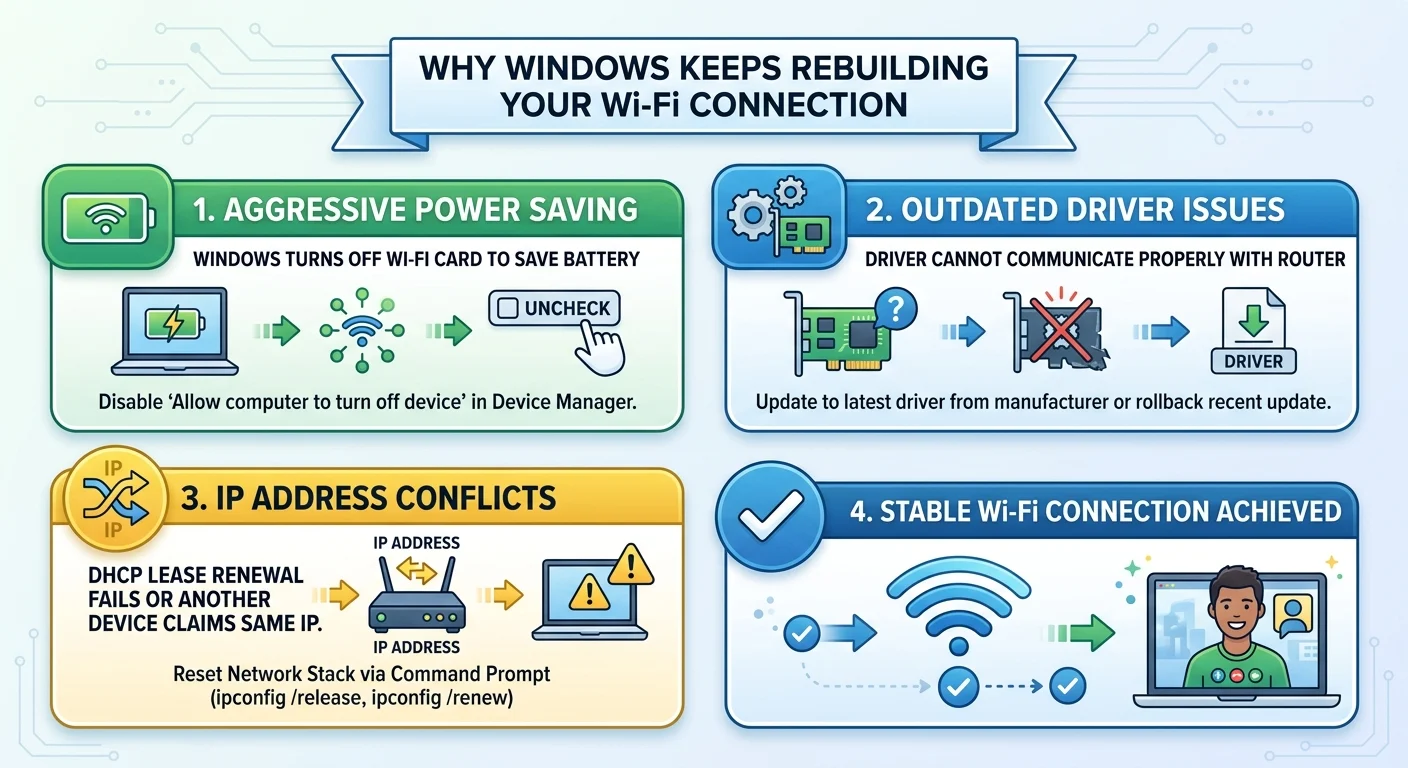
Power Management: Why Windows Keeps Rebuilding Your Wi-Fi Connection to Save Battery
Power management is the most common cause of a fluctuating connection. Windows has a built-in feature designed to save battery life by turning off hardware components it considers idle. The Wi-Fi card often gets caught in this process, leading to sudden dropouts followed by immediate reconnection attempts.
Driver Glitches: Why Windows Keeps Rebuilding Your Wi-Fi Connection Automatically
When Windows installs a major system update, your network card drivers can get left behind. An outdated driver can struggle to communicate properly with your router, which is why you should avoid common pitfalls and learn how to update Windows drivers the right way. This creates a cycle where the adapter crashes, resets, and forces Windows to rebuild the connection from scratch. If you need help with this process, see our guide on [how to update drivers in Windows] for a step-by-step walkthrough.
IP Address Conflicts and DHCP Issues
Your router assigns a temporary IP address to your computer using a protocol called DHCP. Sometimes this lease renewal process fails, or another device on your home network tries to claim the same IP address. When a conflict happens, Windows has to tear down the connection and request a fresh IP.
How to Stop Windows from Constantly Rebuilding Your Connection
You do not have to live with a spotty internet connection. By walking through a few simple troubleshooting steps, you can force Windows to maintain a stable, uninterrupted link to your router.
Disable Wi-Fi Power Saving Features
Since power management is the leading cause of these dropouts, disabling it should be your first step. This tells Windows that your network adapter must remain fully powered at all times, even when your laptop is running on battery.
- Right-click on the Start button and select Device Manager from the menu.
- Expand the Network adapters category to see your hardware.
- Double-click on your wireless card (usually labeled as Intel, Realtek, or MediaTek).
- Navigate to the Power Management tab.
- Uncheck the box that says Allow the computer to turn off this device to save power and click OK.
Reset the Network Stack via Command Prompt
If power management is not the issue, a corrupted network cache might be the cause. Over time, temporary network data, DNS caches, and IP configurations can break. Resetting your network stack forces Windows to rebuild its connection configuration from a clean slate.
To do this, open the Command Prompt as an administrator and run the following commands one by one, pressing Enter after each:
- netsh winsock reset
- netsh int ip reset
- ipconfig /release
- ipconfig /renew
- ipconfig /flushdns
Once you have run all of these commands, restart your computer to let the changes take effect.
Update or Roll Back Your Wireless Driver
Sometimes the latest driver update from Windows actually introduces the problem. If your connection issues started immediately after a system update, rolling back to an older, more stable driver version often helps. Conversely, if you have not updated your drivers in years, you should visit your laptop manufacturer’s website to download the latest wireless driver.
Final Thoughts on Keeping Your Connection Stable
A rebuilding Wi-Fi connection is almost always a software issue rather than a hardware failure. By adjusting your power settings, clearing out your network stack, and ensuring your drivers are current, you can usually stop these random dropouts and keep your connection stable.