(302) 262 8484
Apple’s New Update Just Disabled This Favorite Feature: How to Get It Back

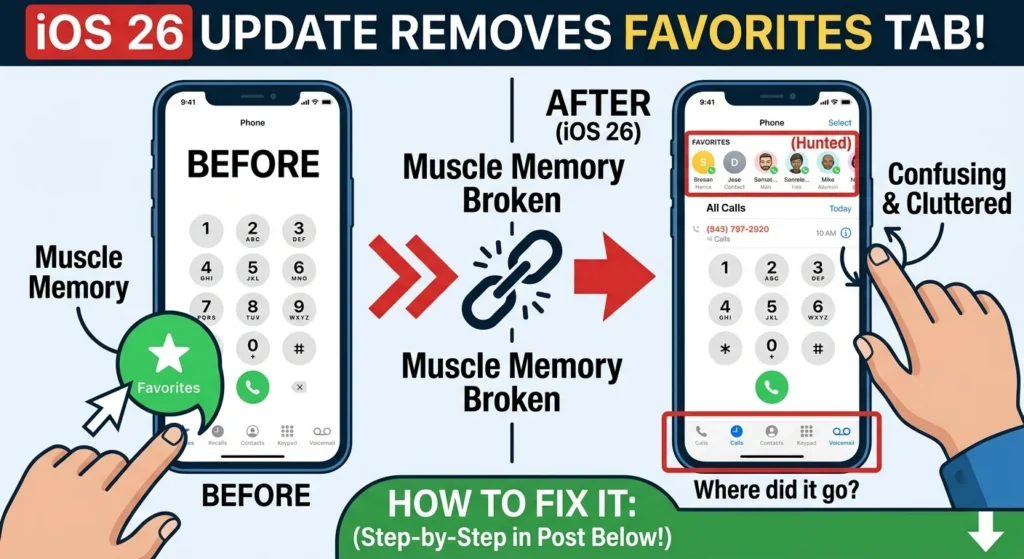
If you recently installed iOS 26, you might have opened your Phone app only to find a glaring, frustrating absence. Yes, Apple’s new update just disabled this favorite feature for millions of users: the dedicated Favorites tab at the bottom of the dialer. Instead of your neatly curated list of go-to contacts, you are now greeted by a cluttered screen that has left many iPhone users asking what happened to their muscle memory.
Why Apple’s New Update Just Disabled This Favorite Feature
Here is the thing. Apple is constantly trying to streamline its software, but sometimes their design choices feel like a step backward for daily usability. By removing the dedicated Favorites tab, they forced users to scroll through a combined log of recent calls and favorites, which completely defeats the purpose of having a quick-dial list.
Apple introduced what they call the “Unified view” as the default layout in iOS 26. In this new layout, your favorite contacts are no longer in their own dedicated tab at the bottom of the screen. Instead, they have been crammed into a small section at the very top of your Calls page. For older users or anyone who relies on muscle memory, this change is incredibly frustrating. You do not want to hunt for your most important contacts when you are in a rush.
How to Fix It If Apple’s New Update Just Disabled This Favorite Feature
Now, this is where it matters. You do not need to downgrade your iOS version, perform a complicated factory reset, or seek professional mobile repair services in Delaware to fix this. Apple actually included a toggle that lets you revert to the classic layout, but they did not exactly make it easy to find.
To restore your beloved Favorites tab at the bottom of the screen, follow these simple steps:
- Open the Phone App: Tap the green phone icon on your Home Screen to launch the app.
- Go to the Calls Tab: Navigate to the main Calls screen where your recent calls are listed.
- Tap the Menu Icon: Look for the three lines icon or More option in the top right corner of the screen.
- Select Classic View: Tap on the Classic option from the dropdown menu to restore the old layout.
That is literally all it takes. Once you select Classic View, the Phone app will instantly revert to the layout you know and love, complete with the dedicated Favorites tab right at the bottom. Best of all, you will not lose any of your saved favorite contacts or call history in the process.
Other Annoying iOS 26 Settings You Should Change Right Now
The missing Favorites tab is not the only controversial change in Apple’s new update. The new Liquid Glass design language has also received a lot of criticism for making the interface too transparent and difficult to read, much like a poorly executed professional website redesign in Delaware. If you are struggling with the new look, you are not alone, and our team is here to help with personalized IT solutions for small businesses.
So what does that mean for you? You can easily adjust these settings to make your phone feel normal again, or consult with experts in PC & Mobile Services for further device optimization. For example, you can see our guide on [how to customize iOS 26 settings] to improve your battery life and privacy.
Here are a few other quick fixes you should apply immediately:
- Tame the Liquid Glass transparency: Go to Settings, tap Display & Brightness, select Liquid Glass, and switch from Clear to Tinted to increase contrast and readability.
- Disable full-screen screenshot previews: If you hate the massive screenshot previews, go to Settings, then General, tap Screen Capture, and turn off Full-Screen Previews to go back to the classic small preview thumbnail.
- Turn off shared iMessage backgrounds: If you do not want group chat members changing your message background, go to Settings, tap Apps, select Messages, and toggle off Conversation Backgrounds.
Is Apple’s New Design Direction Going Too Far?
It is hard to ignore that Apple’s recent software updates seem to prioritize aesthetic flash over pure functionality. While Liquid Glass looks futuristic, it has introduced a wave of usability complaints. The fact that so many users are searching for ways to disable these new features speaks volumes.
We recommend taking a few minutes to explore your settings app after any major update. Apple often buries the options to disable their newest features deep within menus, but with a little digging, you can always get your favorite classic iPhone experience back.