(302) 262 8484
Locked out of your Windows PC? Don’t panic just yet

Staring at a login screen that refuses to accept your password is incredibly frustrating. If you are currently locked out of your Windows PC, take a deep breath. You are definitely not the first person this has happened to.
Whether you forgot your PIN, changed your password and instantly forgot it, or Windows is just acting up, there are several ways to get back inside. Let’s look at the exact steps you need to take to regain access without losing all your files.
Check the obvious culprits first
Before we dive into password resets, let’s look at the simple stuff. It sounds ridiculous, but a surprisingly high number of login issues come down to a basic typo.
Check your Caps Lock key. If you use a wireless keyboard, make sure the batteries aren’t dead, or consider reaching out for PC & Mobile Services if you suspect a hardware malfunction. Sometimes a sticky key or a dead battery is the only thing standing between you and your desktop.
A quick tip: Always click the eye icon in the password field to see exactly what you are typing. It saves a lot of unnecessary panic.
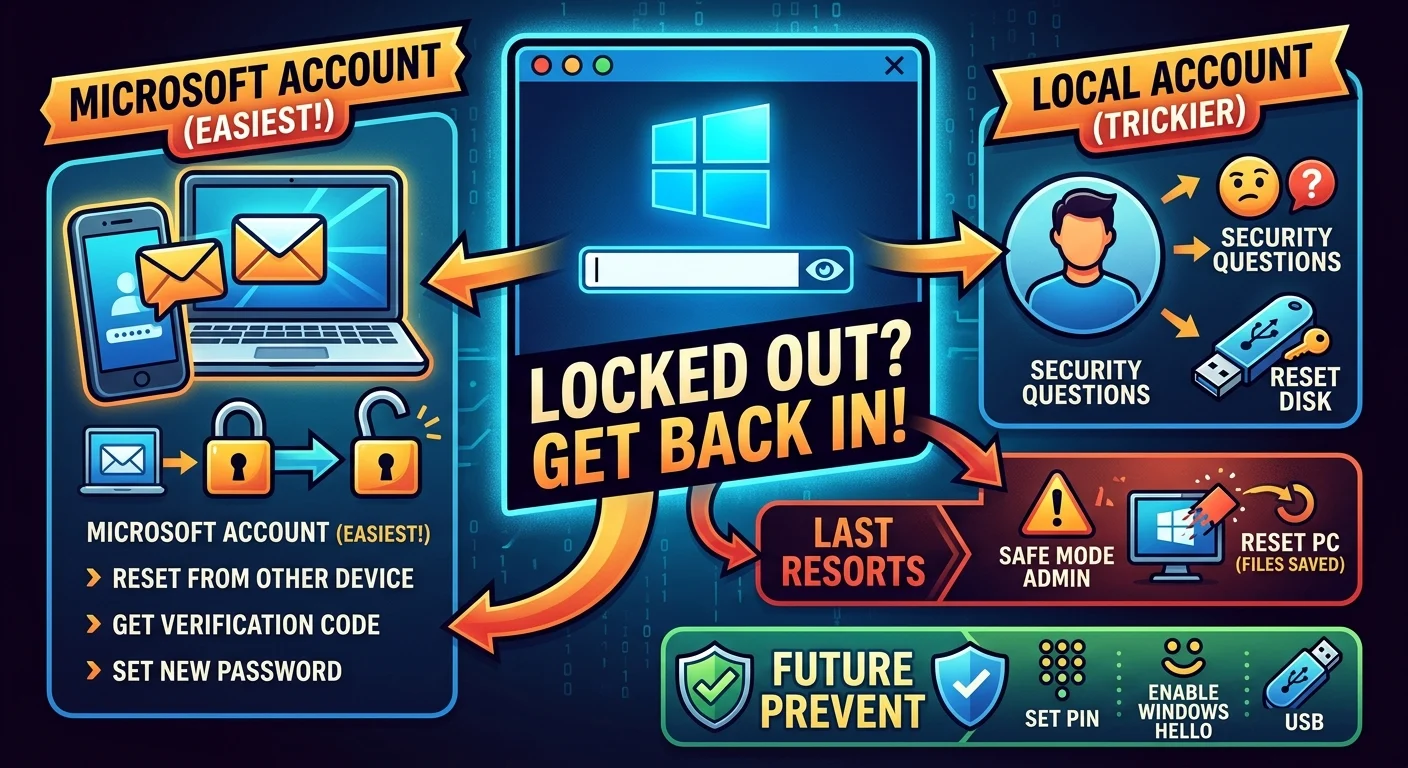
How to regain access if you use a Microsoft account
Most modern computers require you to sign in with an email address. If this is how your computer is set up, you are in luck. Fixing a Microsoft account issue is usually the easiest way out.
Resetting your password from another device
Grab your phone or borrow a laptop. Go to the official Microsoft account recovery page and select the option for a forgotten password. You will need to enter the email address or phone number associated with your account.
Microsoft will then send a security code to your backup email or phone. Once you verify your identity, you can create a new password. Give your computer a minute to sync with the internet, type in the new password, and you should be good to go.
Resetting directly from the login screen
If your computer is connected to Wi-Fi, you might not even need a second device. Look for a link that says “I forgot my password” or “I forgot my PIN” right below the login box.
Clicking this will launch a recovery window. You will have to verify your identity using a secondary email or an authenticator app. It is a straightforward process, but it only works if your PC is actively connected to the internet, which is why we often recommend proactive IT monitoring for small business setups to prevent connectivity issues.
Locked out of your Windows PC with a local account?
Now this is where things get a bit trickier. A local account is tied strictly to the hard drive on your desk. There is no cloud backup for your password, which highlights the importance of having reliable small business cybersecurity protection in place for your local accounts. But you still have a few solid options to regain access.
Answering security questions
If you are running a recent version of Windows 10 or Windows 11, you probably set up security questions when you created your local account.
Type an incorrect password to make the reset link appear. Click it, and Windows will ask you those questions. Answer them correctly, and you will be prompted to create a new password immediately.
Using a password reset disk
Did you create a password reset disk on a USB drive when you first set up your computer? If so, today is your lucky day, but if you are still struggling, you might benefit from personalized IT solutions for small businesses to help manage your access credentials.
Plug that USB drive in. Type the wrong password once to trigger the reset link. Click it, follow the wizard, and create a new password. Honestly, very few people actually take the time to make these disks. If you didn’t do this, you will need to look at other options.
The last resorts for getting back in
Sometimes the standard recovery methods just fail. Maybe you don’t have access to your backup email. Maybe you completely forgot your security questions. When you are totally locked out of your Windows PC and nothing else works, you have to look at extreme measures.
Booting into Safe Mode
Windows has a hidden administrator account that can sometimes save the day. You usually need to boot into Safe Mode to access it.
Restart your computer while holding the Shift key to enter the Advanced Startup menu. Navigate to Troubleshoot, then Advanced Options, and select Startup Settings. Once you boot into Safe Mode, see if the hidden Administrator account appears on the login screen. If it does, log in and change your primary account password from the Control Panel.
Resetting your PC
I hate recommending this. It should always be your absolute last resort. But if you are permanently locked out and need the computer working again, resetting Windows is the final option.
You can trigger this from the Advanced Startup menu by holding Shift while clicking restart on the login screen. Choose Troubleshoot and then Reset this PC.
You will see an option to keep your files. This usually saves your documents and photos, but it will wipe out your installed programs and settings. It is a painful process, but it guarantees you will get your computer back. For more details on this process, check out our guide on [how to safely reset Windows].
How to prevent this from happening again
Once you finally get back to your desktop, take five minutes to protect yourself from future headaches. Relying on a single password is a bad idea.
- Set up a PIN. It is faster and easier to remember than a complex password.
- Enable Windows Hello. Use this if your webcam or keyboard supports biometric logins.
- Update your recovery info. Make sure your Microsoft account has a current phone number attached.
- Create a reset disk. Put it on a cheap flash drive and toss it in a drawer for emergencies.
Getting locked out is a massive pain. Taking a few simple precautions right now ensures a forgotten password never ruins your day again.