(302) 262 8484
Why Your PC Won’t Wake From Sleep (And How to Fix It)

You close your laptop lid or walk away from your desktop for a quick coffee break, expecting to pick up right where you left off. But when you return, you find a stubborn black screen, spinning fans, and a machine that completely ignores your keyboard clicks. If your PC won’t wake from sleep, you are dealing with one of the most frustrating Windows issues around. Fortunately, you don’t have to keep force-restarting your system and losing your unsaved work.
This issue is rarely a hardware failure. Most of the time, it comes down to a communication breakdown between your operating system, your power settings, and your hardware drivers. When Windows sends the wake signal, some part of your system simply refuses to wake up and answer the call.
Why Your PC Won’t Wake From Sleep: The Main Culprits
To fix the issue permanently, we need to understand what is causing the system to hang. Windows power management is a delicate balancing act, and even a minor glitch can interrupt the entire process.
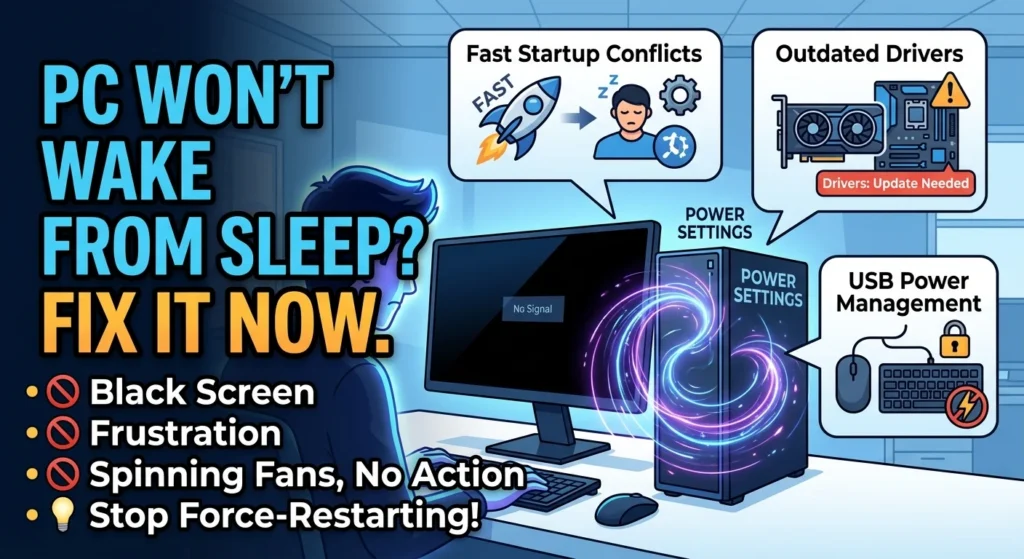
1. Fast Startup and Hybrid Sleep Conflicts
Windows has a feature enabled by default called Fast Startup. While it speeds up boot times by writing a partial hibernation file to your drive, this can cause problems. If the file becomes corrupt or conflicts with your system memory, your PC will get stuck in digital limbo when trying to wake up.
2. Outdated Graphics and Chipset Drivers
When your computer resumes from sleep, Windows sends a wake-up call to every single component. If your graphics card driver or motherboard chipset driver fails to respond to this signal within a split second, the wake sequence halts, which is why you should learn how to update Windows drivers the right way to prevent these conflicts. This is why you often hear your PC fans spinning up while your screen remains stubbornly black.
3. USB Power Management Settings
Sometimes your computer is awake, but your mouse and keyboard are still fast asleep. Windows frequently turns off power to USB ports to save electricity, especially on laptops. If your peripherals do not have permission to wake the computer, clicking them will do absolutely nothing.
How to Fix a PC That Won’t Wake From Sleep
We can solve this problem by checking a few specific settings, starting with the quickest fixes and moving to more advanced tweaks.
Disabling Fast Startup to Solve Sleep Issues
Since Fast Startup is often the primary culprit behind power state failures, turning it off is the best place to start. Many users find their machines wake up perfectly after adjusting this single setting.
- Open the Control Panel and navigate to Power Options.
- Click on Choose what the power buttons do in the left pane.
- Click Change settings that are currently unavailable at the top.
- Uncheck the box next to Turn on fast startup.
- Save your changes and restart your computer.
While you are in the power settings, you should also disable hybrid sleep. To do this, go back to your selected power plan, click Change advanced power settings, expand the Sleep menu, and turn off hybrid sleep. For more tips on managing your machine’s performance, see our guide on PC repair in Delaware for expert assistance. our guide on [how to optimize Windows power plans].
Troubleshooting USB Devices When Your PC Won’t Wake From Sleep
If your PC won’t wake from sleep when you click your mouse or tap the spacebar, you need to check your Device Manager settings. Windows might have disabled their ability to send the wake signal.
- Right-click the Start button and select Device Manager.
- Expand the Keyboards section, right-click your keyboard, and choose Properties.
- Go to the Power Management tab and check the box for Allow this device to wake the computer.
- Repeat this process for your mouse under the Mice and other pointing devices section.
If you don’t see a Power Management tab for your devices, your system BIOS might be blocking USB wake support. You will need to restart your computer, enter the BIOS menu, and look for a setting called “USB Wake Support” or “ACPI Settings” to enable it.
Updating Graphics and Chipset Drivers
If the screen stays black but your computer lights turn on, your graphics card is likely failing to recover from its low-power state. Don’t rely on Windows Update to handle this for you. Go directly to the manufacturer website (Nvidia, AMD, or Intel) to download and install the latest drivers for your specific GPU.
Keeping your display drivers updated ensures they can process the transition from low-power sleep back to full performance without crashing. It is also wise to grab the latest chipset drivers from your motherboard manufacturer’s support page.
What to Do When Your PC is Currently Frozen
If you are reading this article because your computer is currently stuck on a black screen and refusing to wake up, you will need to perform a hard reset. Press and hold the physical power button on your PC case for about ten to fifteen seconds until the system shuts down completely. Once the lights go out, wait a moment before pressing the power button again to boot up normally.
“A hard shutdown should be a last resort, as you will lose any unsaved work, but it is often the only way to recover a completely unresponsive system.”
After you get back into Windows, make sure to apply the fixes listed above so you don’t have to deal with the issue again. By adjusting your USB power management, disabling Fast Startup, and keeping your graphics drivers current, you can enjoy a reliable sleep mode that actually works when you need it.