(302) 262 8484
Why You Should Stop Making Pivot Tables (This New Excel Feature is Faster)

We have all been there. You get a massive raw dataset, and the first thing you do is click “Insert Pivot Table.” It is the muscle memory of every data analyst, especially those who rely on a stable IT infrastructure for small businesses to keep their workflows running smoothly. But what if there is a better way? It is time to stop making pivot tables (this new Excel feature is faster) and completely revolutionize how you summarize data.
For decades, Pivot Tables have been the undisputed champion of Excel. They let you slice, dice, and summarize massive datasets with a few clicks. But let us be honest, they also come with some annoying baggage, much like the frustration of dealing with a slow computer, which is why many professionals seek out expert PC repair in Delaware to keep their systems optimized.
Every time your underlying data changes, you have to manually right-click and hit refresh. If you forget, your reports are instantly outdated, a common issue that can be avoided by utilizing proactive IT monitoring for small business to ensure your software and hardware environments remain current. Plus, setting them up requires a lot of dragging, dropping, and clicking around in side panels.
That is where Microsoft’s game-changing dynamic array functions come in. Specifically, the brand-new PIVOTBY and GROUPBY functions are here to replace your old workflow. These functions let you build fully dynamic summary reports using a single formula.
Meet PIVOTBY: The Pivot Table Killer
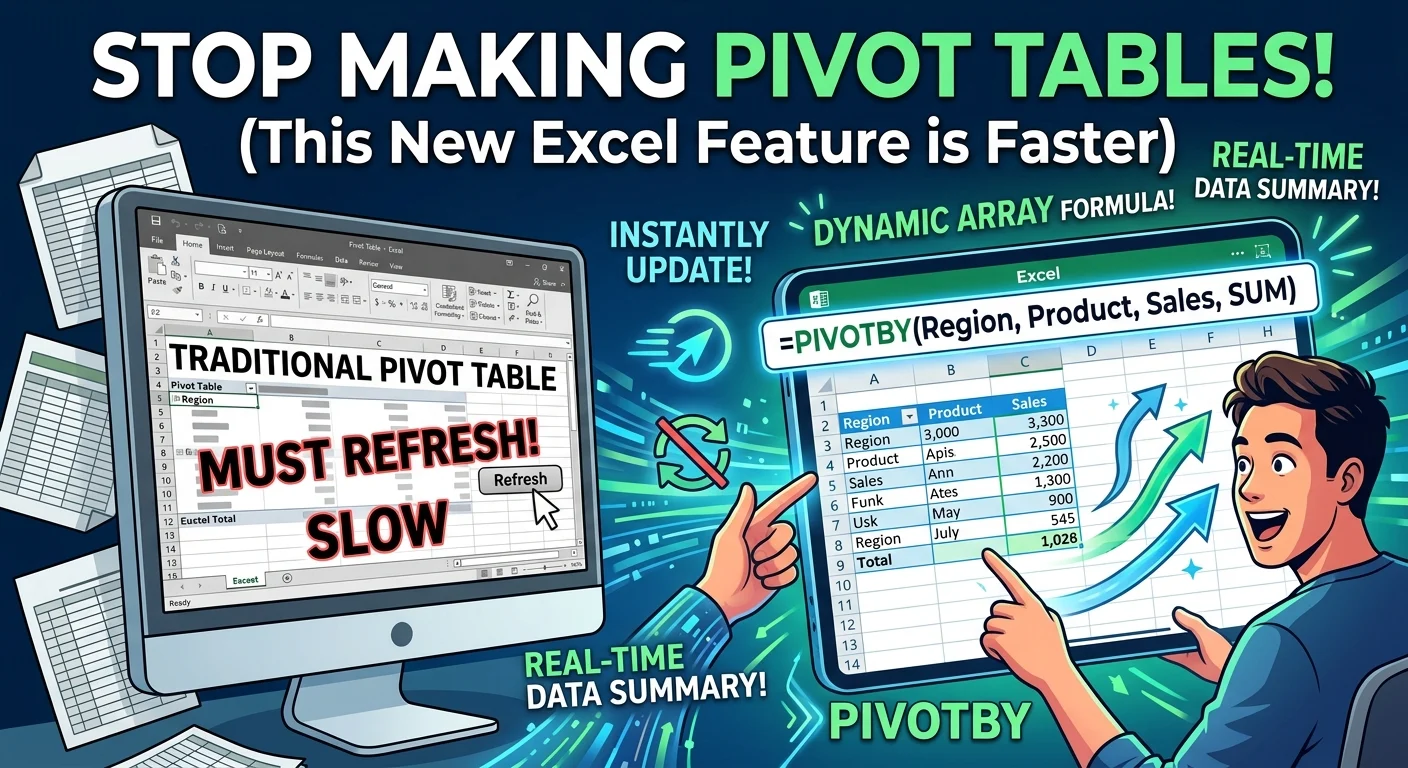
The PIVOTBY function allows you to create a dynamic summary report that looks and acts exactly like a Pivot Table, but without the hassle. Because it is a formula, it lives directly in the grid and updates in real-time. If you change a number in your source data, your summary updates instantly.
Here is the basic structure of the PIVOTBY formula:
=PIVOTBY(row_fields, col_fields, values, function)
You only need those four basic arguments to get started. You tell Excel what columns you want as rows, what columns you want as headers, what values to calculate, and how to aggregate them, such as SUM or AVERAGE.
Why Stop Making Pivot Tables (This New Excel Feature is Faster) Makes Sense
Why should you actually switch? Here is the thing: PIVOTBY is not just a formula-based clone of a Pivot Table. It actually does things that traditional Pivot Tables simply cannot do.
- No Refreshing Required: This is the biggest win. Your data is always live and 100% accurate.
- Text Aggregation: Traditional Pivot Tables struggle with text. With PIVOTBY, you can use functions like ARRAYTOTEXT to combine text values into a single cell.
- Cleaner Workbooks: You do not need to deal with hidden pivot caches that bloat your file sizes, which is a great way to keep your machine running efficiently alongside other personalized IT solutions for small businesses.
- Easier Filtering: You can build filters directly into the formula itself, keeping your workspace neat.
Step-by-Step: Writing Your First PIVOTBY Formula
Let us look at a quick real-world example. Imagine you have a sales table with columns for Region, Product, and Sales Amount. You want to see regions in the rows, products across the top, and total sales in the middle.
Instead of clicking through menus, you just type this into an empty cell:
=PIVOTBY(SalesTable[Region], SalesTable[Product], SalesTable[SalesAmount], SUM)
Press Enter, and boom. Excel instantly spills the entire summary table across your sheet. It even adds row and column totals automatically.
Should You Abandon Traditional Pivot Tables Completely?
Now, this is where it matters. We are not saying Pivot Tables are completely dead. They still have a place in Excel, especially when you need to build complex dashboards with interactive Slicers.
But for quick summaries, daily reporting, and automated dashboards, the new formula-based approach is superior. It saves you from those embarrassing moments when you send a report to your boss, only to realize you forgot to hit refresh.
So what does that mean for you? The next time you are tempted to insert a Pivot Table, pause. Try typing PIVOTBY instead. You will save time, keep your data live, and look like an absolute Excel wizard to your colleagues.
If you want to take your spreadsheet skills even further, see our guide on Excel formulas and automation tricks.