(302) 262 8484
The Invisible Email Trick That Tells People When You Open Their Message

The Invisible Email Trick Watching Your Inbox
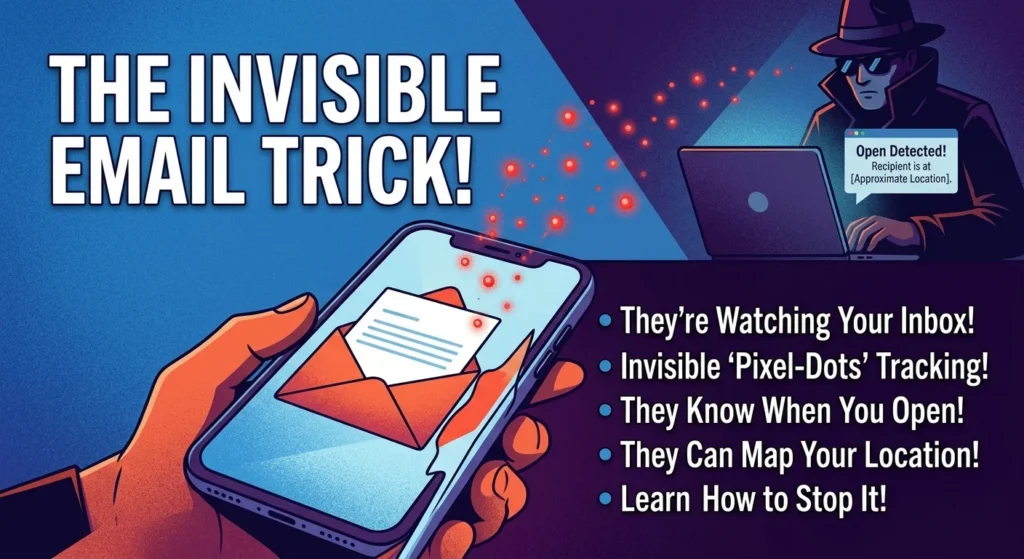
Have you ever opened an email, closed it without responding, and received a follow-up text from the sender just minutes later? It feels like a creepy coincidence, but it is actually the result of a silent, built-in surveillance system. This sneaky digital receipt relies on email tracking pixels, which are tiny, invisible images embedded inside the messages landing in your inbox daily.
Here’s the thing: you don’t have to click a link, download an attachment, or reply to trigger them. Simply opening the message is enough to tell the sender exactly what you’re doing.
So how does this invisible email trick actually work, and what are people doing with your data?
What Are Email Tracking Pixels and How Do They Work?
An email tracking pixel is a microscopic, transparent image, usually measuring just 1×1 pixel in size. Because it is completely colorless and hidden in the email’s HTML code, it is entirely invisible to the naked eye.
When you open an email, your mail app automatically requests and loads all the images embedded in that message. To display that tiny, invisible pixel, your device must download it from a remote server. That simple download request is the trigger.
The moment your device requests the image, the sender’s server logs the transaction. It is like a digital tripwire. The server immediately registers that the specific image assigned to your email address has been fetched, giving the sender a real-time notification that you opened their message.
What Data Do Email Tracking Pixels Collect?
It’s not just about knowing that you opened the email. The request your device sends to load that invisible image carries a surprising amount of metadata. This includes:
- The exact timestamp: The precise date and time you opened the message, and how many times you reopened it.
- Your approximate location: Senders can estimate your physical location, sometimes down to the city, by logging your IP address.
- Your device details: The server learns whether you are using an iPhone, an Android device, or a laptop, as well as your specific operating system.
- Your email client: Senders see if you are using Gmail, Apple Mail, Outlook, or another application.
Who Is Using Email Tracking Pixels to Watch You?
Almost everyone sending bulk or professional emails uses this technology. While some of it is relatively harmless, other uses border on intrusive, and some are outright dangerous, which is why robust small business cybersecurity protection is essential for modern operations.
Marketers and Businesses
For sales teams and marketing departments, email tracking pixels are standard tools of the trade. They use this data to measure the success of their campaigns, run A/B tests on subject lines, and decide when to send follow-up messages. If a system sees you opened a discount email three times, it will likely trigger an automated follow-up, a common tactic often managed through professional IT consulting services.
Recruiters and Employers
Have you applied for a job lately? Recruiters frequently use tracking pixels to see if you have read their job offer or follow-up questions. If they see you opened their email five times but never replied, they might assume you are ghosting them or negotiating with another company.
Scammers and Phishing Attacks
This is where things get genuinely concerning. Cybercriminals use email tracking pixels during the information-gathering phase of phishing attacks. By sending a massive batch of emails containing hidden pixels, they can instantly identify which email addresses are active and actively monitored. Once you open their bait, they mark your address as a high-value target for more sophisticated scams.
How to Stop Email Tracking Pixels and Regain Your Privacy
Now, this is where it matters. You don’t have to let people spy on your reading habits. Since these trackers rely entirely on loading remote images, you can render them useless by changing how your email client handles images.
The most effective strategy is to block automatic image downloads. By doing this, your email client will only load images when you explicitly click a button to display them. If the image never loads, the tracking pixel cannot report back to the sender.
Adjusting Your Settings in Major Email Clients
Here is how you can disable automatic image loading on the most popular email platforms:
- Gmail (Desktop): Go to Settings, see all settings, scroll down to the General tab, find the Images section, and select “Ask before displaying external images.”
- Gmail App (iOS & Android): Open the menu, tap Settings, select your account, scroll down to Images, and choose “Ask before displaying external images.”
- Apple Mail (Mac & iOS): Navigate to Mail Settings, then Privacy. Check the box for “Block All Remote Content” to prevent tracking pixels from loading. Alternatively, you can enable “Protect Mail Activity,” which routes your mail through Apple proxies to hide your true IP address.
- Outlook (Desktop): Go to File, Options, Trust Center, and click on Trust Center Settings. Under Automatic Download, check the box to block automatic downloads of pictures in HTML email.
- Yahoo Mail: Click the Settings gear, select More Settings, go to Viewing Email, and set the “Show images in messages” option to “Ask before showing external images.”
Using Dedicated Tracker Blockers
If you don’t want to lose the visual formatting of your emails by blocking all images, you can use specialized tools. Browser extensions like PixelBlock or Trocker can identify and block email tracking pixels specifically, allowing normal images to load while disabling the spy tech. For a deeper dive into protecting your digital footprint, see our guide on [browser privacy settings].
So, what does that mean for you? Taking five minutes to adjust these settings is a simple way to take back control of your inbox. You deserve to read your mail in peace, without someone virtually standing over your shoulder.