(302) 262 8484
The Windows Setting That Can Cause Random PC Freezes (And How to Fix It)

You are in the middle of a gaming session, writing an important document, or editing a video when everything suddenly stops. Your mouse cursor won’t budge, the keyboard is unresponsive, and you have to hold down the physical power button to get your system back. If this happens often, a specific Windows setting is likely causing these random PC freezes, and the fix is much simpler than buying new hardware or needing professional PC repair in Delaware.
Windows includes several power-saving and performance-boosting features that can cause problems depending on your setup. When these features clash with your specific hardware or drivers, the operating system can simply lock up. Fortunately, you don’t have to put up with these interruptions.
The Hidden Power Saver: PCI Express Link State Power Management
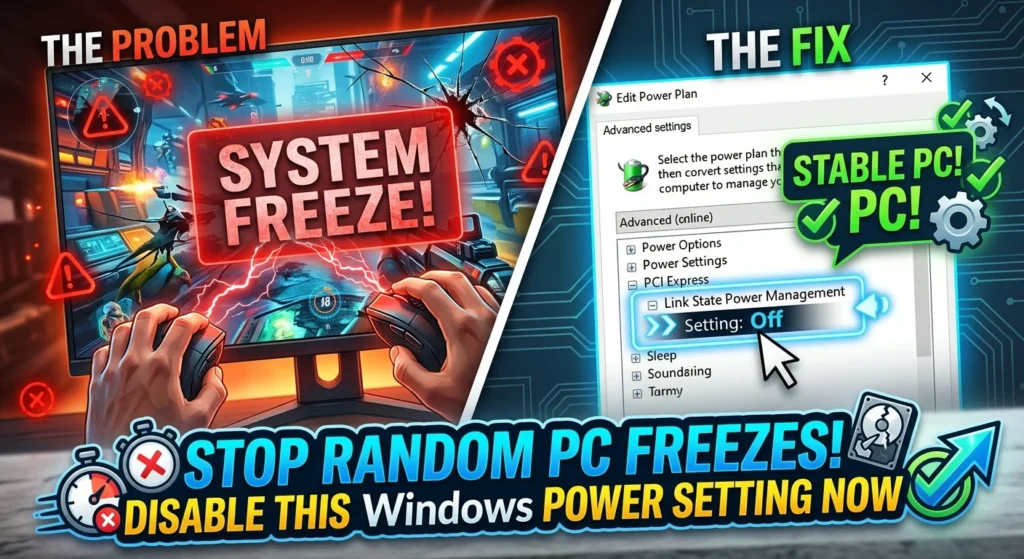
When troubleshooting random PC freezes, the first place to check is your advanced power options. A feature called Link State Power Management is often the primary cause of sudden, unprovoked system lock-ups.
This setting saves electricity by putting your PCI Express (PCIe) lanes into a low-power state when they are idle. While it can extend laptop battery life, it often creates significant issues for desktop users and high-performance laptops. When your NVMe solid-state drive (SSD) or graphics card drops into a deep sleep, it sometimes fails to wake up fast enough when Windows requests data. This split-second delay causes a communication breakdown that leads to a total system freeze.
If your SSD or GPU loses connection for even a microsecond, Windows assumes a critical hardware failure has occurred and freezes the system to prevent data corruption. Turning this setting off is one of the most effective ways to stabilize your machine, though you can also consult our IT consulting experts if performance issues persist.
How to Disable the Windows Setting That Causes Random PC Freezes
To turn off this power-saving feature, you need to use the classic Control Panel. Follow these steps to disable the PCIe power setting and restore system stability:
Disabling the PCIe Windows Setting That Causes Random PC Freezes
- Press the Windows Key, type Control Panel, and hit Enter.
- Navigate to Power Options (if you don’t see it, change your “View by” setting in the top right to Large Icons).
- Click on Change plan settings next to your currently active power plan.
- Click on the blue link that says Change advanced power settings.
- In the small window that pops up, scroll down and expand PCI Express, then expand Link State Power Management.
- Change the setting to Off for both “On battery” and “Plugged in” (or just “Setting” if you are on a desktop).
- Click Apply, then click OK to save your changes.
The Fast Startup Trap: Why Shutting Down Isn’t Actually Shutting Down
Another Windows setting that frequently causes random PC freezes is Fast Startup. Enabled by default in both Windows 10 and Windows 11, this feature is designed to make your computer boot up faster after a shutdown.
Fast Startup does not actually perform a clean shutdown. Instead, it logs you out and hibernates your system kernel and loaded drivers into a file on your hard drive. When you turn your PC back on, Windows reloads that saved state. While this speeds up boot times by a few seconds, it also means minor driver glitches, memory leaks, and corrupted system states are preserved and carried over day after day. Eventually, these accumulated errors cause your PC to freeze randomly during normal use.
“Fast Startup essentially keeps your computer in a perpetual state of semi-awareness, never allowing your drivers to restart from a clean slate.”
If you are using a modern NVMe SSD, your boot times are already fast. The fraction of a second you save with Fast Startup is rarely worth the risk of random system instability. Disabling it is highly recommended if you are experiencing unexplained freezes.
How to Turn Off Fast Startup
- Open the Control Panel and go back to Power Options.
- On the left-side menu, click on Choose what the power buttons do.
- Click the link at the top that says Change settings that are currently unavailable.
- Under the “Shutdown settings” section at the bottom, uncheck the box next to Turn on fast startup (recommended).
- Click Save changes.
The Modern Display Glitch: Hardware-Accelerated GPU Scheduling (HAGS)
If your freezes happen specifically when you are watching YouTube, using Discord, or alt-tabbing out of a game, the culprit might be Hardware-Accelerated GPU Scheduling (HAGS). This setting is particularly relevant for gamers and video editors.
HAGS was introduced to offload graphics scheduling tasks from your CPU to a dedicated processor on your graphics card to improve gaming performance. However, drivers from NVIDIA and AMD frequently clash with this feature during low-power states. Many users report that HAGS causes their operating system to freeze visually, even while background audio keeps playing normally. If you experience these specific freezes, turning HAGS off usually restores stability.
How to Turn Off HAGS in Windows 11
- Press Windows Key + I to open the Settings app.
- Go to System, then click on Display.
- Scroll down and click on Graphics, then select Change default graphics settings.
- Toggle the switch under Hardware-accelerated GPU scheduling to Off.
- Restart your PC to apply the changes.
Still Freezing? Other Culprits to Investigate
If you have disabled these settings and your machine still locks up, you should check for other common issues. The problem may not be a setting, but rather corrupted files or failing hardware. (For a deeper dive into system maintenance, see our guide on [how to optimize Windows performance]).
First, rule out operating system corruption by running a system file check. Open Command Prompt as an administrator and run the command sfc /scannow. This built-in Windows utility scans your core system files and automatically repairs any damaged data it finds.
Second, test your system memory. Faulty RAM frequently causes sudden, unpredictable freezes and Blue Screens of Death. You can use the built-in Windows Memory Diagnostic tool to scan your RAM modules for errors. If the tool detects issues, you may need to reseat your RAM sticks or replace them.
Lastly, check your storage drive. A failing SSD will often spike to 100% active time in Task Manager while transferring zero data, causing the entire operating system to hang for 30 seconds or more. If your freezes are accompanied by a completely unresponsive taskbar but your mouse can still move, your system drive is likely failing.