(302) 262 8484
Why Your Computer Freezes for a Few Seconds at Random: Causes and Fixes

You are typing an email, playing a game, or watching a video, and suddenly everything stops. Your mouse cursor turns into a spinning wheel, the audio loops, and your screen goes dead silent. If you are trying to figure out why your computer freezes for a few seconds at random, this is a common issue that can make even the fastest machines feel unresponsive.
When your PC hitches for a brief moment and then recovers, the system is usually waiting for a bottlenecked resource to free up. This could be a struggling hard drive, a misbehaving graphics driver, or background tasks hogging your CPU. Fortunately, you can diagnose and fix most of these micro-freezes without needing professional PC repair in Delaware.
The Core Reasons Why Your Computer Freezes for a Few Seconds at Random
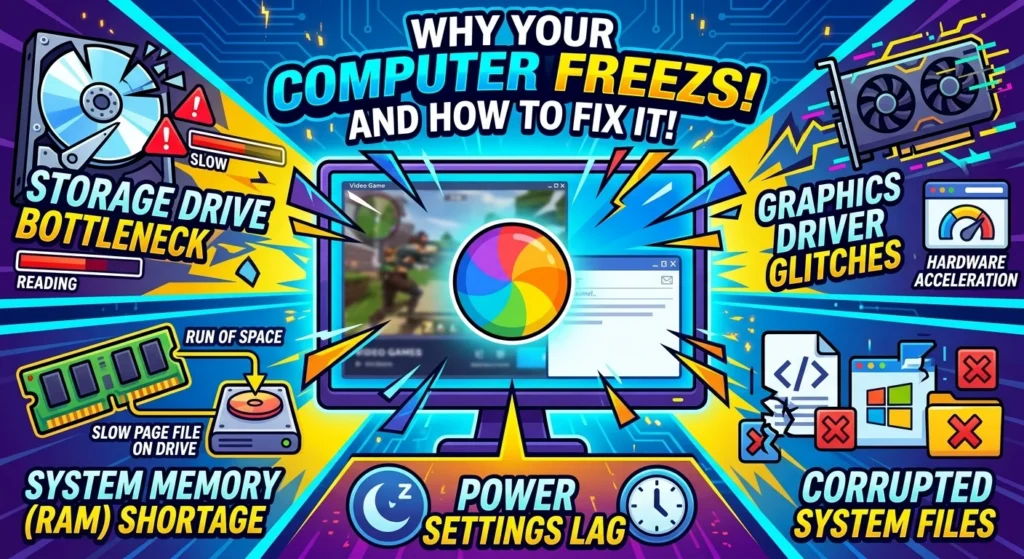
When a computer stalls and recovers, it is typically dealing with one of these underlying issues:
- Storage Drive Bottlenecks: If your hard drive or SSD is failing, or if Windows search indexing is hitting your drive hard in the background, your system will pause while it waits to read or write data.
- Graphics Driver Glitches: A conflict between your operating system and your GPU driver often causes brief display freezes, which is why you should learn how to update Windows drivers the right way. This frequently happens if you have hardware acceleration enabled in applications like Chrome, Discord, or Spotify.
- System Memory (RAM) Shortages: When you run out of physical memory, your computer relies on virtual memory on your storage drive, which is often the first thing technicians check on slow PCs. This is significantly slower and causes noticeable stutters.
- Corrupted System Files: Critical Windows files can become damaged over time, leading to unexpected, temporary system hangs.
- Power and Sleep Settings: Features like Fast Startup can prevent your computer from truly shutting down, leading to days of accumulated system lag.
How to Diagnose and Fix the Micro-Freezing
Check Your Storage Drive Health
Storage drives are a frequent source of performance issues. On older mechanical hard drives, background tasks like Windows Update or search indexing can completely max out the drive’s capacity. Even modern SSDs can cause random freezes if they are failing or if you are making the common SSD mistake that slowly destroys your storage. You can check your drive’s health using built-in Windows tools or third-party diagnostics to ensure it is operating correctly.
Disable Hardware Acceleration in Common Apps
Many modern applications, including web browsers, Discord, and Spotify, use hardware acceleration to offload work to your graphics card. While intended to improve performance, this feature often causes brief stutters or video playback freezes, particularly on systems with AMD or Nvidia driver conflicts. Try turning off hardware acceleration in your browser settings to see if the micro-freezes stop.
Run System File Checker (SFC) and DISM
If corrupted files are causing your computer to freeze for a few seconds at random, Windows includes built-in repair tools to fix them. You can run these commands to scan and restore your operating system files.
Step-by-Step System File Scan:
- Type cmd in your Windows search bar, right-click on Command Prompt, and select Run as administrator.
- Type
DISM.exe /Online /Cleanup-image /Restorehealthand press Enter. Let this process finish. - Next, type
sfc /scannowand press Enter. - Restart your computer once the scan completes.
Is RAM Shortage Why Your Computer Freezes for a Few Seconds at Random?
Sometimes your PC is simply trying to run too many processes with too little memory. Keep Task Manager open on the Performance tab while you work. The next time your computer freezes for a few seconds at random, check the graphs. If you see a massive spike in CPU, Memory, or Disk usage at the exact moment of the freeze, you will know which component is bottlenecking your system. If your RAM is constantly near 100 percent, check out our [RAM upgrade guide] to see if it is time to add more memory.
Quick Habits to Prevent Random Freezes
You can take a few steps to keep your operating system running fast and stable. First, make sure you actually shut down your computer instead of always letting it hibernate. Turning off Fast Startup in your power settings also forces Windows to do a clean boot every time, which flushes out temporary system bugs. Finally, keep your graphics card drivers updated to the latest stable release to prevent software conflicts.