(302) 262 8484
Stop Saving Passwords in Your Browser: Do This Instead

We have all done it. You sign up for a new website, a little prompt pops up in the top right corner of your screen, and you casually click ‘Save.’ It feels like a lifesaver. But if you want to protect your digital life, you need to stop saving passwords in your browser right now.
Sure, Chrome, Safari, and Edge make logging in incredibly convenient. But there is a massive difference between a tool built for browsing the web and one built to lock down your most sensitive data. By relying on your browser to store your credentials, you are essentially leaving your digital house keys under the welcome mat.
Why You Must Stop Saving Passwords in Your Browser
Browsers are designed for speed and convenience, not enterprise-grade security. When you save a password in a browser, you are exposing yourself to several silent threats, including spyware and adware, that most people do not even realize exist.
Why You Should Stop Saving Passwords in Your Browser Today
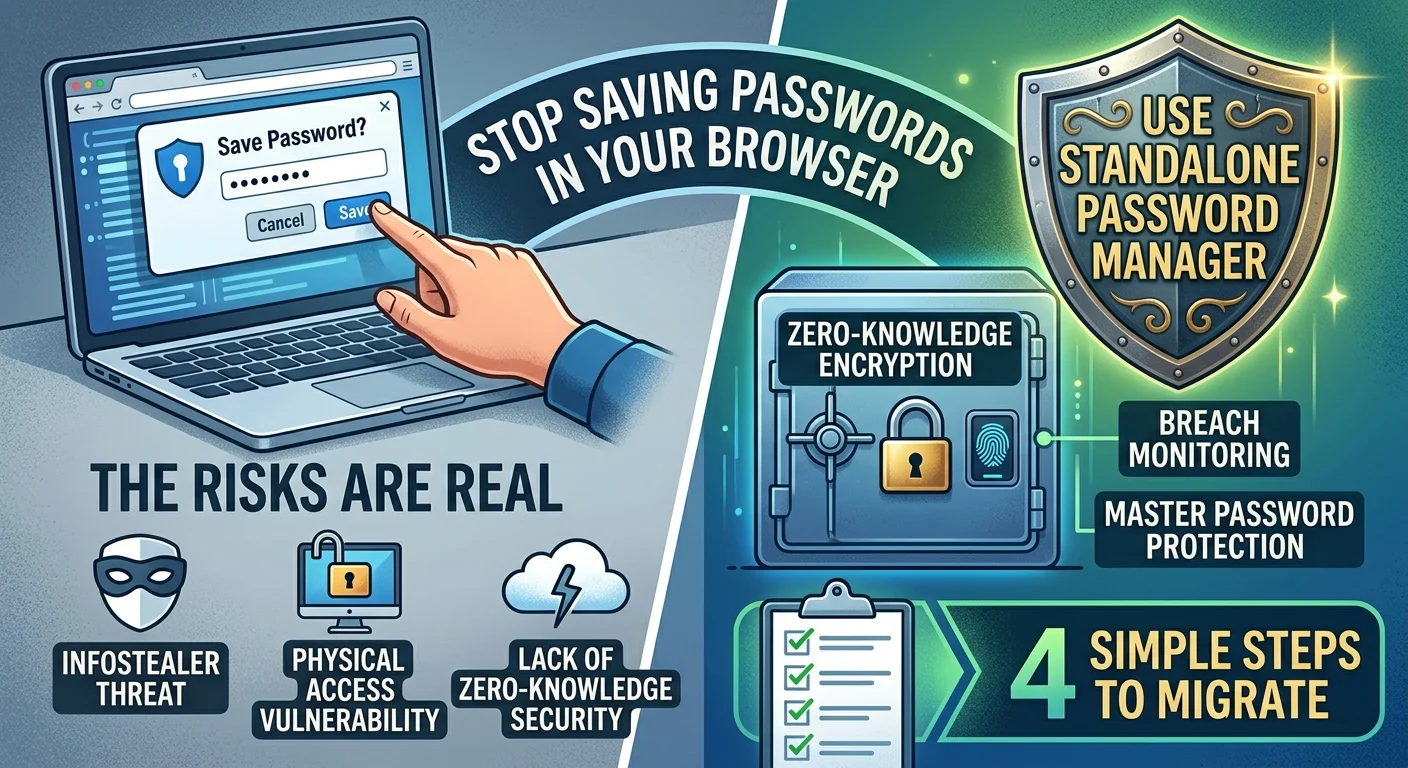
The biggest threat to browser-saved credentials is a highly common type of malware known as an infostealer. These malicious programs are designed specifically to target web browsers. Once an infostealer slips onto your device, it can extract your saved passwords, cookies, and session tokens in a matter of seconds. Because browsers automatically decrypt your credentials to autofill them, malware has a remarkably easy time copying them.
The Risk of Physical Access and Shared Devices
There is also the physical risk. Think about how often you leave your laptop open, or let a friend or coworker borrow your device. Anyone with brief physical access to your unlocked computer can open your browser settings and view or export your entire list of passwords with just a couple of clicks. Most browsers do not require a master password to see this information, leaving your bank accounts and social media wide open, which is why proactive IT monitoring for small business is essential for maintaining overall security.
The Lack of Zero-Knowledge Security
Finally, browsers lack zero-knowledge architecture. This security standard ensures that only you hold the key to decrypt your data. Dedicated security tools use this, but most web browsers do not, meaning your credentials are far more vulnerable if the browser provider experiences a breach.
What to Do Instead: Switch to a Standalone Password Manager
So, what is the solution? You need to migrate to a dedicated, standalone password manager. These platforms are built from the ground up with a single focus: keeping your credentials safe. If you want to dive deeper into securing your digital identity, see our guide on multi-factor authentication best practices and explore our broader small business cybersecurity protection strategies.
Dedicated password managers like 1Password, Bitwarden, Keeper, or Proton Pass offer several critical security advantages:
- Zero-knowledge encryption: Your vault is encrypted before it ever leaves your device, meaning even the company hosting your vault cannot read your passwords.
- Cross-platform syncing: Securely access your vault on your phone, tablet, and computer without relying on a single browser ecosystem.
- Breach monitoring and audits: These tools actively scan the dark web and alert you if any of your saved credentials have been leaked.
- Master password protection: Every single access attempt requires a master password, biometric scan, or multi-factor authentication (MFA).
How to Stop Saving Passwords in Your Browser in Four Simple Steps
Making the switch is surprisingly easy. You can lock down your logins and reduce your digital risk in under ten minutes. Here is how to do it.
Step 1: Export Your Saved Credentials
First, you need to get your passwords out of your browser. Go to your browser settings, find the password manager section, and look for an option to export passwords as a CSV file. Keep this file safe and delete it immediately after the migration is complete.
Step 2: Import to Your New Password Vault
Create an account with a trusted dedicated password manager. Once inside, look for the import option and upload the CSV file you just downloaded. Your vault will automatically organize and encrypt all of your credentials.
Step 3: Disable Browser Password Saving Completely
Now, you must stop your browser from asking to save passwords in the future. Here is how to turn it off on major browsers:
- Google Chrome: Go to Settings, click Autofill and Passwords, select Google Password Manager, click Settings, and toggle off ‘Offer to save passwords’.
- Microsoft Edge: Go to Settings, click Profiles, select Passwords, and toggle off ‘Offer to save passwords’.
- Apple Safari: Open Settings, go to the AutoFill tab, and uncheck ‘User names and passwords’.
- Mozilla Firefox: Go to Settings, click Privacy & Security, scroll down to Logins and Passwords, and uncheck ‘Ask to save logins and passwords’.
Step 4: Clean Up and Delete Stored Browser Data
Do not leave your old credentials sitting in the browser. Go back to your browser password settings and clear or delete all saved passwords. This ensures that even if your browser profile is compromised in the future, there is nothing there for hackers to steal.
The Verdict on Browser Password Managers
Here is the thing: convenience is the enemy of security. Web browsers are fantastic tools for exploring the internet, but they are not vaults. Letting them hold the keys to your financial accounts, work emails, and personal life is a gamble that you do not need to take.
So what does that mean for you? Take ten minutes today to install a dedicated password manager, export your browser data, and disable the built-in autofill settings. It is one of the simplest, most effective steps you can take to upgrade your personal cybersecurity.