(302) 262 8484
The 5-Minute Setup That Could Save Your Life: Hidden Emergency Features on Smartphones

Picture this. You are out for a solo hike, or driving down a quiet road, when the unexpected happens. A sudden medical crisis, a bad fall, or a car accident leaves you disoriented, panicked, or completely unable to speak. In those terrifying seconds, your phone is usually within arm’s reach. But did you know there are hidden emergency features on smartphones that can call for help, broadcast your location, and tell paramedics your blood type without you ever unlocking the screen?
Most of us use our devices for scrolling social media, snapping photos, and texting friends. Yet, some of the most powerful tools are the safety configurations we hope to never use. Millions of people carry these lifelines in their pockets every single day, often unaware that professional mobile repair services in Delaware can help ensure their hardware is functioning correctly if they ever need to rely on these features. Setting them up takes less than five minutes, and it could quite literally save your life.
The Hidden Emergency Features on Smartphones You Need to Know
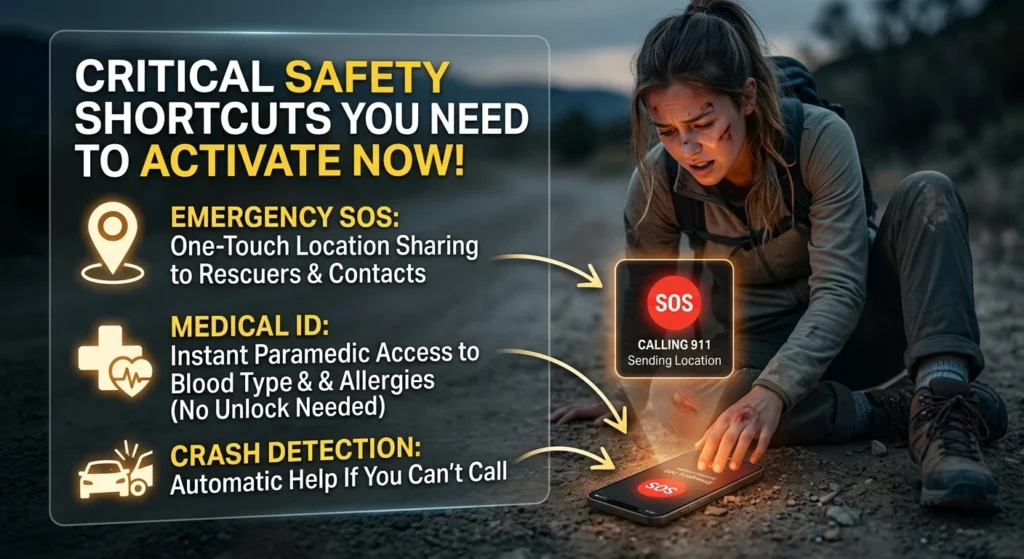
Emergency SOS is a built-in safety system that completely bypasses your lock screen to get you help fast. When you trigger it, your phone automatically dials local emergency services like 911 or 999. But it does not stop there. It also pings your chosen emergency contacts with your real-time location and keeps updating them if you are on the move.
If you have a newer device, like an iPhone 14 or a recent Android flagship, you might even have access to Satellite SOS. This incredible technology beams your distress signal directly to passing satellites. It keeps you connected to emergency services even when you are miles away from the nearest cell tower or Wi-Fi network.
There is also crash detection to think about. Available on newer iPhones and Google Pixel devices, this feature uses built-in sensors to detect the extreme forces of a car crash. If you do not respond to the on-screen prompt within a few seconds, your phone automatically calls for help.
How to Set Up Emergency SOS and Medical ID on iPhone
If you are an Apple user, setting up your digital lifeline is incredibly simple. Apple integrates these safety settings directly into its pre-installed apps, which is just one of many ways to protect your privacy, alongside learning the easy way to detect spyware on your phone. Here is how to get everything configured right now.
Step 1: Set Up Your Medical ID
Your Medical ID is what first responders will look for if you are unresponsive. It displays your allergies, medications, and blood type right on your locked screen.
- Open the Health app on your iPhone and tap your profile picture in the top-right corner.
- Tap Medical ID and then select Edit.
- Fill out your critical health details, including any chronic conditions or allergies.
- Scroll down to the Emergency Contacts section and add your trusted loved ones.
- Crucially, make sure the toggle for Show When Locked is turned on. If this is off, paramedics cannot see your info.
- Tap Done to save your changes.
Step 2: Configure Emergency SOS Triggers
Once your contacts are set, you need to know how to trigger the call. Go to your main Settings app and tap Emergency SOS. Here, you can customize how the SOS is activated. On iPhone 8 or later, you can trigger it by pressing and holding the side button and either volume button. Alternatively, you can enable the option to rapidly press the side button five times, which is often easier to do discreetly.
How to Set Up Emergency SOS and Medical ID on Android
Because Android runs on devices from Samsung, Google, Motorola, and others, the menus might look slightly different. However, the core safety features remain highly effective. Here is how to configure them on most modern Android devices.
Step 1: Fill Out Your Medical Information
On Android, your medical details and emergency contacts are stored in a centralized safety menu. Here is how to find it.
- Open your phone’s Settings app.
- Scroll down and tap Safety & emergency (or search for “Emergency information” in the settings search bar).
- Tap Medical information to enter your blood type, allergies, medications, and medical notes.
- Make sure to toggle on the option that allows this information to Show on lock screen.
- Go back to the previous menu and tap Emergency contacts to add the people who should be notified in a crisis.
Step 2: Enable Emergency SOS
In that same Safety & emergency menu, tap Emergency SOS. Switch the toggle to on. On almost all Android devices, rapidly pressing the power button five times will initiate the emergency sequence. You can also customize whether your phone plays a loud warning sound before dialing, which is useful to prevent accidental pocket dials but might be something you want to turn off if you need to call for help quietly.
How to Find Someone Else’s Medical ID
These hidden emergency features on smartphones are not just about your own safety. Knowing how to access this information can help you save someone else. If you ever encounter someone who is unconscious or injured, their phone can tell you exactly what to do.
To check an iPhone, swipe up on the lock screen and tap Emergency on the passcode screen. Then, tap Medical ID in the bottom-left corner. For an Android device, swipe up to see the passcode screen, tap Emergency call, and then tap Medical info. If the owner set it up, you will instantly see their name, medical conditions, and emergency contacts.
Your 5-Minute Smartphone Safety Checklist
Do not wait for a crisis to find out your settings are incomplete. Take five minutes right now to run through this essential checklist.
- Enable “Show When Locked”: Double-check that your Medical ID or Emergency Information is set to display on your lock screen.
- Add Emergency Contacts: List at least one or two trusted people, and let them know they are on your list.
- Practice the Motion: Practice pressing the buttons to trigger Emergency SOS on your phone without actually completing the call. Familiarize yourself with the countdown screen so you know what it looks like.
- Check for Crash Detection: If you have a newer iPhone or Pixel, make sure crash detection is turned on in your safety settings.
- Share Your Location: Before heading out on a solo road trip or hike, use temporary location sharing with a loved one as an extra layer of protection.
Our phones are incredibly advanced pieces of technology. While we love them for entertainment and connection, taking a few minutes to configure these hidden settings turns your device into the ultimate survival tool. Set it up today, and then show a friend or family member how to do the same.