(302) 262 8484
The Hidden Windows God Mode Changes Absolutely Everything

What Is Windows God Mode?
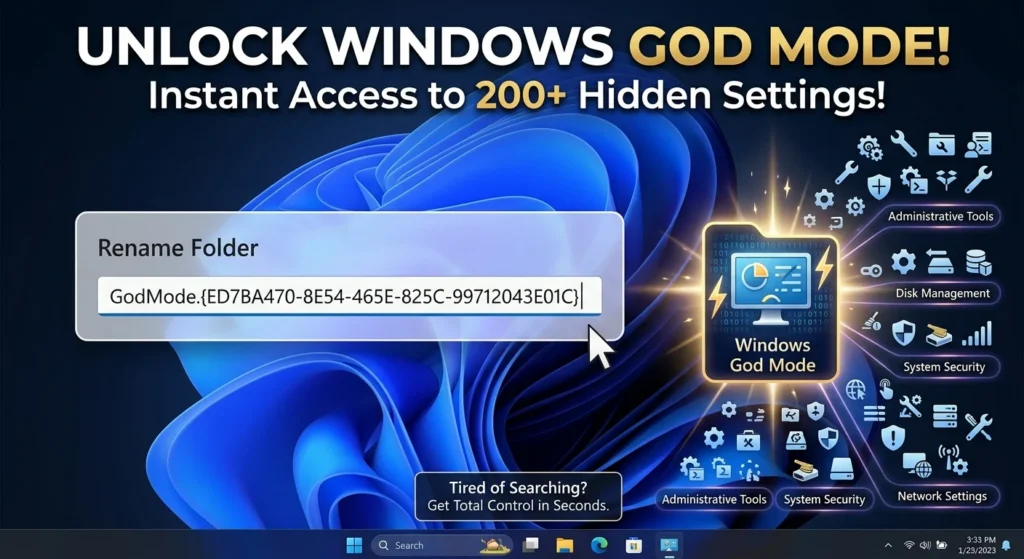
If you are tired of clicking through endless menus to find a single setting, Windows God Mode is the ultimate shortcut you have been searching for. This hidden feature consolidates over two hundred advanced system settings and administrative tools into one single desktop folder. It acts as a master control panel, giving you instant access to everything from disk management to deep security tweaks.
For years, Microsoft has been slowly moving features from the classic Control Panel into the modern Settings app. This transition has left Windows feeling fragmented, forcing users to search in multiple places just to change a basic configuration. Unlocking this secret folder brings back the simplicity of having everything in one organized location.
How to Enable Windows God Mode in Seconds
Setting up this hidden folder is incredibly easy, and you do not need any special software to do it. You only need an account with administrative privileges on your computer. Here is the step-by-step process to unlock it on your desktop.
- Right-click on any empty space on your desktop, hover over New, and select Folder.
- Rename the folder by copying and pasting this exact string:
GodMode.{ED7BA470-8E54-465E-825C-99712043E01C} - Press Enter.
Once you hit enter, the folder icon will instantly change, often losing its name or adopting a Control Panel icon. Double-click it, and you will find a massive, searchable list of system tools grouped by category.
Why Windows God Mode Changes Everything
So what does that mean for you? Instead of wasting time navigating the confusing labyrinth of modern Windows settings, you get a clean, searchable directory of your entire operating system. It is a massive timesaver for power users and casual tinkerers alike who want to avoid common issues like needing a professional PC repair in Delaware.
Solving Control Panel Issues with Windows God Mode
Microsoft’s ongoing effort to redesign the user interface has made finding advanced tools harder than ever. Some settings live in the sleek Windows 11 app, while others are buried deep inside legacy menus that often require expert IT consulting to navigate safely. The Windows God Mode folder bypasses this confusion entirely by gathering them into a single, unified interface.
Quick Access to Advanced Tools
Inside the folder, you will find quick shortcuts for tasks that usually require digging through multiple administrative menus. You can quickly manage credentials, configure backup options, adjust power settings, and format disk partitions, which are essential tasks for maintaining small business cybersecurity protection. If you want to dive even deeper into system optimization, see our guide on [Windows performance tweaks].
Taking Control of Your Operating System
Here’s the thing. While the name sounds intimidating, this feature is completely safe to use. It does not actually modify your system files or bypass security protocols, though you should always keep your machine clean with a reliable malware removal service in Delaware. It simply reveals shortcuts to settings that already exist on your machine, making them easier to find.
Now, this is where it matters. Because you have direct access to powerful administrative tools, you should still exercise caution when changing settings you do not recognize. However, having all of these options in one place makes managing your PC feel like a breath of fresh air. It is a simple, free upgrade that instantly turns you into a power user.