(302) 262 8484
This Free Microsoft Tool Could Save You Hours Every Week

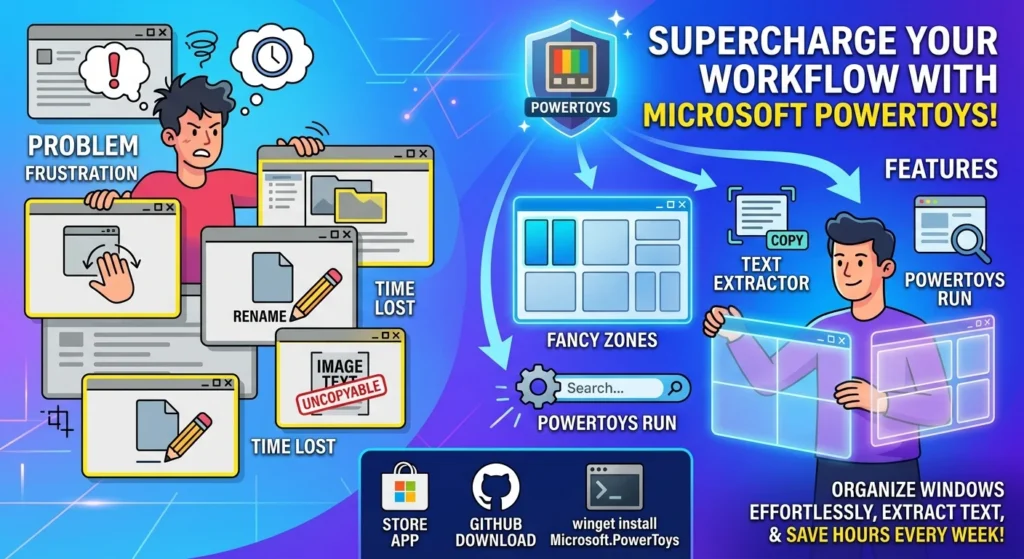
If you feel like you are constantly fighting with Windows just to keep your workspace organized, you are not alone. Many of us spend a ridiculous amount of time dragging windows, manually renaming files, or trying to copy text from uncopyable images. Fortunately, a free utility called Microsoft PowerToys can change all of that and save you hours of frustration every single week.
What is Microsoft PowerToys?
Originally introduced back in the Windows 95 era, this tool was brought back as an open-source project for Windows 10 and 11. It is essentially a collection of small, highly practical utilities designed to fill the gaps in the standard Windows operating system. Microsoft and an active community of developers maintain it, constantly adding new features to streamline your daily workflow.
Think of it as a set of digital superpowers. You do not need to be a developer or a tech wizard to use it, but if you run into deeper issues, professional IT consulting can help keep your systems running smoothly. The individual tools are built for everyday tasks, and they integrate so smoothly that you will quickly wonder why Microsoft does not build them directly into Windows by default.
How to Install Microsoft PowerToys on Windows
Getting the software onto your PC is incredibly straightforward. You do not have to jump through hoops or pay a single cent.
- The Microsoft Store: Open the Microsoft Store app on your PC, search for “Microsoft PowerToys,” and click install. This is the easiest method for most users.
- GitHub: If you prefer the direct route, you can visit the official GitHub repository and download the latest executable installer file.
- Windows Package Manager: For those who love the command line, simply open PowerShell and type “winget install Microsoft.PowerToys” to trigger a quick, hands-off installation.
Once installed, the application runs quietly in your system tray, waiting for you to call upon its features with simple keyboard shortcuts.
Supercharge Your Workflow with These Essential Features
With dozens of tools bundled inside, it can be overwhelming to know where to start. Here are the most useful features that will immediately boost your daily productivity.
FancyZones: The Ultimate Microsoft PowerToys Window Manager
Windows has built-in window snapping, but it is incredibly basic. If you use a large monitor or multiple screens, the standard half-and-half layout just does not cut it. FancyZones allows you to design custom grid layouts and snap windows into precise positions instantly.
So what does that mean for you in practice? You can hold down the Shift key while dragging a window, and it will snap perfectly into your predefined zone. You can have a large center zone for your main document, a narrow zone on the left for your chat app, and another on the right for your reference material. It turns chaotic multitasking into a structured, stress-free experience, much like how proactive IT monitoring removes the stress of managing business technology.
PowerRename: Batch Renaming Made Easy
We have all been there. You have dozens of photos or documents with messy, auto-generated names, and you need to clean them up. Renaming them one by one is a soul-crushing task that often leads business owners to seek better IT infrastructure for their daily operations. chore.
PowerRename solves this by giving you advanced search-and-replace capabilities right inside your File Explorer. Just highlight the files, right-click, and select PowerRename. You can search for specific characters, replace them, add numbering, or even use advanced regular expressions. It turns a tedious, hour-long task into a two-second job.
Text Extractor: Grab Text From Anywhere
Have you ever tried to copy text from a PDF restriction, an image, or a video, only to realize it is locked? It is incredibly annoying to have to manually retype that information.
Text Extractor acts like an instant optical character recognition tool. By pressing Windows Key + Shift + T, you can drag a box over any image or video on your screen. The utility instantly reads the text inside that box and copies it to your clipboard. It is incredibly fast, surprisingly accurate, and a massive time-saver for research and data entry.
Always On Top: Keep Crucial Windows Pinned
Here’s the thing. When you are copying data from a spreadsheet into a web form, the spreadsheet constantly disappears behind the browser window every time you click. It is a constant game of alt-tabbing.
Always On Top lets you pin any window so it stays visible, no matter what else you click on. Just select the window and press Windows Key + Ctrl + T. A subtle colored border will appear around the pinned window, confirming it is locked on top. This is perfect for keeping a calculator, a notepad, or a reference image visible while you work in another application.
Mouse Utilities: Never Lose Your Cursor Again
If you use multiple monitors, your mouse cursor has a habit of vanishing into the digital abyss. You end up vigorously shaking your mouse just to find it.
The Mouse Utilities in Microsoft PowerToys offer a brilliant solution. Double-tap the Left Ctrl key, and the rest of your screen dims, leaving a bright spotlight on your cursor. It also includes a mouse highlighter that highlights your clicks during presentations, making it a fantastic tool for anyone who shares their screen often.
Awake: Keep Your PC Active Without Changing Power Settings
Sometimes you need your computer to stay awake while downloading a massive file, rendering a video, or waiting for a long process to finish. Digging into your Windows power settings to temporarily disable sleep mode is a hassle, and it is easy to forget to turn it back on later.
Awake sits in your system tray and lets you keep your PC awake indefinitely or for a specific time window with a single click. Your screen will stay on, and your computer will not go to sleep, even if you walk away. Once your task is finished, you can easily toggle it back to your normal power plan.
Is It Worth the Hype?
Honestly, yes. It is rare to find a completely free, ad-free tool developed by a major tech company that offers this much value. You do not have to use every single tool in the package to benefit. Even if you only use FancyZones and Text Extractor, the time you save will make the quick installation process entirely worth it.
Give it a try and see how much faster your daily tasks become.