(302) 262 8484
5 Gaming PC Tips You Don’t Know About (That Actually Boost FPS)

The Lie About Default Settings
We’ve all read those generic PC optimization guides. You know the ones. But there are a ton of gaming PC tricks you probably haven’t heard about that can totally transform how your rig runs. Most articles just tell you to close your background apps, but if you are still struggling with performance, you might need professional PC upgrades in Delaware to get your system back in shape. That barely scratches the surface of what your hardware can actually do.
Here’s the reality. Windows is built to be a jack-of-all-trades operating system. It’s not a dedicated gaming console, and sometimes even the best hardware needs expert IT consulting to ensure your software environment is optimized for gaming. It prioritizes saving power, running background processes, and keeping things safe over raw gaming performance. Because of that, your expensive setup is definitely leaving frames on the table right now.
So, if you want to squeeze every last drop of performance out of your PC and finally kill those annoying micro-stutters, we need to look a bit deeper. Let’s walk through the hidden settings that will actually make your games run like butter, or check out our guide on the hidden Windows God Mode changes that absolutely everything for power users.
The RAM Switch Everyone Forgets About
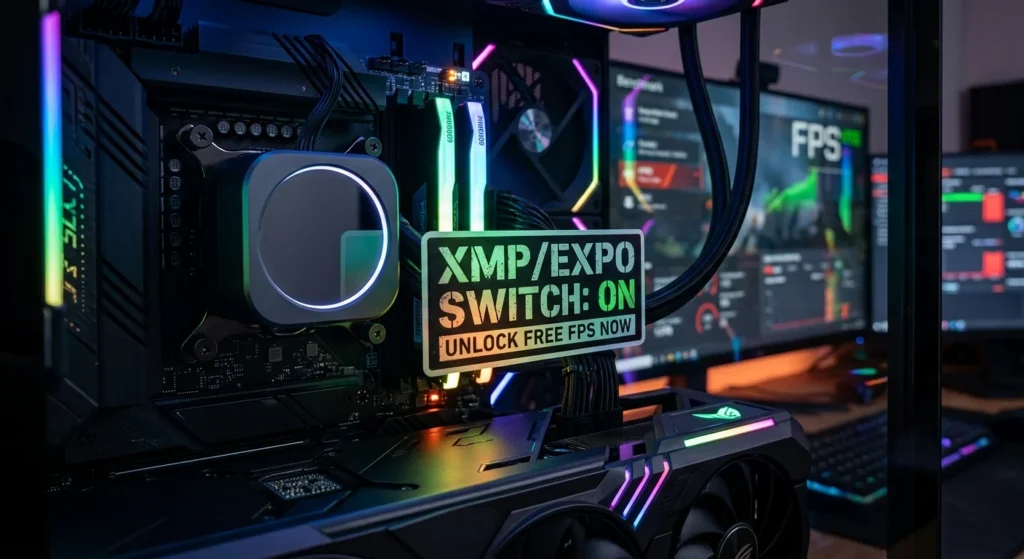
You probably spent extra cash on high-speed RAM. You expected blazing-fast load times and sky-high frame rates. But did you know your motherboard runs your RAM at its absolute slowest baseline speed right out of the box? For modern DDR5 memory, that usually means a sluggish 4800MHz instead of the 6000MHz printed right on the packaging.
To fix this, you have to literally tell your motherboard to run at those advertised speeds. You do this by turning on a specific profile in your BIOS. It’s called XMP (Extreme Memory Profile) for Intel systems, or EXPO (Extended Profiles for Overclocking) if you’re running AMD.
What does that actually mean for you? Flipping this switch instantly boosts your 1% low frame rates. It makes your games feel incredibly smooth, especially during chaotic fights. Here is exactly how you do it:
- Restart your PC and just keep tapping the Delete or F2 key until the BIOS screen pops up.
- Look around the main screen for a setting labeled XMP, EXPO, or D.O.C.P.
- Change it from “Disabled” to “Profile 1”.
- Save your changes, exit, and let your system reboot.
Kill MPO to Stop Those Random Stutters
Ever get those weird stutters, random black screens, or sudden lag spikes when you play a game and watch a YouTube video on your second monitor at the same time? You can blame a Windows feature called Multiplane Overlay (MPO) for that mess.
MPO is supposed to reduce the load on your CPU and GPU. It does this by letting different windowed apps render on their own. But in the real world? It constantly clashes with modern graphics drivers. That clash causes erratic frame times and screen flickering.
Disabling MPO is basically a legendary fix in the PC building community. It won’t hurt your system at all, and it almost instantly cures multi-monitor stuttering, though you should always keep your system clean with regular virus and spyware removal to ensure no other background threats are causing lag. You can turn it off by going into your Windows Registry. Or, even easier, just download the official registry toggle tool straight from NVIDIA’s support page and let it do the heavy lifting for you.
The Emergency GPU Reset Shortcut
Picture this. You’re in the middle of a tense ranked match. Suddenly, your screen freezes solid or starts flickering violently. Before you reach down to hit the physical power button and force a hard reset, try this hidden Windows shortcut instead.
Just press Win + Shift + Ctrl + B. This tells Windows to instantly restart your graphics driver. Your monitors will go black for a split second. You’ll hear a quick beep, and then your display will refresh.
And here is the best part. It usually won’t close your active game or wipe out your progress. It just forces the GPU driver to reload and clear out whatever memory bottleneck or crash state it was stuck in. It’s an absolute lifesaver when an unstable overclock or a poorly optimized game engine decides to act up.
Unbottleneck Your Hardware with Resizable BAR
Normally, your CPU can only access a tiny slice of your graphics card’s video memory (VRAM) at one time. We’re talking 256MB chunks. That creates a massive artificial bottleneck when modern, open-world games try to load huge textures on the fly.
Resizable BAR changes the game completely. If you’re on an AMD system, they call it Smart Access Memory. Either way, it lets your CPU access the entire VRAM buffer all at once. This drastically speeds up data transfers between your processor and your graphics card.
Turning this on gets you an easy 5% to 15% performance boost in supported games. And it costs you absolutely nothing. You just need to jump into your motherboard’s BIOS and enable “Above 4G Decoding” along with “Re-Size BAR Support.” Just make sure your GPU drivers are up to date so you actually see the benefits.
Stop Windows from Putting Your CPU to Sleep
Windows has a really bad habit of trying to save power. It does this by putting your unused CPU cores into a deep sleep state. We call this core parking. Now, that’s great if you want to save battery life on a laptop. But it is terrible for gaming.
When a game suddenly demands more processing power, your CPU has to wake those parked cores back up. That split-second delay shows up on your end as a noticeable hitch or stutter right in the middle of your gameplay.
To fix this, you want to switch your system over to the hidden “Ultimate Performance” power plan. You can unlock this plan by opening PowerShell as an administrator and dropping in a quick command. Or, you can just use a free utility like QuickCPU to manually unpark all your cores. Keeping your cores awake and ready guarantees your frame times stay flat and consistent.
Stop Leaving Performance on the Table
Optimizing a gaming PC isn’t just about buying the most expensive hardware on the market. It is really about making sure the hardware you already own works together perfectly. Take ten minutes to tweak these overlooked settings. You’ll get a much smoother, far more responsive gaming experience, and you won’t have to spend a single dime.