(302) 262 8484
How to Fix a Windows Update Stuck at 100 Percent for Hours

You are staring at a blue screen. The spinning circle is mocking you. If you are trying to fix a Windows update stuck at 100 percent for hours, you are definitely not alone. It is incredibly frustrating to wait on an update that simply refuses to finish.
Microsoft constantly pushes out patches and feature drops. Most of the time they install quietly in the background. But sometimes things go wrong and your system completely freezes right at the finish line.
Let us get your computer unstuck and back to normal.
Is the update actually stuck?
Here is the thing. Windows updates are notoriously bad at estimating time. Sometimes a progress bar will sit at 100 percent while the system is quietly unpacking a massive file in the background.
So how long should you wait?
A good rule of thumb is to wait at least two hours. If you have a slower internet connection or an older mechanical hard drive, maybe give it three. But if you have been stuck at 100 percent for four hours or more, the update has failed. It is time to intervene, especially if you suspect your system issues are related to a deeper problem like a virus or spyware that requires professional Virus and Spyware Removal.
Step-by-Step Fixes for a Frozen Windows Update
When your computer is locked up on the update screen, you have to force it to respond. These steps will walk you through the safest ways to regain control of your PC, though you can always contact us for expert PC Repair in Delaware if the issue persists.
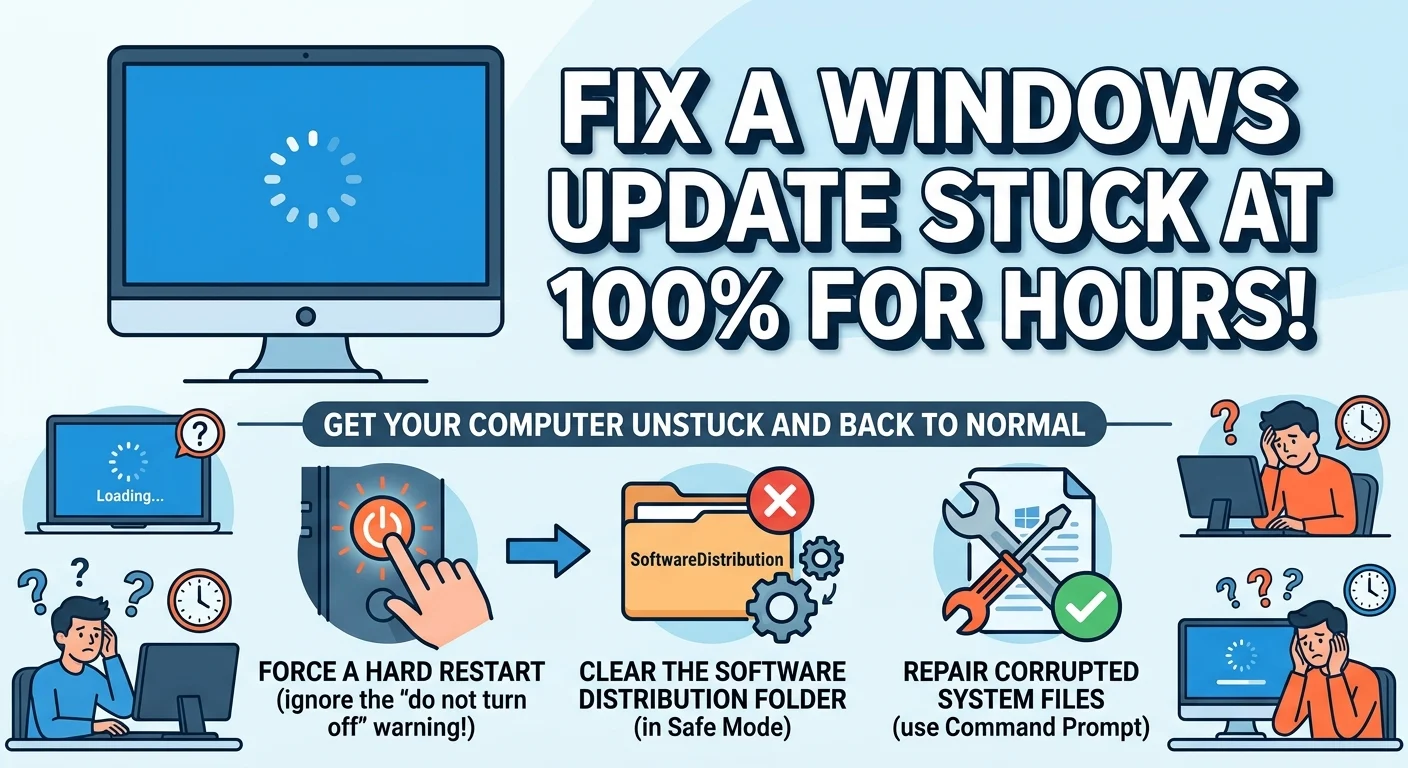
1. Force a hard restart
The screen clearly says “Do not turn off your computer.” I know it feels wrong to ignore that warning. But if the system is completely frozen, you literally have no other choice.
You need to force a hard reboot. This is usually the quickest way to fix a Windows update stuck at 100 percent.
- Press and hold the physical power button on your computer case or laptop.
- Keep holding it for about ten seconds until the machine completely powers down.
- Unplug the power cable from the wall for a minute. If you have a laptop with a removable battery, take it out.
- Plug everything back in and turn the computer on.
Most of the time Windows will realize the update failed. It will automatically roll back the changes and boot you straight to your normal login screen. If that works, you are good to go, but if you find your hardware is struggling to keep up with modern updates, it might be time to consider PC Upgrades in Delaware.
2. Clear the SoftwareDistribution folder
If the hard restart did not work or the update keeps getting stuck every time you try to install it, you likely have corrupted download files. Windows stores all update files in a specific folder. If a file gets scrambled during the download, the installation will hang forever.
You need to delete those broken files so Windows can download a fresh copy.
First, you will need to boot your computer into Safe Mode. You can usually do this by interrupting the boot process three times in a row. Once you are in Safe Mode, follow these steps.
- Open the Start menu and type cmd.
- Right-click on Command Prompt and select Run as administrator.
- Type net stop wuauserv and press Enter. This stops the update service.
- Type net stop bits and press Enter.
- Open your File Explorer and navigate to C:WindowsSoftwareDistribution.
- Select every single file and folder inside that directory and delete them.
- Go back to your Command Prompt.
- Type net start wuauserv and press Enter to restart the service.
- Type net start bits and press Enter.
Restart your computer normally. Windows will recreate that folder and attempt to download the update cleanly. This solves the problem about 90 percent of the time.
3. Run the Windows Update Troubleshooter
Microsoft knows their update process is flawed. That is why they built a dedicated troubleshooting tool right into the operating system.
Honestly, the built-in troubleshooters are a bit hit or miss. Sometimes they perform miracles. Other times they tell you absolutely nothing. But it only takes two minutes to run, so it is always worth trying before you dig into more complex fixes.
- Open your Windows Settings.
- Go to Update & Security and click on Troubleshoot.
- Select Additional troubleshooters.
- Click on Windows Update and run the tool.
Let the tool scan your system. If it finds a stuck registry key or a disabled service, it will fix it automatically.
4. Repair corrupted system files
Sometimes the issue is not the update itself. The problem might be your core Windows files. If essential system files are missing or damaged, new updates cannot install properly.
You can fix this using the System File Checker. This is a built-in command line tool that scans your hard drive and replaces broken files with fresh copies from a cached folder.
Open Command Prompt as an administrator again. Type sfc /scannow and hit Enter. Let the scan run to 100 percent. Do not close the window until it finishes. If it finds and repairs corrupted files, restart your PC and try running your updates again.
How to Avoid Stuck Updates in the Future
Once you finally get back to your desktop, you want to make sure this never happens again. Windows updates are mandatory, but you can manage how and when they install.
Always make sure you have enough free storage space. A major feature update can require up to 20GB of free space to unpack and install properly. If your hard drive is completely full, the update will crash. If you need help clearing out junk files, check out our guide on [how to free up space on Windows].
You should also avoid updating over a weak Wi-Fi connection. Dropped packets lead to corrupted downloads. Plug into an ethernet cable if you are downloading a massive system patch.
Finally, do not be afraid to hit the pause button. If you have a major project due or you simply cannot afford any downtime, go into your Windows Update settings and pause updates for a week or two. Let Microsoft work out the bugs on other machines before you install the patch on yours.