(302) 262 8484
How to Fix a Mouse Cursor That Keeps Freezing or Jumping Around

There are few things more frustrating than trying to work when your mouse cursor keeps freezing or jumping around the screen. You try to click a simple button, and suddenly your pointer shoots into the top right corner of your monitor. It completely ruins your focus.
If you are desperately trying to fix a mouse cursor that keeps freezing or jumping around, let’s get this sorted out right now. Most of the time, this is not a permanent hardware failure. It is usually a minor physical obstruction or a software glitch that you can fix in a few minutes.
Why is my mouse acting crazy?
Before you throw your peripheral against the wall, it helps to know what actually causes the problem. An erratic mouse usually comes down to a handful of common culprits.
Here are the most frequent causes of a jumping cursor:
- A dirty laser or optical sensor
- Dying batteries or a weak Bluetooth connection
- Corrupted or outdated device drivers
- Using a highly reflective or uneven mousepad
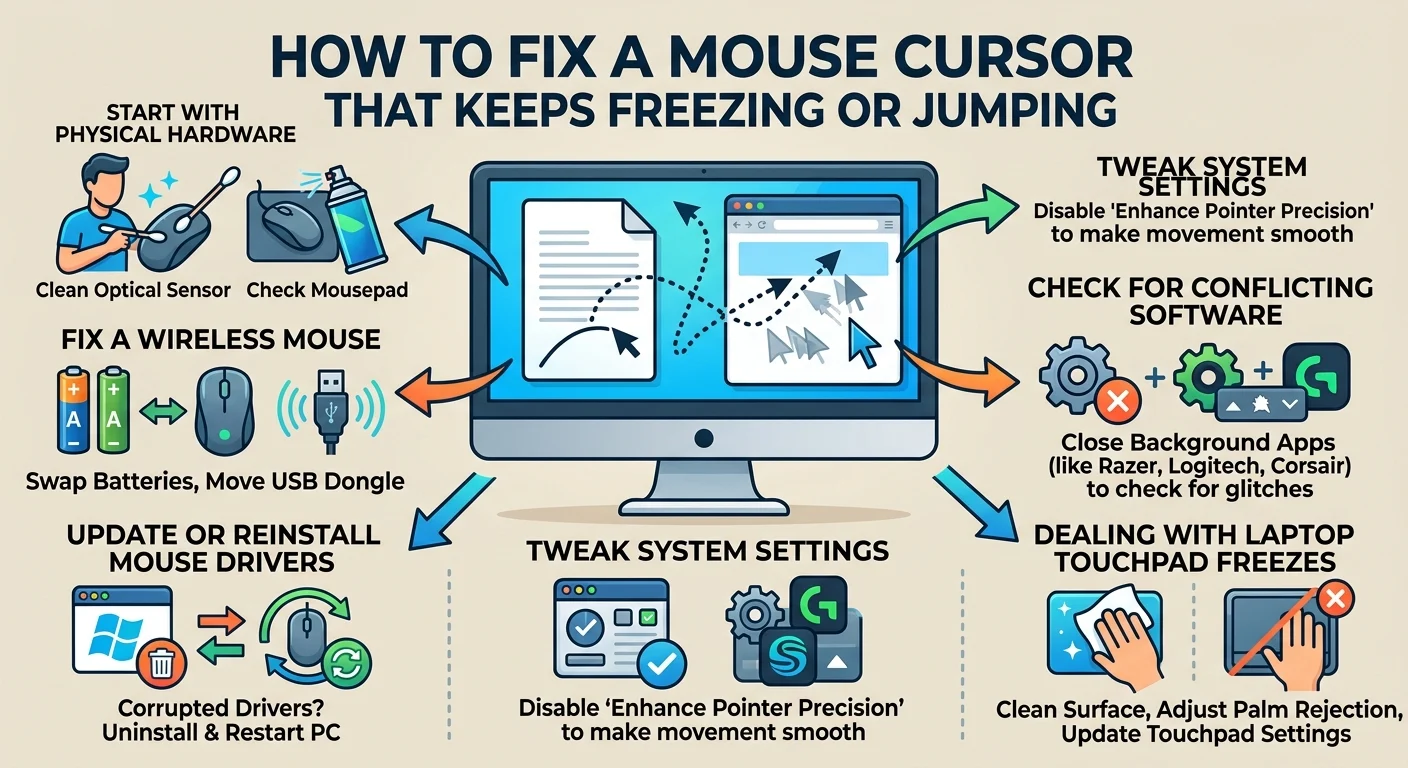
Start With the Physical Hardware
Do not skip the basics. I see people dig into complex registry edits when all they really needed was a wet wipe.
Flip your mouse over and look closely at the sensor. If there is a tiny hair or a speck of dust trapped in the optical cavity, your cursor is going to stutter. Blow it out with compressed air or gently clean it with a dry cotton swab.
Next, take a hard look at your mousepad. Optical mice absolutely hate glass, glossy surfaces, and deeply textured desks. Swap out your mousepad or just test the mouse on a plain piece of printer paper. If the jumping stops immediately, you know your desk surface was the culprit.
Fix a Wireless Mouse Cursor That Keeps Freezing
Wireless mice are fantastic right up until the connection drops. If you are using a Bluetooth or USB receiver mouse, power delivery and signal strength are your main suspects.
Swap the batteries first. Even if your operating system says the battery is at thirty percent, low voltage can cause massive tracking lag.
If you use a USB dongle, move it closer to the mouse. Plug it into the front of your PC case rather than the back. USB 3.0 ports are actually notorious for causing interference with 2.4GHz wireless receivers. Moving the dongle to an older USB 2.0 port often fixes the lag instantly. It is a weird quirk, but it works.
Update or Reinstall Your Mouse Drivers
If the hardware is perfectly fine, the software is probably acting up. Corrupted drivers are a massive headache but very easy to fix.
Here is how to force Windows to give you a fresh driver:
- Press the Windows key, type Device Manager, and hit enter.
- Expand the section labeled Mice and other pointing devices.
- Right-click your specific mouse and select Uninstall device.
- Restart your computer.
Do not panic when your mouse stops working after step three. You can use your keyboard to restart the PC. Windows will automatically detect the mouse and reinstall a clean driver when it boots back up. This takes two minutes and solves the issue about half the time.
Tweak Your System Settings
Sometimes Windows tries to be too smart for its own good. There is a specific setting built into the operating system that is supposed to help you aim better. In reality, it often causes weird cursor jumps.
Disable Enhance Pointer Precision
This feature dynamically changes your mouse sensitivity based on how fast you move your hand. It sounds cool in theory. In practice, it ruins your muscle memory and can make the pointer feel incredibly erratic.
Open your Mouse Settings in Windows. Click on Additional mouse options to open the legacy properties window. Go to the Pointer Options tab. Uncheck the box that says Enhance pointer precision and hit apply.
You will probably notice an immediate difference in how smooth and predictable your cursor feels.
Check for Conflicting Software
Are you running third-party software like Razer Synapse, Logitech G Hub, or Corsair iCUE? These programs are notorious for glitching out and fighting with standard Windows drivers.
Try closing your peripheral software completely from the system tray. If your mouse cursor stops freezing, you know the background app is the problem. You might need to check for an update within that specific software or reinstall it entirely.
Dealing with Laptop Touchpad Freezes
If you are working on a laptop and your touchpad cursor keeps freezing, the hardware checks are a bit different.
First, wipe down the trackpad with a microfiber cloth. Oils and dirt from your fingers build up over time and confuse the capacitive sensors beneath the surface.
You should also check if your palm is resting heavily on the edge of the pad while you type. Most modern laptops have palm rejection software to prevent accidental clicks. Unfortunately, it is rarely perfect. If it still acts up, check out our guide on [troubleshooting laptop trackpads] for a deeper dive into manufacturer settings.
Dealing with a jumpy mouse is incredibly annoying. Just remember to run through these steps one by one. Start with the easy hardware fixes before you mess with system settings. You should have your smooth, reliable cursor back in no time.