(302) 262 8484
How to Fix a Laptop Shutting Down From Overheating

You are right in the middle of an important project or a tense gaming match. Suddenly, the screen goes black.
The fans were spinning like a jet engine just seconds ago. If your laptop shutting down from overheating is becoming a daily struggle, you are not alone, and you may need professional PC Repair in Delaware to diagnose deeper hardware issues. This is actually a built-in safety feature to stop your processor from melting itself. But it is definitely not something you want to ignore.
Let’s look at how to cool things down and get you back to work fast.
Why is my laptop shutting down from overheating?
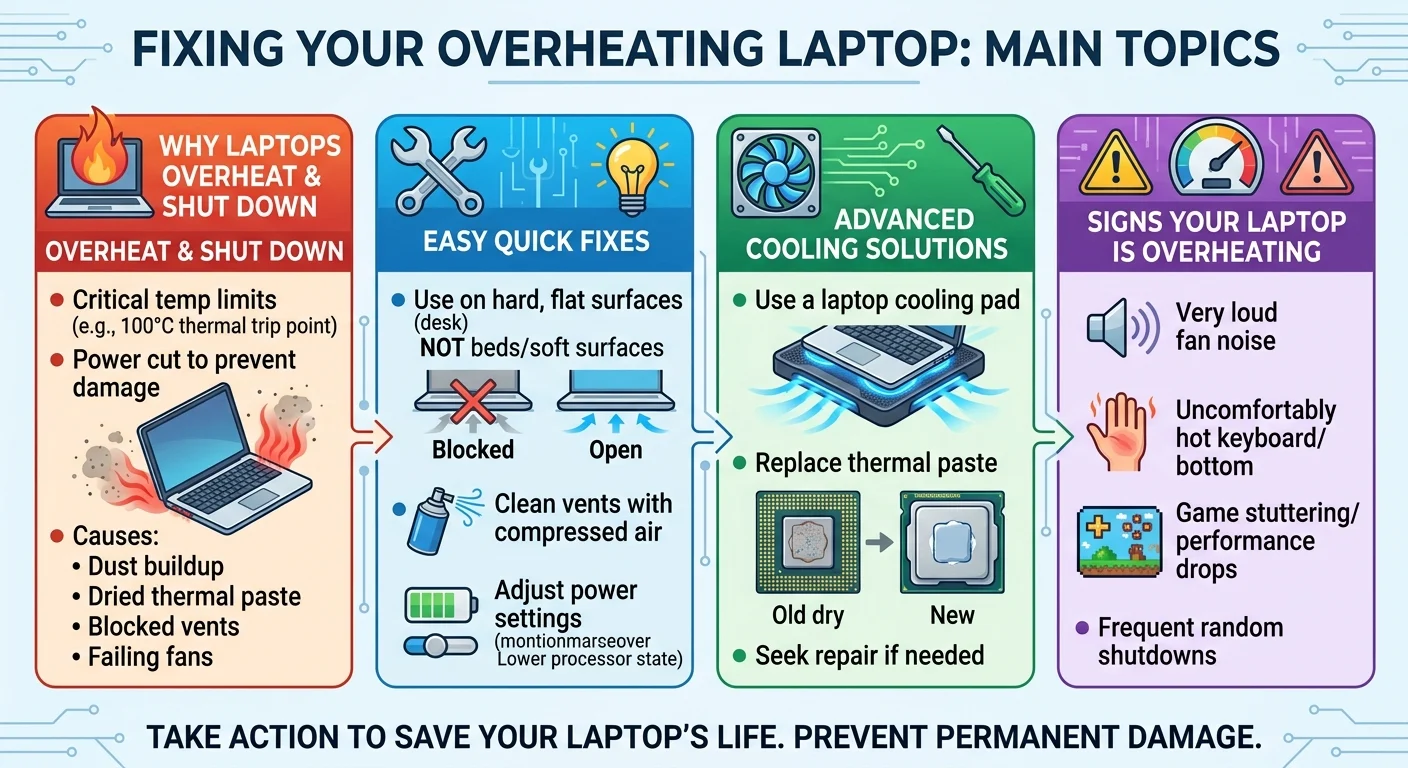
When internal temperatures hit a critical limit, your computer cuts the power immediately. This thermal trip point usually sits around 100 degrees Celsius. It happens because the cooling system simply cannot push hot air out fast enough to keep up with the heat being generated.
A few different things usually cause this bottleneck:
- Dust blocking the exhaust vents
- Dried out thermal paste on the processor
- Failing internal cooling fans
- Using the device on soft blankets or pillows
Quick fixes for a laptop shutting down from overheating
You do not always need to take your computer apart to fix thermal issues. Start with these simple adjustments.
Get it off your bed
This is the most common mistake people make. Laptops pull cool air from the bottom and push hot air out the sides or back.
When you set your computer on a mattress, couch, or even your lap, you block those bottom intakes completely. Move it to a hard, flat desk. If you absolutely must use it in bed, put a large hardcover book or a lap desk underneath it.
Clean out the dust
Dust is the absolute worst enemy of modern electronics. Over time, it builds up inside the chassis and forms a thick, insulating blanket over the heat sinks.
Grab a can of compressed air. Turn the laptop off completely. Give the side and bottom vents a few short, sharp bursts of air.
Do not hold the nozzle too close to the plastic. You want to avoid spinning the internal fans too fast and damaging their bearings. You will probably be shocked by the cloud of dust that comes flying out.
Adjust your power settings
Sometimes your computer is just working harder than it needs to. Windows and macOS both let you tweak performance limits to save energy and reduce heat.
Lowering the maximum processor state by just a few percentage points can drastically drop temperatures. You probably will not even notice the performance difference during normal web browsing or typing. See our guide on optimizing Windows power settings for a step-by-step walkthrough, or contact us for personalized IT Consulting if you need help managing your business hardware.
Advanced ways to stop thermal shutdowns
If the quick fixes did not work, you might need to take a more aggressive approach to cooling.
Use a dedicated cooling pad
If you are pushing the hardware hard with gaming or video editing, the internal fans might need some backup. A laptop cooling pad sits underneath your machine and forces fresh air straight into the intake vents.
They are relatively cheap and incredibly effective at dropping overall chassis temperatures.
Replace the thermal paste
Here is the thing about older computers. If your laptop is more than three years old, the thermal paste connecting the CPU to the heat sink is probably dry and crusty. It stops transferring heat effectively when it dries out.
Replacing this paste is the absolute best way to fix a laptop shutting down from overheating permanently. It is a very cheap fix, but it requires taking the laptop apart.
If you are comfortable with a screwdriver and a YouTube tutorial, you can do this yourself in an afternoon. If you are not, take it to a local repair shop. It is a standard maintenance job that will not cost a fortune.
Signs your laptop is getting too hot
How do you know heat is the actual culprit? Random shutdowns can sometimes be caused by failing batteries or bad driver updates.
Listen to the fans. If they sound unusually loud right before the crash, heat is almost certainly the issue. You might also notice the keyboard deck becoming uncomfortably hot to the touch.
Frame rate drops are another massive clue. If your games start stuttering heavily just before the screen goes black, your processor is likely thermal throttling to try and save itself.
Do not ignore the warning signs
A computer that constantly turns itself off is begging for help. Letting it repeatedly hit that thermal limit will eventually kill the motherboard or the processor.
Take a few minutes to clean the vents and keep it on a hard surface. Your hardware will live a lot longer, and you will not have to worry about losing your unsaved work.