(302) 262 8484
Laptop Shutting Down From Overheating? How to Fix It Fast

How to Stop the Heat and Save Your Computer
You are right in the middle of an important project or an intense gaming session. Suddenly, the screen goes black. The fans were screaming just a second ago, and the bottom of your machine feels like a frying pan. If your laptop shutting down from overheating is becoming a daily nightmare, you need to act fast before permanent damage happens.
Let’s get that temperature under control so you can actually use your computer again.
Why is your laptop shutting down from overheating?
Modern computers are actually pretty smart. When internal temperatures hit a critical danger zone, the system pulls the plug to save your CPU and GPU from literally melting.
This emergency failsafe is great for preventing a fire. It is terrible for your unsaved work.
The usual suspects behind the heat
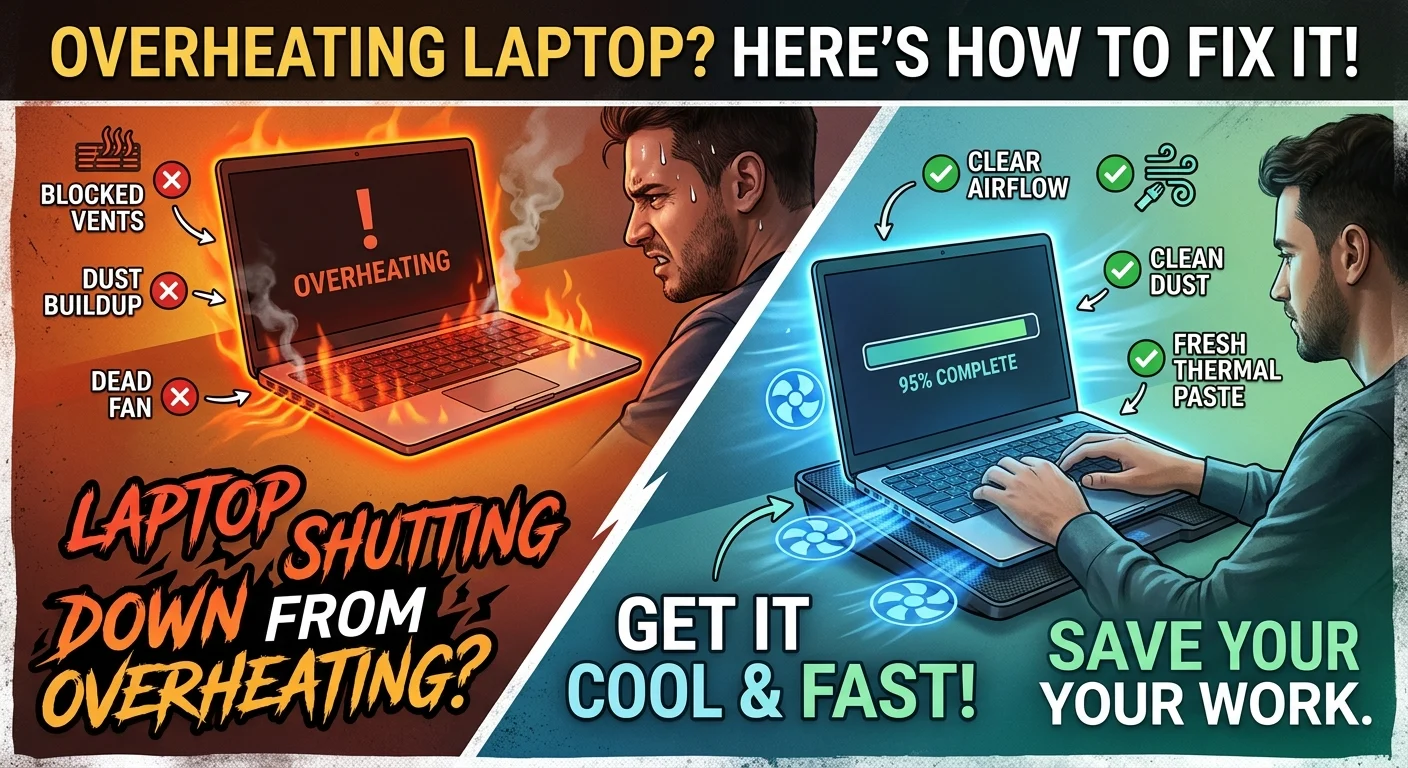
Before you can fix the problem, you need to know what is causing it. Most thermal issues come down to a few common culprits.
- Dust buildup choking the internal airflow
- Dried out thermal paste on the processor
- Blocked cooling vents
- Failing internal fans
- Heavy software loads pushing the hardware too hard
Quick fixes you can do right now
You do not need to be a tech wizard to cool things down. Start with the basics.
Get it off the bed
Blankets and pillows are laptop killers. They insulate the device and completely block the bottom intake vents. Always use your laptop on a hard, flat surface like a desk or a wooden table.
If you absolutely must use it in bed, put a large book or a lap desk underneath it.
Give the vents some breathing room
Look at the sides and back of your machine. Are those little plastic grilles pushed right up against a wall or a pile of papers? Clear the area.
Your computer needs to pull in cool room air and push out the hot exhaust. If the hot air bounces off a wall and goes right back into the machine, temperatures will skyrocket.
Intermediate steps to stop an overheating laptop
If changing your desk setup did not solve the issue, it is time to do a little light maintenance.
Blow out the dust
This is probably the most common fix. Grab a can of compressed air. Turn the laptop completely off and give the side and bottom vents a few short bursts of air.
You will probably see a cloud of dust puff out. Just be careful not to hold the nozzle too close or spin the fans too fast. Forcing the fan blades to spin at warp speed can actually break the delicate bearings.
Check your power settings
Sometimes Windows or macOS pushes your processor to the absolute limit for no good reason. Try dropping your power plan from high performance to balanced mode.
This tells the operating system to chill out a bit. It stops running the CPU at maximum voltage when you are just doing simple tasks like browsing the web or watching a video.
Advanced solutions for stubborn temperature issues
So you cleared the dust and moved to a hard desk, but your laptop shutting down from overheating is still a problem. Now we bring out the heavy hitters.
Invest in a quality cooling pad
If you are gaming or rendering video, the built-in fans might just not be enough. A good cooling pad forces extra air directly into the bottom intakes.
Skip the cheap plastic ones you find at the drugstore. Look for something with large, quiet fans and a sturdy metal mesh top. See our guide on [best laptop cooling accessories] for some solid recommendations.
Repaste the CPU and GPU
Here is where things get a bit technical. Inside your laptop, there is a layer of thermal paste sitting between the processor chips and the metal cooling pipes.
Over a few years, this paste dries up and turns into a crusty mess. It stops transferring heat effectively.
If you are comfortable taking off the bottom panel and unscrewing the heatsink, cleaning off the old gunk and applying a fresh drop of high-quality thermal paste works wonders. It can easily drop temperatures by ten degrees or more.
Not comfortable doing this yourself? Take it to a local repair shop. It is a cheap job that saves expensive laptops.
When to admit defeat and see a pro
Sometimes a laptop shutting down from overheating points to a dead hardware component. If you hold your ear near the keyboard and hear a grinding noise, your internal fan is failing.
Worse yet is absolute silence while the laptop is burning hot. That means the fan is completely dead.
Do not ignore these warning signs. A thirty dollar fan replacement is vastly cheaper than buying a whole new computer because your motherboard fried.