(302) 262 8484
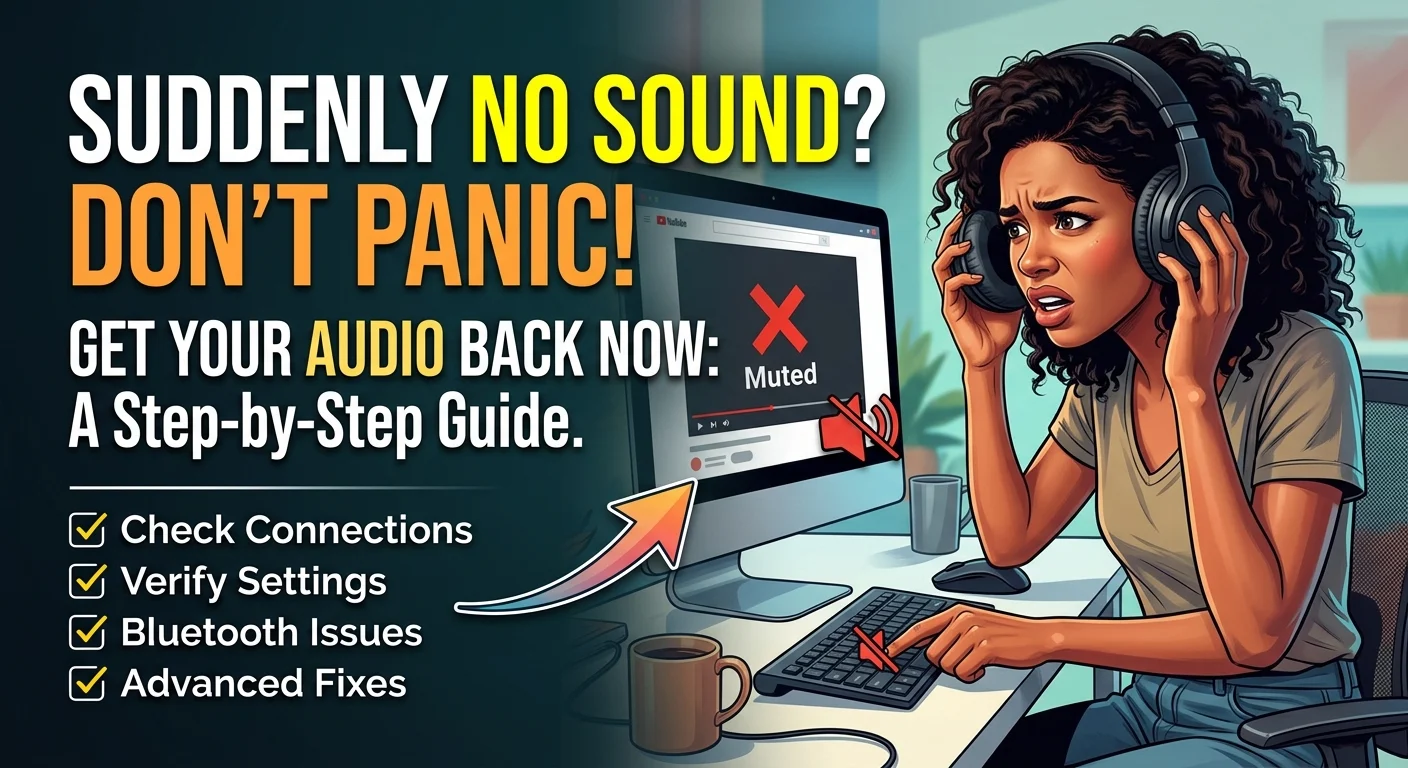
Fix It Fast: What to Do When Your Computer Suddenly Has No Sound

You sit down to watch a video, join a Zoom call, or play a game. Then nothing happens. Complete silence. If your computer suddenly has no sound, you are probably feeling a mix of confusion and frustration. Don’t panic, as we offer professional PC Repair in Delaware if you need expert assistance. You rarely need to buy new speakers or lug your machine to a repair shop, as we provide affordable PC & Mobile Services to help you troubleshoot from home.
Let’s walk through the exact steps to get your audio back online.
First steps when your computer suddenly has no sound
We need to start with the obvious stuff. It sounds silly, but we have all accidentally muted our devices and spent an hour trying to fix a nonexistent problem.
Before you dive into complex settings, check these basics:
- Verify the mute button on your keyboard is not activated.
- Check the physical volume knob on your external speakers.
- Make sure your headphones are actually plugged in all the way.
- Ensure the application you are using is not muted internally.
If all of those look good, it is time to dig a little deeper.
Check your output device settings
This is the most common culprit for missing audio. Your computer might be trying to send sound to a Bluetooth speaker in the other room. Or maybe it thinks your monitor has built-in speakers.
On a Windows PC, click the speaker icon in your taskbar. Click the arrow next to the volume slider and make sure your actual speakers or headphones are selected. On a Mac, head to System Settings, click Sound, and check your Output tab.
Just switching the output back to the correct device fixes the problem nine times out of ten.
Disconnect all Bluetooth devices
Bluetooth is notoriously finicky. Sometimes your computer connects to wireless earbuds while they are still sitting in their charging case.
Turn off Bluetooth entirely on your computer. See if your regular speakers start working. If they do, you know a rogue wireless device hijacked your audio.
Advanced fixes for stubborn audio issues
Here is the thing. Software updates and random glitches love to mess with your system files. If the basic settings are correct, you need to look at the software running behind the scenes.
Restart your audio services
If the settings look right but you still have no audio, the background service might have crashed. This happens a lot on Windows machines.
Type Services into your Windows search bar and open the app. Scroll down until you find Windows Audio. Right-click on it and hit Restart. It only takes a few seconds and often brings dead speakers back to life.
Update those audio drivers
Drivers are the translators between your hardware and your operating system. Sometimes they get corrupted. This is especially true if your computer suddenly has no sound right after a major system update, which can sometimes lead to issues requiring a Computer Virus Removal Service in Delaware.
Open Device Manager and find your audio device. Right-click it and choose Update driver. If that fails, do not be afraid to hit Uninstall device. Just restart your PC afterward. Windows will automatically detect the missing hardware and install a fresh driver for you.
If you are nervous about messing with system files, check out [see our guide on safely updating Windows drivers].
What if nothing works?
So what does that mean for you if you tried everything above and still hear nothing?
You might actually be looking at a hardware problem. The headphone jack could be damaged from getting bumped. Your internal sound card might have finally given up.
Before you spend money on a major repair, try a cheap USB audio adapter. They cost less than a fancy coffee. You just plug it into a USB port and plug your speakers directly into the adapter. It completely bypasses your internal sound card.
Most audio issues are just temporary software hiccups. Work through these steps one by one, and you will likely be back to listening to your favorite content in just a few minutes.