(302) 262 8484
iPad Dead? How to Fix an iPad That Refuses to Turn On or Charge

Staring at a completely black screen is stressful. You plug it in, press the buttons, and absolutely nothing happens. If you need to fix an iPad that refuses to turn on or charge, take a deep breath. You probably do not need to buy a new tablet just yet, as professional mobile repair services in Delaware can often resolve these issues for a fraction of the cost.
Most of the time, this issue comes down to a software crash, a clogged port, or a faulty cable. Let us walk through the exact steps to bring your dead iPad back to life.
Why is my iPad completely dead?
Before we start mashing buttons, it helps to know what went wrong. While iPads are generally highly reliable devices, even the best hardware can occasionally require expert PC & Mobile Services to get back up and running. When they suddenly go dark, it is usually one of three things. Either the software crashed hard, the battery drained to absolute zero, or the charging hardware is failing.
How to Fix an iPad That Refuses to Turn On or Charge
Let us get straight to the solutions. Follow these steps in order. They start with the easiest fixes and move toward the more aggressive ones.
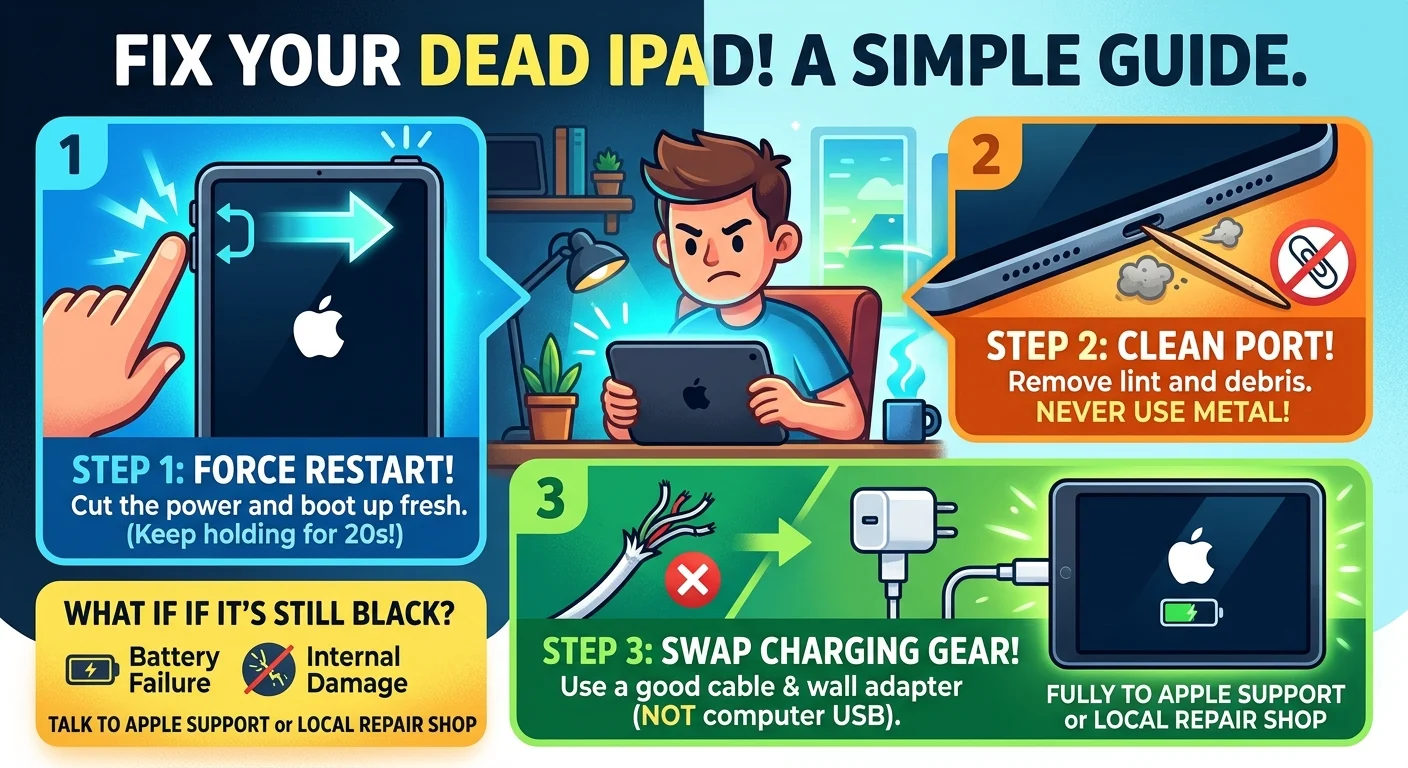
Step 1. Force restart your iPad
This is the holy grail of iPad troubleshooting. A force restart cuts the power and forces the operating system to boot up fresh. It fixes a surprising number of black screen issues.
- For iPads without a Home button: Press and quickly release the Volume Up button. Press and quickly release the Volume Down button. Then press and hold the Top Power button until you see the Apple logo.
- For iPads with a Home button: Press and hold both the Home button and the Top Power button at the same time. Keep holding them until the Apple logo appears.
Do not let go too early. Sometimes it takes a full 20 seconds of holding that button before the logo finally pops up.
Step 2. Inspect and clean the charging port
If the force restart did nothing, your iPad might just be incredibly dead. But why didn’t it charge when you plugged it in? Take a close look at the charging port.
Lint, dust, and debris love to hide in there. When enough junk builds up, the charging cable cannot make a solid connection. Grab a wooden toothpick or a clean plastic dental pick. Gently scrape the inside of the port.
Never use metal tools like paperclips. You will ruin the delicate pins inside and guarantee an expensive trip to the Apple Store.
Step 3. Swap out your charging gear
We all have that one frayed charging cable we refuse to throw away. Now is the time to toss it. Cheap gas station cables are notorious for failing silently.
Try a completely different Apple-certified cable and a different wall adapter. Plug the iPad directly into a wall outlet rather than a computer USB port or a power strip. Computers often do not output enough juice to wake a deeply dead iPad battery, which is why we often recommend professional IT consulting for persistent hardware power issues.
Step 4. Try the long charge
Batteries can enter a deep discharge state. When this happens, the iPad will not even show the low battery icon when you plug it in. It just stays completely black.
Plug your iPad in using good gear and walk away. Leave it alone for at least an hour. Give the battery time to pull enough trickle charge to wake the screen.
What if your iPad still will not turn on?
You tried the hard reset. You cleaned the port. You swapped the cables. If your screen is still black, you might be dealing with a hardware failure.
The battery itself could be totally dead. Or the internal display connector might have come loose if you recently dropped the device. At this point, your best bet is reaching out to Apple Support or a trusted local repair shop. They can run diagnostics to see if the logic board is still responding.
How to prevent this from happening again
Once you get your tablet working again, you want to keep it that way. Stop letting your battery drain all the way down to zero. That puts unnecessary strain on the lithium-ion cells.
Stick to high-quality charging accessories. Keep your software updated. A little basic maintenance goes a long way in keeping your iPad out of a coma.