(302) 262 8484
This Massive New Windows Update Is Causing Blue Screens and Boot Loops

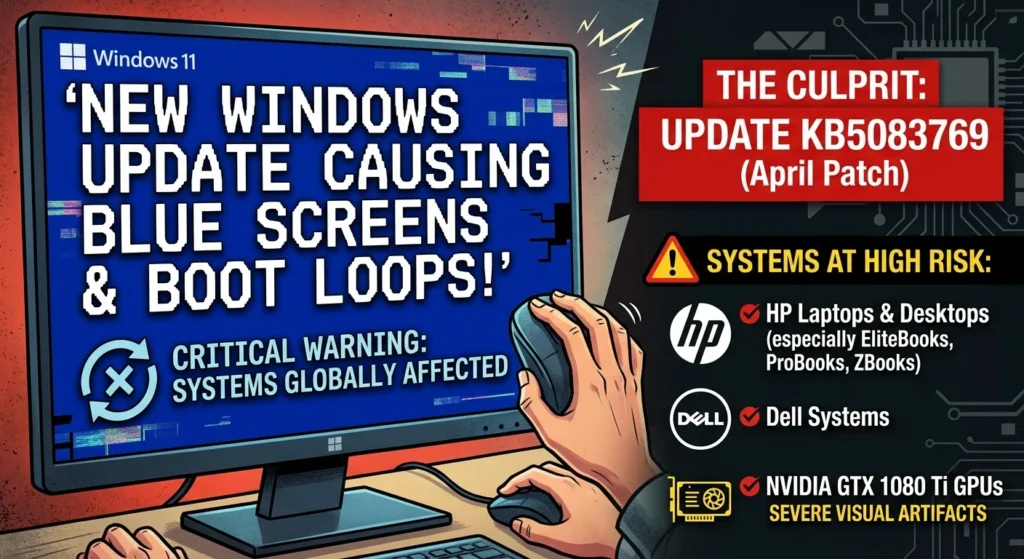
If you recently clicked that tempting ‘Update and Restart’ button on your PC, you might be in for a nasty surprise. A massive new Windows update causing blue screens and endless boot loops is currently wreaking havoc on systems worldwide. From sudden black screen freezes to bizarre visual glitches, users are waking up to machines that simply refuse to cooperate.
The Culprit Behind the Chaos: Why the Latest Windows Update Is Causing Blue Screens
Here’s the thing. The main offender is the April patch, specifically update KB5083769. While Microsoft designed it to patch security vulnerabilities, it has instead delivered a headache of epic proportions for a significant number of users.
This is not an isolated incident either. Earlier this year, the January update (KB5074109) also triggered widespread boot failures with stop codes like UNMOUNTABLE_BOOT_VOLUME. It seems Microsoft is having a rough run with stability lately.
If you are running Windows 11, you might find yourself trapped in a loop of Automatic Repair or staring at distorted, mosaic-like graphics before your system completely gives up. It is a frustrating reminder of how fragile our digital workspaces can be.
Which Systems Are Hit Hardest by the Windows Update Causing Blue Screens?
It turns out that not everyone is suffering equally. Reports show that certain configurations are getting absolutely hammered by this release. If you own any of the following, you need to be on high alert.
- HP laptops and desktops: Specifically high-end business models like HP EliteBooks, ProBooks, and ZBook workstations.
- Dell systems: Various Dell desktops and laptops have reported similar sudden freezes.
- NVIDIA GTX 1080 Ti GPUs: Users with this specific legacy graphics card are reporting severe visual artifacts followed by hard crashes.
Now, this is where it matters. It is not just the classic blue screen you have to worry about this time. HP users are reporting that a buggy BIOS firmware update, pushed automatically alongside the Windows update, is booting PCs directly into the BitLocker recovery screen.
Even if you enter the correct recovery key, the system fails to recognize it. You get thrown right back into the same loop. It is an incredibly frustrating cycle that leaves your expensive workstation completely unusable, which is why many firms now rely on Proactive IT Monitoring for Small Business to catch these firmware conflicts early.
Is This a Global Disaster or a Few Isolated Incidents?
So what does that mean for you? If you read some forums, you will find tech analysts claiming the issue is overblown, chalking up the reports to a tiny handful of users. But talk to any corporate IT administrator managing a fleet of HP devices, and they will tell you a very different story about the importance of having reliable IT Infrastructure for Small Businesses to manage such widespread deployment issues.
The reality lies somewhere in the middle. While it might not crash every single PC on the planet, the combination of BitLocker lockouts and driver conflicts makes this a risk you probably do not want to take.
How to Fix a Windows Update Causing Blue Screens
If you have already fallen victim to this update, do not panic. You do not necessarily have to wipe your hard drive and start from scratch. Here is a quick guide on how to reclaim your PC.
Step-by-Step Recovery Guide
- Boot into Windows Recovery Environment (WinRE): If your computer fails to boot normally three times, Windows should automatically load this screen. If not, hold down the power button as the PC starts up to force a hard shutdown, and repeat this three times.
- Uninstall the problematic update: Once in WinRE, navigate to Troubleshoot, select Advanced Options, and click on Uninstall Updates. Choose the option to uninstall the latest quality update.
- Use System Restore: If uninstalling the update does not work, go back to the Advanced Options menu and select System Restore. Choose a restore point from before you installed the April update.
- Pause future updates: Once you get back into your desktop, immediately go to your Settings, select Windows Update, and pause updates for at least seven days. This gives Microsoft and hardware vendors enough time to roll out a proper hotfix.
If you want to make sure your system is fully optimized and safe from future update disasters, see our guide on [how to back up Windows safely] before you touch another update button.
The Good News: Automatic Driver Rollbacks Are Coming
If there is any silver lining to this mess, it is that Microsoft is actively working on a long-term solution to prevent these nightmares. They are currently testing a cloud-initiated driver recovery feature. This will allow Windows 11 to automatically roll back problematic drivers if it detects a startup failure.
It is a massive step forward for system stability. But until that feature is fully live, the burden of troubleshooting still falls on your shoulders.