(302) 262 8484
Your Multi-Monitor Setup Is Throttling Your GPU (And How to Fix It)

Why Your Multi-Monitor Setup Is Throttling Your GPU at Idle
If you are running a gorgeous dual-screen or triple-screen battlestation, you might want to sit down. Your multi-monitor setup is throttling your GPU, and it is doing it in ways you probably do not even realize. While having Discord or a YouTube video open on your side screen is incredibly convenient, that extra glass is quietly stealing your graphics card‘s precious resources, driving up your electric bill, and tanking your gaming frames.
When you connect multiple monitors, especially with mixed refresh rates like a 144Hz gaming monitor paired with a standard 60Hz side panel, your GPU gets confused. To prevent screen flickering or synchronization issues, the graphics driver often pins the GPU memory clock to its maximum performance state. This is known as the P0 state, and it is a major power hog.
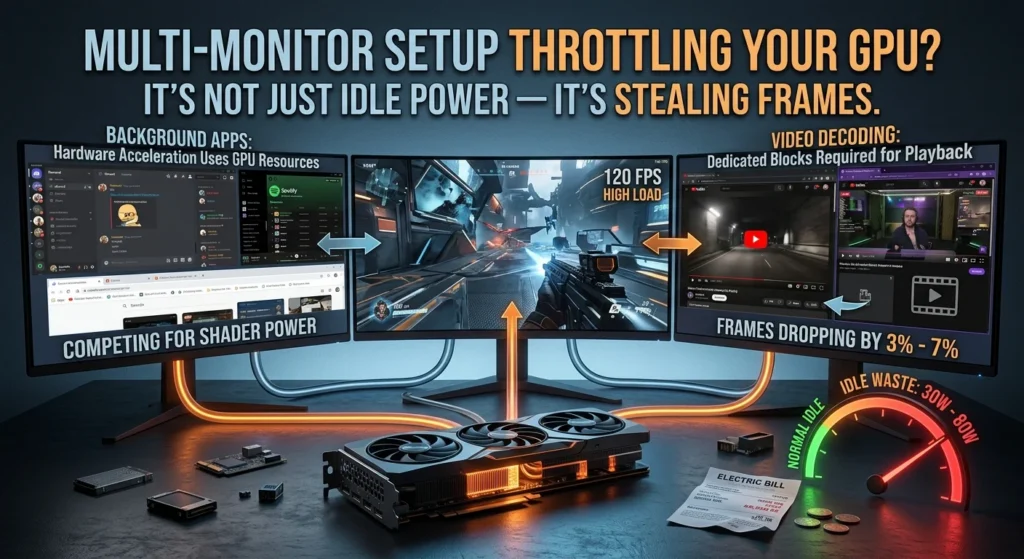
Instead of downclocking to save power when you are just reading an article, your GPU runs at full throttle. It sips 30 to 80 watts of power just displaying a static desktop. That is not just wasteful, it also keeps your GPU running hot and loud for absolutely no reason.
The Hidden Performance Cost of Secondary Screens
Now, this is where it matters for gamers and creators. Many people assume that if a game is running in full-screen mode, the second monitor has zero impact on frame rates. That is simply not true.
While a completely static desktop on a secondary screen only eats about 1% of your GPU resources, the moment you open anything active, things change. Let’s look at what actually happens when you run apps on that secondary screen:
- Hardware Acceleration: Apps like Discord, Spotify, and Chrome use your GPU to render their interfaces. This means they actively compete with your game for shader resources.
- Video Decoding: If you have a Twitch stream or YouTube video playing on the side, your GPU has to dedicate hardware decoding blocks to keep that video running. This can drop your gaming frame rates by 3% to 7%.
- VRAM Allocation: Every extra pixel requires space in your graphics card’s memory. If you are pairing a 4K main monitor with a secondary screen, you are eating up valuable VRAM that your game needs to load high-resolution textures, which is why it is important to know how to choose the correct monitor for your setup.
How Mismatched Refresh Rates Make Your Multi-Monitor Setup Worse
Here’s the thing about mixing a high-refresh gaming monitor with a cheap secondary display. Windows often struggles to synchronize these different timing intervals.
When you have a video or animation playing on the slower screen, Windows can sometimes cap your main gaming monitor’s refresh rate to match it. This causes micro-stuttering that ruins your smooth gameplay. It is a frustrating issue that makes a high-end rig feel sluggish, but if you find your display is acting up beyond just refresh rate issues, you may need to fix a laptop screen that keeps randomly flickering.
How to Stop Your Multi-Monitor Setup from Throttling Your GPU
So what does that mean for you? Do you have to throw away your second screen and go back to the dark ages of Alt-Tabbing? Absolutely not. You just need to configure your system properly.
Here are the best ways to reclaim your GPU’s performance:
- Disable Hardware Acceleration: Go into the settings of Discord, Spotify, and your web browsers and turn off hardware acceleration. This forces your CPU to handle these apps, leaving your GPU completely free to focus on your game.
- Match Your Refresh Rates: If possible, try to run monitors that share divisible refresh rates, like 60Hz and 120Hz, or 120Hz and 240Hz, to help the GPU downclock properly.
- Use Your Integrated GPU: If your CPU has integrated graphics, plug your secondary monitor directly into your motherboard’s HDMI or DisplayPort instead of your dedicated graphics card. This completely offloads the secondary screen’s work from your main gaming GPU.
- Set Up Display Profiles: Use software to quickly disable your secondary monitor when launching intensive games, or see our guide on [how to optimize Windows for gaming] to squeeze out every last frame.
The Final Verdict on Multi-Monitor Setups
At the end of the day, multi-monitor setups are incredible for productivity. But simply plugging in extra screens without tuning them is a recipe for wasted power and lost performance. By making a few quick setting adjustments, you can keep your extra workspace without letting it throttle your graphics card.