(302) 262 8484
The Hidden Mac Feature Most People Miss: Unlocking the Power of the Option Key

You probably use your Mac every single day, navigating through Finder, typing up documents, and switching between apps. But here is a secret: you are likely only using a fraction of what your machine can actually do. There is a hidden Mac feature most people miss, and it does not require downloading sketchy third-party utility software or digging deep into Terminal commands. It is sitting right under your left thumb.
We are talking about the Option key. To the casual user, it is just a modifier key used for typing special characters. But to power users, the Option key is a magic wand that alters menus, bypasses polite confirmation prompts, and unlocks a secret layer of macOS that Apple deliberately keeps out of sight to maintain its clean aesthetic.
The Hidden Mac Feature Most People Miss: Unlocking the Secret Option Key Menus
Apple’s design philosophy values simplicity above almost everything else. Because of this, the interface is stripped of clutter, which means many advanced tools are tucked behind a simple modifier. By holding down the Option key while clicking on menus or icons, you completely change how your operating system behaves.
The Apple Menu Transformation
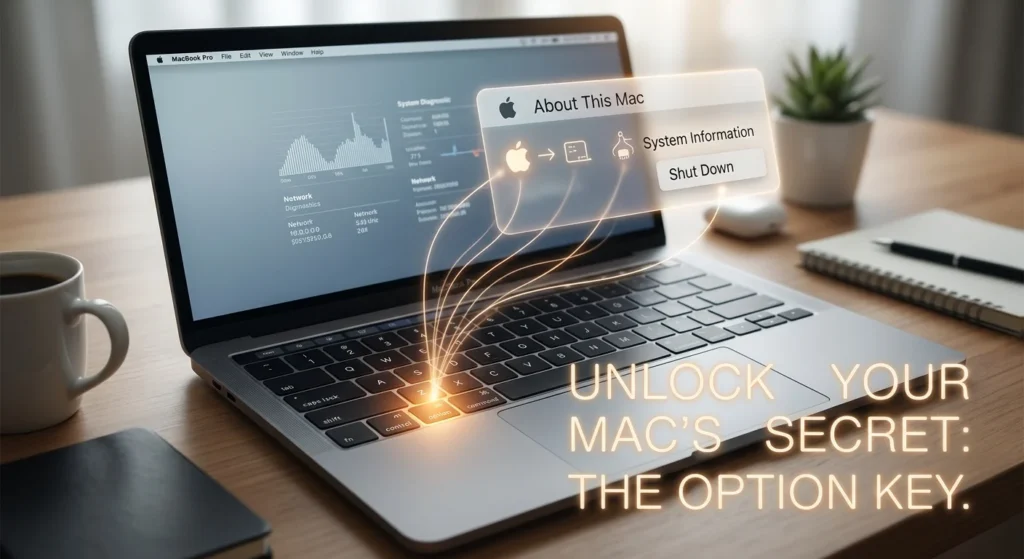
Click the Apple logo in the top-left corner of your screen, and you will see the standard options. Now, hold down the Option key and watch that menu change in real time. You will notice that “About This Mac” instantly transforms into “System Information,” giving you direct access to deep technical specs and battery cycle counts without making you click through multiple windows.
Even better, holding Option when selecting Restart, Shut Down, or Log Out completely bypasses the standard confirmation dialog box. If you are in a rush and need your machine to shut down immediately, this simple trick saves you that extra click and the annoying countdown timer, though if your computer is consistently sluggish, you may need professional PC repair in Delaware to address underlying hardware issues.
The Wi-Fi and Bluetooth Diagnostics Shortcut
Clicking your Wi-Fi icon in the menu bar shows you a list of nearby networks. If you hold down the Option key and then click that same Wi-Fi icon, you unlock a massive diagnostic panel. Suddenly, you can see your exact IP address, router address, BSSID, signal strength, and noise levels.
This is incredibly useful if your internet is acting up and you need to troubleshoot your connection. The same trick works for the Bluetooth menu, revealing advanced device details and active connection strengths that help you pinpoint why your wireless headphones keep cutting out, which is often easier than seeking out mobile repair services in Delaware for intermittent connectivity.
The File Management Superpowers
Managing files is another area where the Option key shines. Windows switchers often complain about the lack of a native cut-and-paste file option on Mac, but it actually exists. Copy a file normally using Command + C, then navigate to your destination folder and press Command + Option + V. Instead of pasting a copy, macOS will move the original file directly to the new location.
Here are a few other Finder shortcuts that will change how you manage files:
- Option + Drag: Dragging a file normally moves it, but holding Option while dragging instantly creates an exact copy in the new folder.
- Option in the File Menu: Open the File menu in Finder and hold Option to watch “Duplicate” turn into “Save As,” a classic feature many users think Apple removed years ago.
- Option + Volume Icon: Click the sound icon in your menu bar while holding Option to instantly select your audio input and output devices without opening System Settings.
Other Underrated Mac Features You Should Be Using
While the Option key is the ultimate hidden productivity booster, there are other built-in features that go completely unnoticed by the vast majority of Mac owners.
Quick Look Editing
Most users know that pressing the Spacebar on a selected file opens Quick Look, allowing you to preview images, PDFs, and videos instantly. Now, this is where it matters: you do not have to open the actual app to make quick edits. When you open Quick Look, you will see a markup pen icon in the top right corner. Click it, and you can crop, rotate, sign PDFs, or draw on images directly inside the preview window, saving you from launching heavy editing apps.
Universal Clipboard
If you own an iPhone and a Mac, this is a feature you cannot afford to ignore. As long as both devices are signed into the same iCloud account and have Bluetooth enabled, you can copy text, images, or files on your iPhone and paste them directly onto your Mac. It feels like magic, yet it requires absolutely zero setup.
How to Make These Hidden Features Part of Your Daily Workflow
So what does that mean for you? It means you can stop wasting time on repetitive clicks and clunky workarounds. Start by forcing yourself to use just one or two of these shortcuts today. Once they become muscle memory, you will wonder how you ever managed to get work done without them.
The next time your Mac feels like it is slowing you down, remember that the tools you need are already built right into the system. If you want to speed up your machine even further, see our guide on how to speed up a new Mac. You just have to know which keys to press to unlock your computer’s true potential.