(302) 262 8484
What to do when your C drive is suddenly totally full

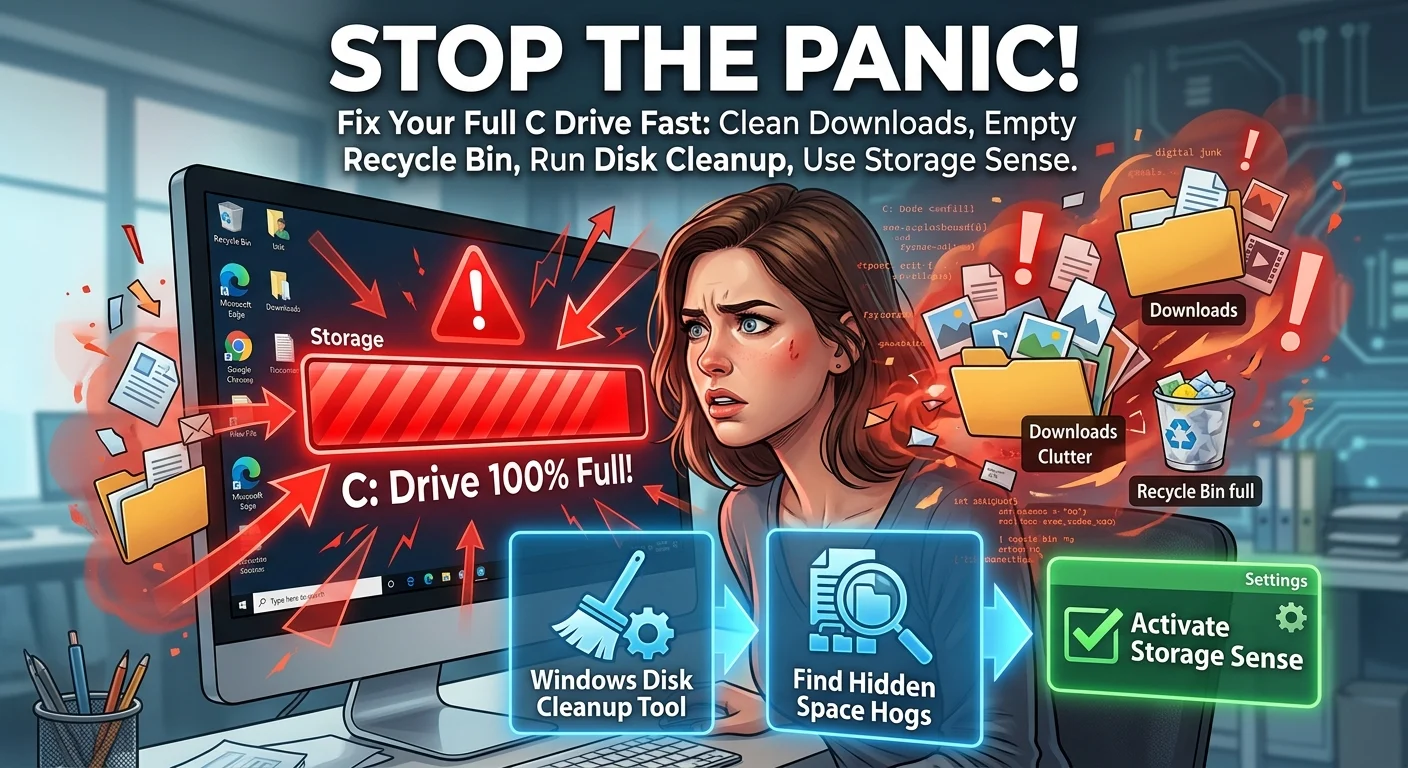
You turn on your computer, try to save a file, and get hit with a nasty red storage bar. Finding out your C drive is suddenly totally full is a frustrating and honestly panic-inducing moment. Before you start randomly deleting system files and breaking Windows, take a breath. We can fix this pretty quickly.
Most of the time, a maxed-out hard drive is just the result of temporary files piling up or a rogue application hoarding data. You rarely need to buy a new hard drive to solve this problem.
Let’s start with the fastest ways to reclaim gigabytes of space right now. You do not need any special technical skills for these first few steps, but if you continue to have issues, professional PC repair in Delaware can help.
Clear out the obvious junk first
Most people completely forget about their Downloads folder. It eventually becomes a massive graveyard of old PDF menus, heavy software installers, and random zip files. Go into that folder, sort your files by size, and delete anything you do not actively need.
Next, empty your Recycle Bin. Deleting a file does not actually remove it from your drive until you empty the trash. Doing just these two simple things often frees up five to ten gigabytes instantly.
Run the Windows Disk Cleanup tool
Windows has a built-in tool that is perfect for this exact situation. Search for Disk Cleanup in your taskbar. Select your C drive and let it scan your system.
Make sure you click the button that says Clean up system files. This is where the real magic happens. Windows loves to hoard old update files just in case you want to roll back to a previous version.
If your PC is running fine right now, check the box for Windows Update Cleanup and nuke those files. You do not need them, and they take up a massive amount of room.
Find the hidden space hogs
If you have cleared the basics and your drive is still glowing red, you need a visual map of your storage. Windows File Explorer is honestly terrible at showing you folder sizes.
I highly recommend downloading a free visualizer tool like WizTree or TreeSize Free. These programs scan your drive in seconds and show you exactly which folders are taking up the most room.
Usually, you will spot a massive game installation you forgot about or a video editing cache that ballooned out of control. Once you can see the problem, you can safely delete the offending files.
Stop your drive from filling up again
Cleaning up the mess is only half the battle. You need to make sure your computer stops hoarding data behind your back.
Windows has a fantastic feature called Storage Sense. It automatically deletes temporary files and empties your Recycle Bin when your disk space gets low.
Here is how to turn it on:
- Open your Windows Settings app.
- Click on System and then Storage.
- Toggle Storage Sense to the On position.
- Click into the settings to customize how often it runs.
Set it to run whenever disk space is low. It is a set-it-and-forget-it solution that works flawlessly.
A full hard drive feels like a disaster, but it is usually just a minor inconvenience. Keep an eye on your heavy files, move large media to an external drive, and let Storage Sense do the heavy lifting. See our guide on [how to upgrade your PC storage] if you truly run out of physical space. Otherwise, you will be back to working normally in no time.