(302) 262 8484
Your Android Navigation Buttons Can Secretly Do This

If you are still using the classic three-button layout on your phone, you might think those little icons at the bottom of your screen are just for getting around. But here is the thing: your Android navigation buttons can secretly do a lot more than just take you home or go back. From instant app-switching to custom shortcuts, they can be turned into a true powerhouse command center.
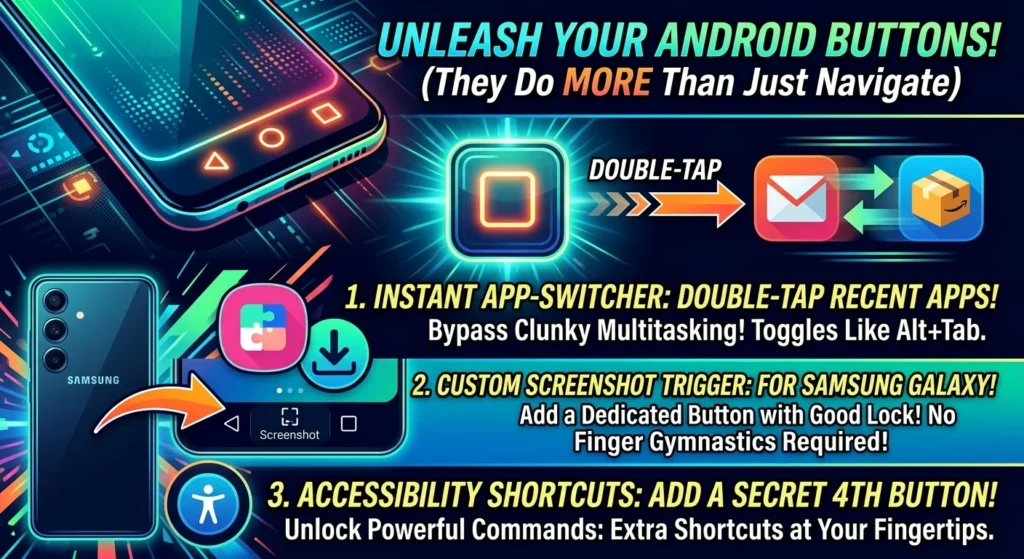
The Instant App-Switcher: Double-Tap the Square
We have all been there. You are copying a tracking number from an email to track a package, or grabbing a verification code from your messages to log into an account. Normally, you tap the Recents button, wait for the multitasking screen to load, find the other app, and tap it. It works, but it is slow.
You can completely bypass that clunky multitasking screen. Double-tap the square Recents button on your navigation bar, and your phone will instantly toggle back and forth between your two most recently used apps.
It works exactly like Alt+Tab on a desktop computer. It is fast, fluid, and once it becomes muscle memory, you will wonder how you ever lived without it.
Add a Custom Screenshot Trigger Without the Finger Gymnastics
Taking a screenshot usually requires a clumsy combination of the power and volume buttons. If you do this dozens of times a day, it gets old fast. If you own a Samsung Galaxy phone, you can actually add a dedicated screenshot button directly to your navigation bar.
To do this, you will need a free tool from Samsung called Good Lock, which you can download from the Galaxy Store. Inside Good Lock, look for a module called NavStar. This is where the magic happens.
Once you open NavStar, you can create a custom layout and add a ‘Screen Capture’ button right next to your standard Home and Back buttons. One tap, and your screen is saved. No physical buttons required.
The Secret Fourth Button: Accessibility Shortcuts
Did you know you can add a permanent fourth button to your Android navigation buttons? Many people assume accessibility features are only for those with visual or hearing impairments, but they can actually serve as incredible productivity shortcuts for anyone.
By diving into your phone’s accessibility settings, you can enable an extra icon that sits right next to your standard navigation layout. You can map this button to perform specific tasks instantly:
- Magnifier: Instantly zoom in on any part of your screen.
- Select to Speak: Have your phone read aloud any text you highlight.
- Extra Dim: Drop your screen brightness below the standard minimum for night reading.
How to Customize Your Android Navigation Buttons
If you want to get the most out of your navigation setup, you need to know where these settings live. Depending on your phone’s manufacturer, finding them is usually pretty straightforward.
For Google Pixel and Stock Android Devices
If you are using a Pixel, your options are built right into the system settings. Here is how to access them:
- Open your Settings app.
- Scroll down and tap on System, then select Gestures.
- Tap on System Navigation to switch between gestures and the classic three-button layout.
For Samsung Galaxy Devices
Samsung gives you a bit more freedom to play around with the layout right out of the box. You can easily swap the position of the Back and Recents buttons to match your preference.
- Go to Settings and tap on Display.
- Scroll down and select Navigation Bar.
- Choose your preferred button order or customize your swipe gestures from here.
If you are looking to completely declutter your screen, check out our guide on [how to hide the navigation bar on Android] to switch to modern gesture navigation instead.
So What Does That Mean for You?
Gesture navigation might be the default trend these days, but the classic button layout is far from dead. In fact, for power users who value speed and customization, keeping those three little buttons at the bottom of the screen is often the superior choice.
Give these tricks a try for a couple of days. Once you start double-tapping to switch apps and using custom shortcuts, you will realize just how much potential was hiding at the bottom of your screen all along.