(302) 262 8484
Your Word Document Is Secretly A ZIP File

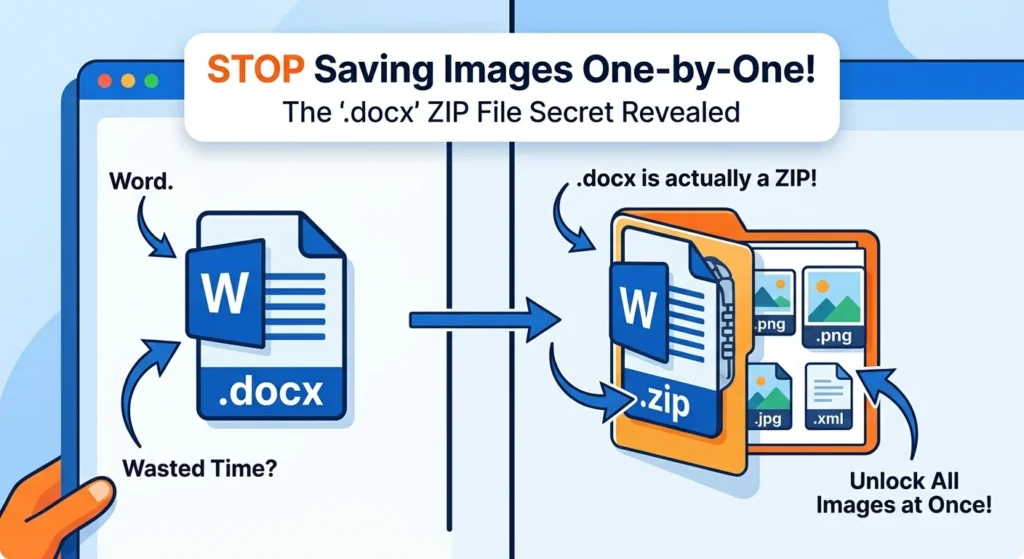
If you've ever wasted twenty minutes right-clicking every single image in a Microsoft Word document just to save them to your desktop, you've been doing it the hard way. Here's the secret. Your Word document is secretly a ZIP file in disguise. Underneath that familiar blue icon and the `.docx` extension lies a compressed archive packed with XML files and raw media assets. Once you know how to crack it open, you'll unlock a completely new way to manage your files.
This isn't a glitch. And it's definitely not a hack. It's actually the core design of modern office documents. Whether you're dealing with a text document, a spreadsheet, or a presentation slide, the files you use every day are hiding a massive secret.
Why Your Word Document Is Secretly A ZIP File
To get why a docx is a zip file, we have to rewind to 2007. Before then, Microsoft Word saved files in the old `.doc` format. Those binary files were a mess, often leading to data loss that required professional IT consulting to recover. They corrupted easily, and they were incredibly difficult for other programs to read, which is why we always recommend robust small business cybersecurity protection for your critical documents.
Then Microsoft introduced Office 2007. They shifted to the Office Open XML (OOXML) standard. That extra 'X' at the end of `.docx`, `.xlsx`, and `.pptx`? It stands for XML. Instead of saving everything as a single, unreadable block of binary code, Microsoft decided to break your document's components down into separate XML files. To keep these files organized and stop them from cluttering up your hard drive, they package them all neatly inside a ZIP archive.
So every time you hit save, Word compresses the text, the formatting rules, and your embedded images. Then it slaps a `.docx` extension on the outside. But under the hood? It stays a standard ZIP folder.
How to Peek Inside Your Word Document
Here is where it gets practical. You can prove this to yourself right now in about ten seconds. All you need is a computer and any standard `.docx` file. Here is exactly how to do it:
- Find your file: Locate any Word document on your computer. Just make sure you can see the file extensions (like `.docx`) in your file explorer.
- Change the extension: Right-click the file. Select 'Rename', and change the `.docx` at the end to `.zip`.
- Confirm the change: Your operating system might throw a warning that changing the extension could make the file unstable. Go ahead and click 'Yes' anyway.
- Unzip it: Double-click your newly minted ZIP file, or run it through your usual unzipping tool.
Just like that, your single document transforms into a structured folder system. If you want to change it back, simply rename the extension from `.zip` to `.docx`. It'll open up in Microsoft Word just like before.
What You Will Find Inside
Once you extract the contents, you'll see a few specific folders and files that actually make up your document. Here's a quick breakdown of what's hiding in there:
- `[Content_Types].xml`: This file tells Word exactly what kinds of data are stored inside the archive. Think images, XML text, and layouts—the same components that make up the professional website solutions we build for our clients.
- `_rels/`: A folder full of relationship files. These tell the system how all the different parts of the document connect to each other.
- `word/`: This is where the magic happens. Inside, you'll find `document.xml`. That file contains all the actual text of your document, wrapped up in XML tags.
- `word/media/`: The holy grail for content creators. This folder houses every single image, icon, or video you embedded in the document. And they are all saved in their original, uncompressed format.
Why This Matters For Your Daily Workflow
So what does this mean for you? Knowing that your Word document is secretly a ZIP file isn't just a neat party trick. It's a highly practical tool that will save you hours of frustration.
Think about the last time someone sent you a massive 50-page guide and asked you to pull out all the high-resolution images. Instead of opening the document, right-clicking each image, and saving them one by one, you just change the file extension to `.zip`. Extract the folder. Copy everything from the `word/media/` folder in seconds. You get the original, full-resolution files without losing any quality.
This structure also makes it incredibly easy to recover corrupted files. If a Word document refuses to open because of a formatting error, you aren't out of luck. You can unzip it, open the `document.xml` file in a basic text editor, and rescue your text right from the wreckage. If you want to master more document hacks, see our guide on [recovering corrupted files].
Next time you're struggling to extract media or salvage a broken file, remember this trick. Your files are way more accessible than they seem. And the solution is as simple as renaming a file extension.